Last Updated on May 25, 2026
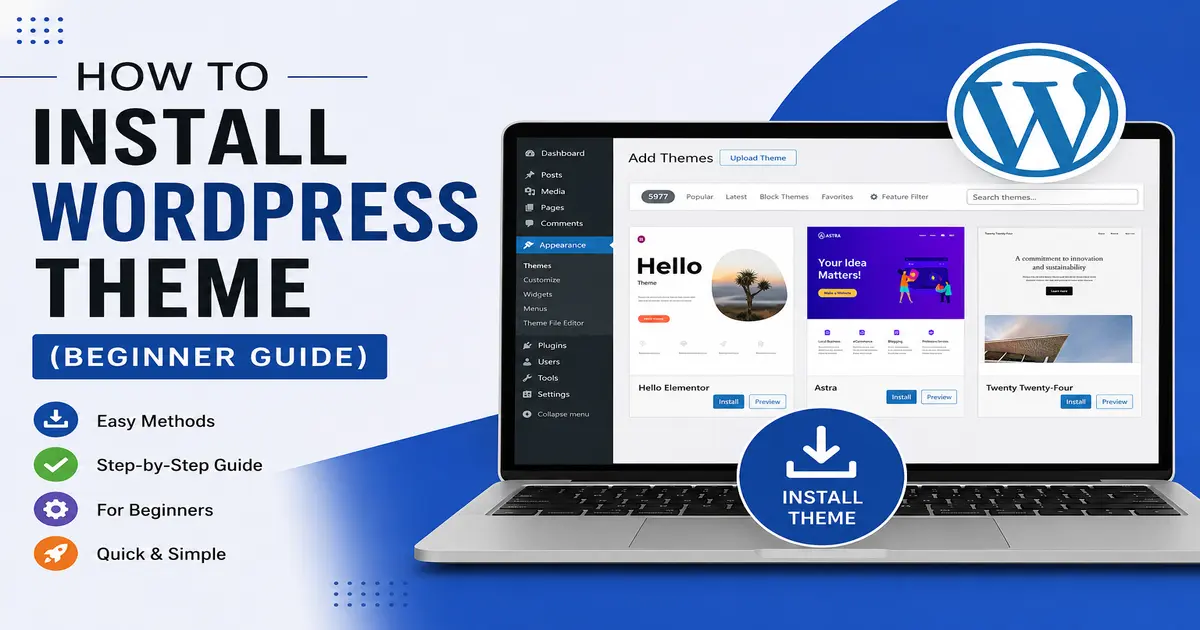
If you are starting a new WordPress website, one of the first things you need to learn is How to Install WordPress Theme. A WordPress theme controls the design, layout, colors, fonts, and overall appearance of your website.
The good news is that WordPress makes theme installation very simple, even for beginners. You do not need coding knowledge to install and activate a theme.
In this beginner-friendly guide, you will learn different methods to install a WordPress theme step by step. Whether you want to install a free theme from the WordPress directory or upload a premium theme manually, this tutorial will help you.
Let’s get started.
What is a WordPress Theme?
A WordPress theme is a collection of files that changes the design and style of your website. Themes help you create different types of websites, such as:
- Business websites
- Blogs
- Portfolio websites
- Online stores
- News websites
- Educational websites
There are thousands of free and premium WordPress themes available. You can choose one based on your website goals and design preferences.
Things to Do Before Installing a WordPress Theme
Before you install a new theme, keep these important points in mind:
- Backup your website if it is already live
- Choose a responsive and mobile-friendly theme
- Check theme reviews and ratings
- Make sure the theme is compatible with the latest WordPress version
- Download themes only from trusted sources
Method 1: How to Install WordPress Theme from WordPress Dashboard
This is the easiest method for beginners. You can install free themes directly from the WordPress theme directory.
Step 1: Login to WordPress Admin Panel
Open your WordPress login page and enter your username and password.
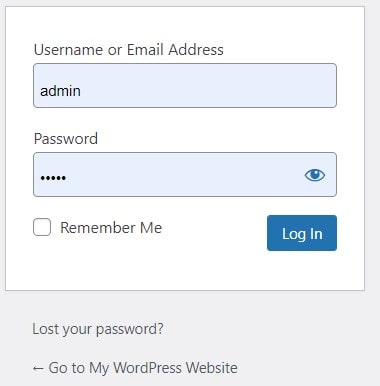
Usually, the login URL looks like this:
yourwebsite.com/wp-admin
Step 2: Go to the Themes Section
After login, go to:
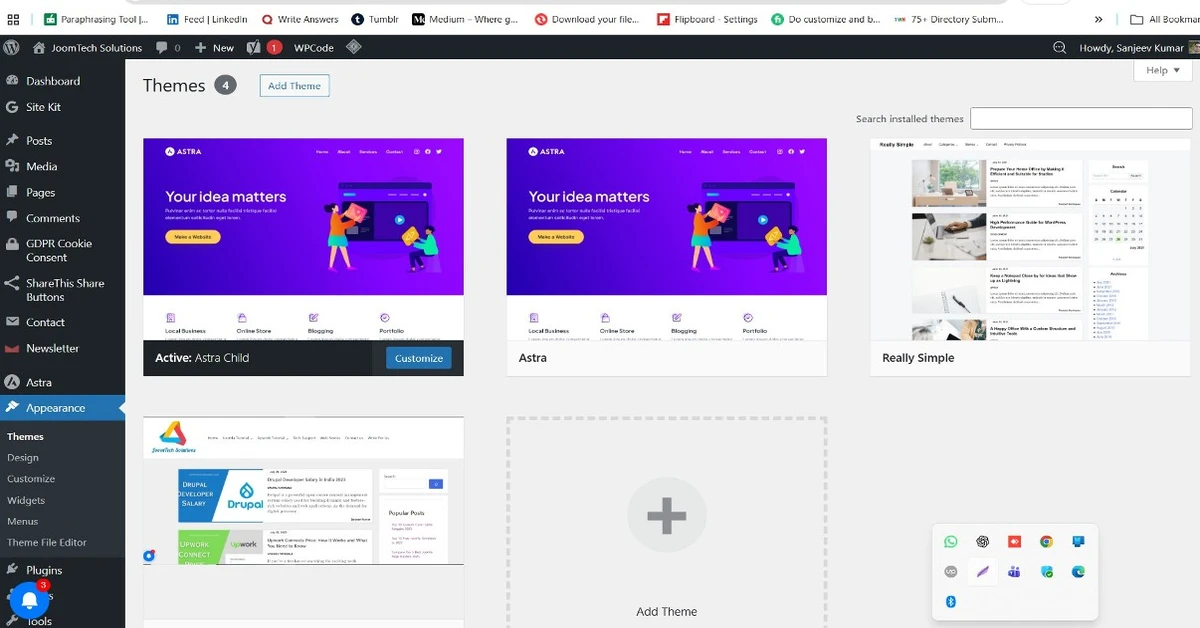
Appearance → Themes
You will see all installed themes on your website.
Step 3: Click on Add New
Click the Add New button at the top of the page.
Now WordPress will show thousands of free themes.
Step 4: Search for a Theme
Use the search bar to find a theme.
For example, you can search:
- Astra
- GeneratePress
- OceanWP
- Neve
- Hello Elementor
Step 5: Install the Theme
When you find the theme you want, click the Install button.
WordPress will automatically download and install the theme.
Step 6: Activate the Theme
After installation, click the Activate button.
Your new WordPress theme is now live on your website.
Method 2: How to Upload and Install a Premium WordPress Theme
If you purchased a premium theme from websites like ThemeForest or TemplateMonster, you need to upload the theme manually.
Step 1: Download the Theme ZIP File
Download the theme package from the provider’s website.
Make sure you have the .zip theme file.
Step 2: Go to Add New Theme
In the WordPress dashboard, go to:
Appearance → Themes → Add New
Step 3: Click Upload Theme
At the top, click the Upload Theme button.

Step 4: Choose Theme ZIP File
Click Choose File and select the theme ZIP file from your computer.
Step 5: Install Theme
Click the Install Now button.
WordPress will upload and install the theme.
Step 6: Activate Theme
Once installation is complete, click Activate.
Your premium theme is now installed successfully.
Method 3: How to Install WordPress Theme Using FTP
This method is useful if:
- Your theme file is very large
- You get upload limit errors
- Manual upload is not working
Step 1: Extract Theme ZIP File
Extract the downloaded ZIP file on your computer.
Step 2: Open FTP Client
Use an FTP software like FileZilla.
Connect your hosting account using FTP credentials.
Step 3: Upload Theme Folder
Go to:
wp-content/themes/
Upload the extracted theme folder there.
Step 4: Activate Theme from WordPress Dashboard
Now go back to:
Appearance → Themes
You will see the uploaded theme.
Click Activate.
How to Customize Your WordPress Theme
After installing the theme, you can customize it according to your needs.
Go to:
Appearance → Customize
Here you can change:
- Logo
- Colors
- Typography
- Menus
- Homepage settings
- Widgets
- Header and footer
Some premium themes also include advanced customization options.
Common WordPress Theme Installation Errors
1. Missing Stylesheet Error
This error usually happens when you upload the wrong ZIP file.
Solution: Upload only the actual theme ZIP file, not the full package downloaded from the marketplace.
2. Theme Upload Failed
This may happen because of file upload size limits.
Solution:
- Increase the upload limit in hosting
- Use FTP method
3. White Screen After Activation
This can happen because of plugin conflicts or PHP issues.
Solution:
- Deactivate plugins
- Switch to default theme
- Contact hosting support
Best Tips for Choosing a WordPress Theme
Choosing the right theme is very important for website performance and SEO.
Choose Lightweight Themes
Fast-loading themes improve user experience and search engine rankings.
Use Responsive Themes
Your website should work perfectly on mobile devices.
Check SEO Compatibility
Choose themes built with clean and SEO-friendly code.
Read User Reviews
Always check ratings and reviews before installing a theme.
Choose Regularly Updated Themes
Updated themes are more secure and compatible with the latest WordPress version.
Related WordPress Theme Installation Guides
Depending on your setup, the process of installing a WordPress theme can be slightly different. If you are working on a local development environment or using cPanel hosting, check these detailed step-by-step tutorials:
These guides will help you install WordPress themes correctly based on your hosting or development environment.
Final Thoughts
Now you know how to install WordPress Theme using different methods. For beginners, installing themes directly from the WordPress dashboard is the easiest option.
If you are using a premium theme, manual upload works perfectly. Advanced users can also use FTP for large theme files.
Always choose a fast, responsive, and SEO-friendly theme for the best website performance.
With the right theme, you can create a professional-looking WordPress website without coding knowledge.
Helpful Resources for WordPress Users
- Official WordPress Theme Directory
- Official WordPress Theme Documentation
- Download WordPress
- Download FileZilla FTP Client
- Download XAMPP for Localhost Setup
Frequently Asked Questions
Can I change my WordPress theme later?
Yes, you can change your WordPress theme anytime without losing your content. However, some design settings may change.
Are free WordPress themes safe?
Yes, themes downloaded from the official WordPress theme directory are generally safe and secure.
Do I need coding knowledge to install a WordPress theme?
No, WordPress theme installation is beginner-friendly and does not require coding skills.
Which is the best free WordPress theme?
Popular free themes include Astra, GeneratePress, OceanWP, and Neve.
Why is my WordPress theme not uploading?
This usually happens because of incorrect ZIP files or server upload size limits.
Stay updated with our latest news, special offers, and exclusive updates directly in your inbox.