Last Updated on May 30, 2026
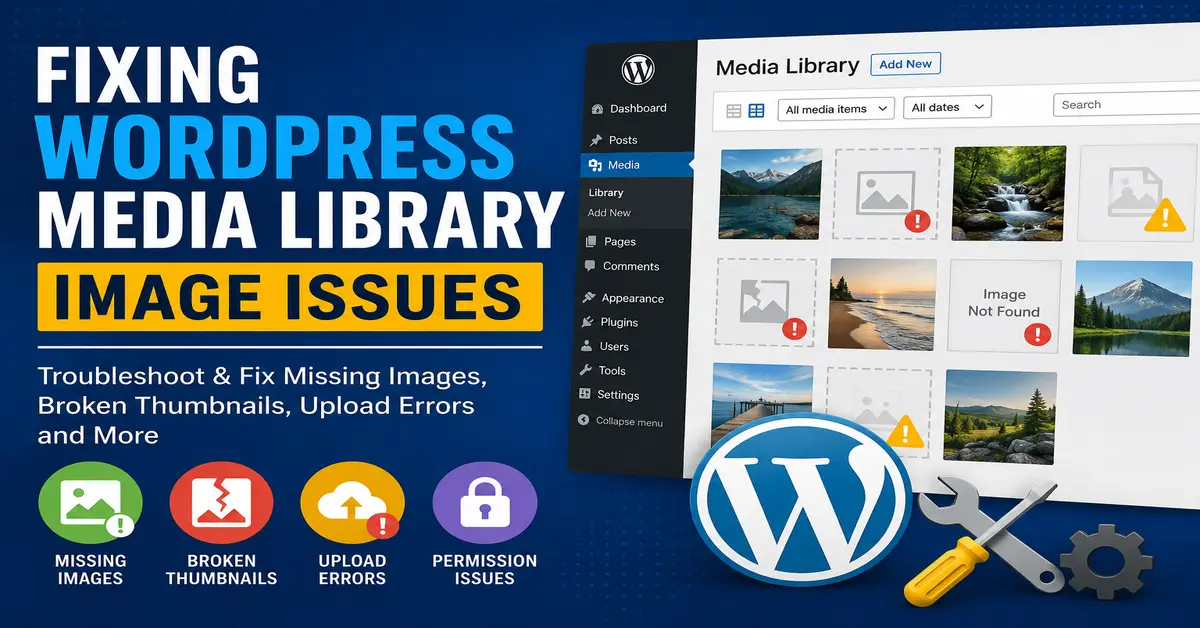
The WordPress Media Library is one of the most important features of any WordPress website. It allows users to efficiently upload, manage, and organize images, videos, PDFs, and other media files. However, many website owners encounter frustrating problems such as missing images, broken thumbnails, upload errors, or images not displaying correctly in the Media Library.
If you are experiencing these issues, don’t worry. This comprehensive guide on Fixing WordPress Media Library Image Issues will walk you through the most common causes and practical solutions to get your media files working properly again.
Media Library image problems can negatively affect your website’s appearance and user experience. If you’re new to WordPress, our Complete WordPress Beginner Guide (2026) explains the fundamentals of managing media files, plugins, and website settings effectively.
Why Do WordPress Media Library Image Issues Occur?
Media Library problems can happen for several reasons, including plugin conflicts, theme issues, incorrect file permissions, corrupted image files, server configuration errors, or database inconsistencies. Understanding the root cause is the first step toward resolving the problem effectively.
Large image files can slow down uploads and cause processing failures. We recommend optimizing images before uploading them. Check out our guide on Best WordPress Image Optimization Plugins (Speed Up Your Website Easily) to improve performance and reduce Media Library issues.
1. Check for Plugin Conflicts
One of the most common causes of Media Library image issues is a plugin conflict. Some plugins modify how images are uploaded, displayed, or optimized, which can interfere with WordPress functionality. Before troubleshooting Media Library problems, make sure your website is properly optimized by following our guide on WordPress performance optimization.
Many Media Library issues are caused by poorly coded or incompatible plugins. Before removing any plugin, review our list of the Best WordPress Plugins for Blogs 2026 to ensure you’re using reliable and regularly updated tools.
To identify a plugin conflict:
- Go to the Plugins section in your WordPress dashboard.
- Deactivate all plugins temporarily.
- Check whether images appear correctly in the Media Library.
- Reactivate plugins one by one.
- Identify the plugin causing the issue.
Once you find the problematic plugin, update it, replace it, or contact the plugin developer for support.
2. Verify File Permissions
Incorrect file permissions can prevent WordPress from accessing uploaded images. This often results in missing thumbnails, upload failures, or broken image previews.
The recommended permissions are:
- Folders: 755
- Files: 644
You can check and modify permissions using your hosting control panel or an FTP client. Ensure that the wp-content/uploads directory is writable by WordPress.
3. Regenerate Missing Thumbnails
Sometimes images upload successfully, but WordPress fails to generate thumbnail versions. As a result, images may appear broken in the Media Library.
You can fix this by regenerating thumbnails:
- Install a thumbnail regeneration plugin.
- Run the regeneration process.
- Wait for WordPress to recreate all image sizes.
This solution is especially useful after changing themes or image size settings.
If your images appear in the Media Library but thumbnails are missing or broken, WordPress may need to regenerate image sizes. Follow our step-by-step tutorial on How to Regenerate Thumbnails in WordPress for a complete solution.
Common Solutions for Fixing WordPress Media Library Image Issues
Increase PHP Memory Limit
Large image files require sufficient server memory during upload and processing. If your PHP memory limit is too low, image uploads may fail or display incorrectly.
Add the following line to your wp-config.php file:
define('WP_MEMORY_LIMIT', '256M');
After saving the file, test the Media Library again.
Clear Browser Cache
Sometimes the issue is not on the server at all. Your browser may be displaying outdated cached files, making it appear as though images are missing.
Try the following:
- Clear browser cache and cookies.
- Open the site in an incognito window.
- Test using a different browser.
If images appear correctly afterward, the problem was likely related to browser caching.
Sometimes images are working correctly, but browser or server caching prevents them from displaying properly. In such cases, read our guide on How to Clear WordPress Cache Properly to remove outdated cached files.
Check Upload Path Settings
WordPress stores uploaded files inside the uploads directory. If the upload path is incorrect, images may fail to load.
Navigate to:
Settings → Media
Verify that the upload path settings are configured correctly. In most cases, WordPress automatically handles this setting, and custom values should be removed unless specifically required.
How to Fix Broken Images in the Media Library
Broken images often appear as blank icons, missing thumbnails, or image placeholders. Several factors can contribute to this problem.
Repair Corrupted Media Files
If image files become corrupted during upload, WordPress may not display them properly. Re-upload the original image and delete the corrupted version.
Use optimized image formats such as:
- JPEG
- PNG
- WebP
Avoid uploading unsupported or damaged files. You can also review the official WordPress Documentation for media management best practices.
Review CDN Configuration
If you use a Content Delivery Network (CDN), incorrect configuration can prevent images from loading.
Check:
- CDN URL settings
- SSL configuration
- Image delivery rules
- Cache synchronization
Temporarily disable the CDN to determine whether it is causing the issue. Website performance recommendations are available from Google Web.dev.
Inspect Server Error Logs
Server logs often reveal the exact cause of image-related problems. Access your hosting control panel and review:
- PHP error logs
- Apache logs
- Nginx logs
Look for permission errors, memory issues, or failed image processing requests.
Preventing Future Media Library Problems
Prevention is always better than troubleshooting. Following a few best practices can help keep your WordPress Media Library functioning smoothly.
- Keep WordPress updated.
- Update themes and plugins regularly.
- Use reliable hosting providers.
- Perform regular website backups.
- Optimize images before uploading.
- Monitor server resources.
- Remove unused plugins and themes.
These practices significantly reduce the risk of future image-related issues.
Conclusion
Fixing WordPress Media Library Image Issues does not have to be complicated. Most problems can be resolved by checking plugin conflicts, verifying file permissions, increasing PHP memory limits, regenerating thumbnails, and reviewing server settings. By following the troubleshooting steps outlined in this guide, you can quickly restore proper image functionality and ensure a smooth user experience for your website visitors.
Regular maintenance and monitoring will help prevent these issues from occurring again, keeping your WordPress site running efficiently and professionally.
Maintaining a healthy WordPress website requires more than fixing image issues. If you’re building or managing a website, our guide on How to Create a WordPress Website Without Coding (2026 Guide) provides additional best practices for long-term success.
For additional technical guidance, consult the official WordPress Developer Documentation.
Frequently Asked Questions
Why are my images not showing in the WordPress Media Library?
Images may not appear due to plugin conflicts, incorrect file permissions, server configuration problems, corrupted uploads, or insufficient PHP memory limits.
How do I regenerate WordPress image thumbnails?
You can use a thumbnail regeneration plugin to recreate missing image sizes and fix broken thumbnail displays.
What file permissions should the uploads folder have?
The uploads directory should generally have folder permissions set to 755 and file permissions set to 644.
Can a plugin cause problems with Media Library images?
Yes. Image optimization, gallery, security, and caching plugins can sometimes interfere with media uploads and image display.
How can I prevent WordPress Media Library issues in the future?
Keep WordPress updated, maintain proper file permissions, optimize images, use quality hosting, and regularly back up your website.
Stay updated with our latest news, special offers, and exclusive updates directly in your inbox.