Last Updated on May 27, 2026
Website speed is one of the most important factors for user experience and SEO. If your WordPress website is showing old content, loading slowly, or not displaying recent changes, then your cache may be the reason. Learning how to clear WordPress Cache Properly can help you fix these issues quickly.
Many WordPress users install caching plugins to improve website performance. These plugins create static versions of pages so visitors can load the website faster. However, sometimes the cache stores outdated files, and your latest updates do not appear immediately.
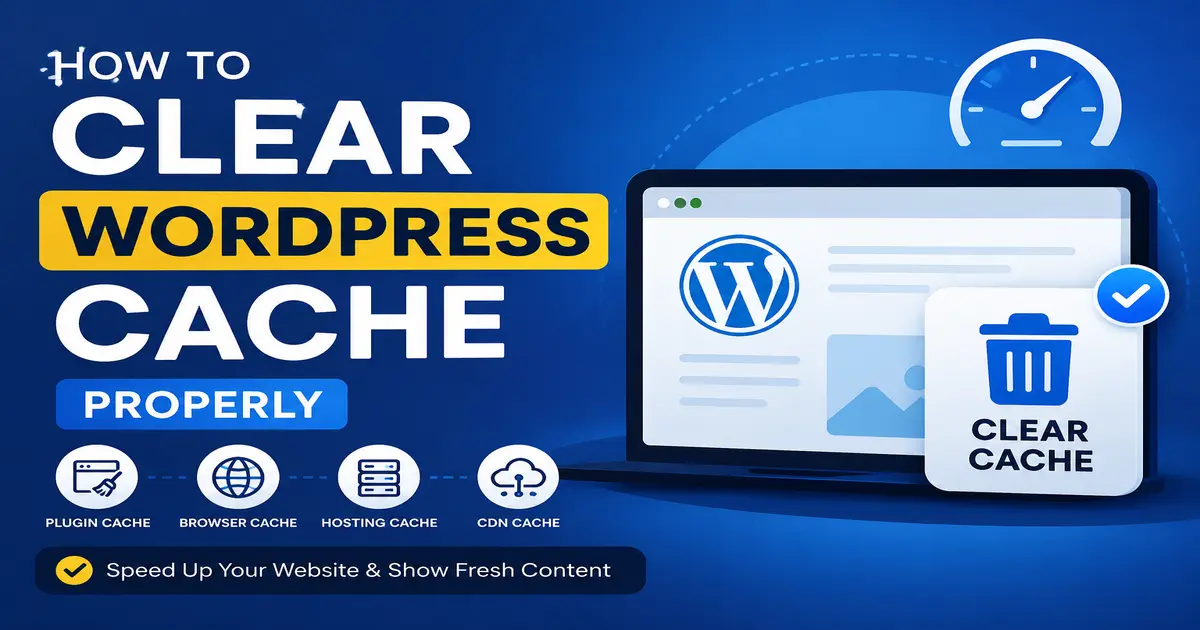
In this guide, you will learn how to clear WordPress cache properly using plugins, hosting cache, browser cache, and CDN cache. Whether you are a beginner or an experienced website owner, this tutorial will help you manage cache easily.
You can also learn more about website performance optimization from the official WordPress Optimization Guide.
What is WordPress Cache?
WordPress cache is a temporary storage system that saves copies of website files, pages, images, CSS, and JavaScript files. Instead of generating the page again and again, cached files are served to visitors quickly.
Caching helps:
- Improve website speed
- Reduce server load
- Enhance user experience
- Improve SEO rankings
- Reduce hosting resource usage
However, when cached files become outdated, visitors may not see your latest updates. That is why you need to know how to clear WordPress cache properly.
Why You Should Clear WordPress Cache
Clearing WordPress cache is important for several reasons:
- Your design changes are not visible
- New blog posts are not appearing
- CSS or JavaScript updates are not loading
- Website layout looks broken
- Plugin updates are causing conflicts
- You are troubleshooting website issues
By clearing the cache, your website loads fresh content directly from the server.
How to Clear WordPress Cache Properly
1. Clear Cache Using WordPress Caching Plugins
Most WordPress websites use caching plugins. Each plugin has its own method to clear the cache.
Clear Cache in WP Rocket
If you are using WP Rocket, follow these steps:
- Login to WordPress Dashboard
- Go to Settings → WP Rocket
- Click on Clear Cache
You can also click the WP Rocket option from the top admin toolbar and select Clear Cache.
Clear Cache in LiteSpeed Cache
- Go to LiteSpeed Cache
- Click on Toolbox
- Select Purge All
This will remove all cached files from your website.
Clear Cache in W3 Total Cache
- Open WordPress Dashboard
- Go to Performance
- Click Purge All Caches
This method clears page cache, database cache, and object cache.
2. Clear Browser Cache
Sometimes the issue is not with WordPress cache but with your browser cache. Browsers store website files locally to improve loading speed. If you are testing your website on a local server and cache changes are not visible, you can check this tutorial on How to Install WordPress Theme on Localhost.
To clear the browser cache in Google Chrome:
- Open Chrome Browser
- Press Ctrl + Shift + Delete
- Select Cached images and files
- Click Clear Data
After clearing the browser cache, refresh your website and check the changes. To understand how browser caching improves website speed, read the Google PageSpeed Insights recommendations on Browser Cache Optimization.
3. Clear Hosting Cache
Many hosting companies provide server-level caching. If your changes are not visible after clearing the plugin cache, then clear the hosting cache as well.
Popular hosting providers with caching systems:
- SiteGround
- Hostinger
- Bluehost
- Cloudways
- Kinsta
Usually, you can clear the cache from your hosting dashboard or control panel.
For example, in SiteGround:
- Login to Site Tools
- Go to Speed → Caching
- Click Flush Cache
4. Clear CDN Cache
If you are using a CDN like Cloudflare, BunnyCDN, or StackPath, then the CDN may still serve old cached files.
For advanced CDN caching and security settings, visit the official Cloudflare Cache Documentation.
To clear Cloudflare cache:
- Login to Cloudflare
- Select your domain
- Go to Caching
- Click Purge Everything
This forces Cloudflare to load fresh content from your server.
Best Practices for Managing WordPress Cache
Do Not Clear Cache Too Frequently
Caching improves website speed. Clearing it too often may temporarily slow down your website.
Clear Cache After Major Changes
You should clear the cache after:
- Updating themes
- Updating plugins
- Changing CSS styles
- Adding new pages
- Editing layouts
Use Only One Caching Plugin
Using multiple caching plugins can create conflicts and break your website’s performance. Always use one trusted caching plugin.
Enable Automatic Cache Clearing
Many premium caching plugins automatically clear the relevant cache when content is updated. This saves time and prevents issues.
Common Cache Problems in WordPress
Website Not Updating
If your latest changes are not visible, clear all layers of cache, including plugin cache, browser cache, and CDN cache.
Sometimes theme-related issues can also affect website performance and cache behavior. If you recently installed a new theme, follow this guide on How to Install WordPress Theme.
CSS Changes Not Showing
This usually happens because CSS files are cached. Purging cache and regenerating CSS files often fixes the problem.
Mobile Version Showing Old Content
Some caching systems create a separate mobile cache. Clear the mobile cache from your caching plugin settings.
Benefits of Clearing WordPress Cache Properly
If your website is still loading slowly after clearing the cache, you should also optimize your images for better performance. Read this detailed guide on Best WordPress Image Optimization Plugins.
- Shows updated content instantly
- Fixes layout and styling issues
- Improves the troubleshooting process
- Helps developers test changes properly
- Provides a better user experience
Conclusion
Understanding how to clear WordPress Cache Properly is important for every WordPress website owner. Cache helps improve website speed, but an outdated cache can cause problems such as outdated content, broken layouts, and missing updates.
You should regularly clear the cache after making major changes to your website. Always remember to clear plugin cache, browser cache, hosting cache, and CDN cache if needed.
By following the methods explained in this guide, you can ensure your WordPress website always displays fresh and updated content to visitors.
Frequently Asked Questions
How often should I clear WordPress cache?
You should clear WordPress cache whenever you make major changes to your website, such as updating themes, plugins, layouts, or content.
Will clearing the cache delete my website data?
No, clearing the cache only removes temporary files. Your posts, pages, images, and database remain safe.
Why are my website changes not showing?
This usually happens because cached files are still being served. Clear plugin cache, browser cache, and CDN cache.
Which is the best WordPress caching plugin?
Popular WordPress caching plugins include WP Rocket, LiteSpeed Cache, and W3 Total Cache.
Does clearing the cache improve SEO?
Clearing outdated cache helps users see updated content and can improve user experience, which indirectly supports SEO performance.
Stay updated with our latest news, special offers, and exclusive updates directly in your inbox.