Last Updated on August 19, 2026
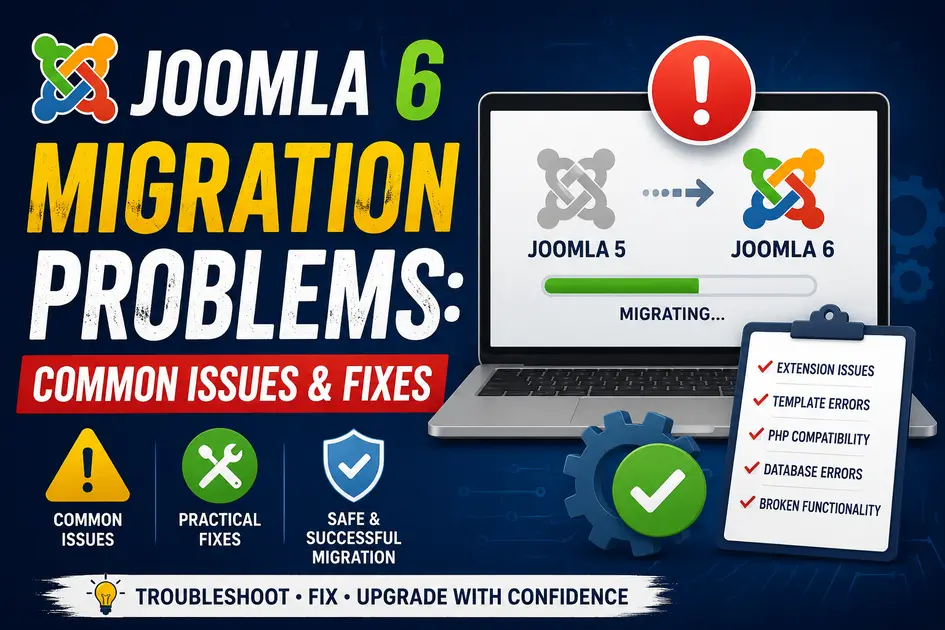
Upgrading a Joomla website to a newer major version can bring better security, performance, and modern features, but the migration process is not always straightforward. If you are moving an existing website to Joomla 6, you may encounter extension compatibility problems, template errors, PHP issues, database errors, broken links, or unexpected changes in the administrator area.
Understanding the most common Joomla 6 migration problems before starting the upgrade can save you a lot of time and prevent unnecessary downtime. Most migration issues are caused by outdated extensions, incompatible templates, custom code, unsupported PHP versions, or changes between Joomla versions.
In this guide, we will look at the most common Joomla 6 migration issues and explain practical ways to troubleshoot and fix them. Whether you are migrating from Joomla 5 or upgrading an older Joomla installation through the required intermediate versions, these troubleshooting tips can help you complete the process more safely.
Before starting a Joomla migration, it is important to understand what changes between major Joomla versions and how the upgrade process works. If you are planning to move an older Joomla website to the latest version, read our guide on Joomla 3 to Joomla 6 migration for a practical overview of the migration process, compatibility checks, extensions, templates, and common preparation steps.
What Causes Joomla 6 Migration Problems?
A Joomla migration is more than simply copying website files and importing a database. A Joomla website usually contains a combination of the Joomla core, third-party extensions, templates, template overrides, custom PHP code, database tables, media files, and configuration settings.
When one of these components is not compatible with Joomla 6, problems can appear during or after the migration.
The most common causes include:
- Extensions that are not compatible with Joomla 6
- Outdated templates and template overrides
- Deprecated Joomla APIs and PHP code
- Unsupported PHP versions or server configurations
- Database structure or schema problems
- Third-party extensions that have not been updated
- Incorrect migration procedures
- File permission problems
- Cached JavaScript and CSS files
- Custom code that depends on older Joomla functionality
Common Joomla 6 Migration Problems and How to Fix Them
1. Extension Compatibility Problems
One of the biggest causes of Joomla 6 migration problems is extension compatibility. A website may have dozens of extensions installed, including components, modules, plugins, editors, page builders, security extensions, and other third-party tools.
An extension that worked correctly on an older Joomla version may not work correctly after upgrading to Joomla 6.
Before starting the migration, check every important third-party extension and confirm that the developer provides a Joomla 6 compatible version.
You should pay particular attention to extensions that are responsible for important website functionality. For example, an outdated page builder, shopping cart, form extension, or security plugin can cause major problems after the upgrade.
How to fix it:
- Make a complete backup before upgrading.
- Update extensions to their latest compatible versions.
- Remove extensions that are no longer required.
- Check the developer’s documentation for Joomla 6 compatibility.
- Test important extensions on a staging website before upgrading the live website.
Do not assume that an extension is compatible simply because it works on Joomla 5. Major Joomla releases can introduce changes that require extension developers to update their code.
Many Joomla 6 migration problems are caused by extensions or modules that are not compatible with the newer Joomla version. Before troubleshooting an extension, learn how Joomla modules work and how they are managed in the latest version with our guide, How to Use Joomla Modules in Joomla 6: Complete Guide. This can help you identify outdated modules, incorrect positions, and configuration issues after migration.
2. Template and Template Override Errors
Templates are another common source of Joomla 6 migration problems. A template may depend on older Joomla APIs, outdated JavaScript libraries, or template files that have changed between Joomla versions.
Template overrides can be an even bigger problem. Many Joomla websites contain customized layout files that were originally created several years ago. These overrides may continue to work for a while, but a major Joomla update can expose compatibility problems.
If your website uses template overrides, review them carefully after the migration.
How to fix it:
- Install the latest Joomla 6-compatible version of your template.
- Check template overrides for outdated code.
- Compare customized overrides with the current Joomla layout files.
- Temporarily disable custom overrides to identify the source of an error.
- Test the frontend and administrator interface after updating the template.
If a website uses a heavily customized template, it is usually better to test the migration on a copy of the website rather than experimenting directly on the production site.
Template compatibility is another common issue after upgrading Joomla. If your migrated website has missing layouts or unexpected frontend changes, Joomla template overrides may need to be reviewed or updated. Our guide on Joomla Template Overrides explains how overrides work and how you can safely customize Joomla layouts without modifying core files.
3. PHP Compatibility Errors
PHP compatibility is another important consideration during a Joomla 6 migration. Joomla versions have specific PHP requirements, and your hosting environment must meet the requirements of the Joomla version you are installing.
However, simply selecting a supported PHP version does not guarantee that your website will work correctly. Third-party extensions and custom code may still use PHP functions or coding patterns that are no longer supported.
Joomla also depends on a compatible PHP environment. Before beginning a migration, check the PHP requirements for your target Joomla release and compare them with the PHP version provided by your hosting server. Official requirements and technical details can be found here:
You may see errors such as:
- Deprecated function warnings
- Fatal PHP errors
- Unsupported operand type errors
- Undefined method or class errors
- Type-related errors
How to fix it:
First, confirm that your hosting environment meets the PHP requirements for your Joomla 6 release. Then identify whether the error comes from Joomla itself, a third-party extension, a template, or custom code.
If the error points to a third-party extension, update the extension or contact its developer. If the error comes from custom code, that code may need to be rewritten using the current Joomla and PHP APIs.
If you are migrating a website that uses custom integrations or external applications, Joomla 6’s web services and REST API may also be relevant. See our Joomla 6 REST API tutorial to learn how Joomla’s API can be tested and used for working with website data.
4. Database Errors After Migration
Database problems can also occur during Joomla migration. Joomla stores important configuration and content information in the database, while many extensions create their own tables and fields.
If an extension has an outdated database structure, the migration may result in errors or missing functionality.
You may encounter messages related to missing columns, invalid database tables, duplicate entries, or SQL syntax errors.
How to fix it:
- Always create a database backup before migration.
- Run Joomla’s database repair tools when appropriate.
- Check the database schema after upgrading.
- Update extensions so their database changes can be applied correctly.
- Review server and Joomla error logs for the exact SQL error.
A database error should not be ignored simply because the website appears to load. A missing database field can cause problems later when an administrator tries to edit an article, save configuration settings, or process an order.
5. White Screen or 500 Internal Server Error
A blank white page or a 500 Internal Server Error is one of the most worrying Joomla 6 migration problems because it can make the website appear completely broken.
In many cases, the Joomla installation itself is not the actual problem. A third-party extension, template, plugin, PHP error, or server configuration can cause the failure.
How to troubleshoot it:
- Check the PHP error log on your hosting account.
- Enable Joomla error reporting when you can access the administrator area.
- Identify the PHP file mentioned in the error.
- Determine which extension or template owns that file.
- Update, disable, or replace the problematic extension.
If the administrator area is also inaccessible, use your hosting control panel or database tools to disable the problematic extension when appropriate. Always make a backup before manually changing extension records or configuration files.
For the most accurate information about Joomla’s supported upgrade and migration procedures, always check the official Joomla documentation before beginning a production migration. The Joomla Documentation provides technical information about Joomla releases, updates, installation, configuration, and troubleshooting.
6. Deprecated Joomla Code
Custom Joomla extensions and older template overrides can contain code that was written for previous Joomla APIs. When the Joomla core changes, older code may stop working.
For example, custom extensions may use old classes, methods, or helper functions that are no longer available in the same form. These issues are particularly common on websites that have been maintained for many years without updating their custom code.
How to fix it:
Review the error message carefully and identify the class or method that is causing the problem. Then check the current Joomla documentation for the recommended API or coding approach.
For custom extensions, the best solution is usually to update the extension code rather than trying to restore obsolete Joomla functionality.
Before migrating a live website, verify that you are working with a supported Joomla release and review the latest release information. The official Joomla Releases page is a useful reference for checking current Joomla versions, release notes, and security-related updates:
7. Broken Menu Items and URLs
After migration, some menu items may appear to work differently or certain URLs may return errors. This can happen when extensions, categories, menu item types, or routing settings have changed.
Start by checking the Joomla menu manager and verify that important menu items still point to the correct content.
You should also test:
- Homepage
- Main navigation
- Category pages
- Article pages
- Contact pages
- Search pages
- Login and registration pages
- Important landing pages
For an established website, preserving existing URLs is especially important because changing URLs unnecessarily can result in broken links and loss of search traffic.
Third-party extensions can be one of the biggest causes of Joomla migration problems. Before upgrading, visit the extension developer’s official website and confirm that each component, module, plugin, and template supports your target Joomla version. You can also review official extension resources here:
8. Media and Image Problems
Images and media files can sometimes appear to be missing after migration. This can happen because files were not copied correctly, paths have changed, permissions are incorrect, or an extension responsible for media management is incompatible.
Check the Joomla media directory and verify that the required files exist on the server.
Also check file and directory permissions and make sure the web server can access the files.
If images are visible in the administrator area but not on the frontend, inspect the generated image URL and browser console for additional clues.
9. JavaScript and CSS Problems
After upgrading Joomla, the website may look different even though the content is still present. Missing styling, broken menus, sliders, or interactive elements can indicate a JavaScript or CSS compatibility problem.
Start by clearing Joomla and browser caches. Then open your browser’s developer tools and check the Console and Network tabs for JavaScript errors or failed files.
A template or extension may be loading an outdated JavaScript library that conflicts with the Joomla 6 environment.
Updating the template and extensions is usually the first step toward resolving these issues.
How to Troubleshoot Joomla 6 Migration Problems
When something goes wrong after migration, avoid changing multiple things at the same time. Doing so can make it difficult to identify the actual cause.
Instead, follow a systematic troubleshooting process.
Step 1: Check the Error Message
An error message often provides the most useful information. Look for the PHP file, class, method, extension name, or database table mentioned in the error.
This information can help you determine whether the problem comes from Joomla, an extension, a template, or custom code.
Step 2: Check Joomla and Server Logs
Joomla logs and PHP/server logs can provide information that is not visible on the frontend. If you receive a generic 500 error, the server’s PHP error log may contain the actual reason for the failure.
Step 3: Disable Third-Party Extensions
If you suspect an extension, temporarily disable it and test the website again. If the problem disappears, you have a strong indication that the extension is responsible.
Do not disable extensions randomly on a production website. Test this process on a staging copy whenever possible.
Step 4: Test the Template
Temporarily switching to a Joomla-compatible default template can help determine whether the problem is caused by your template or template overrides.
If the website works correctly with the default template, investigate your original template and its overrides.
Step 5: Clear Cache
Clear Joomla cache, browser cache, and any server or CDN cache after making compatibility changes. Old cached files can sometimes make you think that a problem still exists after it has already been fixed.
How to Prevent Joomla 6 Migration Problems
The best way to handle Joomla 6 migration problems is to prevent as many of them as possible before starting the migration.
Before upgrading, create a complete backup of your website files and database. Ideally, perform the migration on a staging or development copy first.
Make a list of all installed extensions and check their Joomla 6 compatibility. Remove extensions that are no longer being used instead of carrying unnecessary software into the new installation.
You should also check your template and all template overrides. If your website contains custom PHP code, review it before beginning the migration.
Finally, make sure your hosting environment meets the requirements of the Joomla 6 version you plan to use.
Joomla 6 Migration Checklist
Use the following checklist before migrating a production website:
- Take a complete backup of files and database.
- Create a staging copy of the website.
- Check the server and PHP requirements.
- Update Joomla extensions to compatible versions.
- Remove unused extensions.
- Check template compatibility.
- Review template overrides.
- Check custom code for deprecated Joomla APIs.
- Test the migration on staging.
- Check the frontend and administrator area.
- Test forms, menus, search, login, and other important functions.
- Check important URLs and redirects.
- Clear Joomla, browser, server, and CDN caches.
- Monitor error logs after the migration.
Frequently Asked Questions About Joomla 6 Migration
What are the most common Joomla 6 migration problems?
The most common problems include extension compatibility issues, template and override errors, PHP compatibility problems, database errors, broken menu items, JavaScript conflicts, missing images, and custom code that depends on older Joomla APIs.
Why does my Joomla website show a blank page after migration?
A blank page is commonly caused by a PHP fatal error, incompatible extension, outdated template, or custom code. Check the PHP and Joomla error logs to identify the exact file or extension causing the problem.
How can I check if my Joomla extensions are compatible with Joomla 6?
Check the extension developer’s official documentation or download page for Joomla 6 compatibility information. Also install the latest version of each extension before performing the migration.
Can an old Joomla template cause migration problems?
Yes. Older templates and template overrides may use outdated Joomla APIs, JavaScript libraries, or layout structures. Updating the template and reviewing its overrides can resolve many frontend problems after migration.
Should I migrate my live Joomla website directly to Joomla 6?
It is safer to create a complete backup and test the migration on a staging copy first. This gives you an opportunity to identify extension, template, PHP, and database problems without affecting your live website.
Final Thoughts
Joomla 6 migration problems can be frustrating, but most issues can be diagnosed by checking the extension, template, PHP environment, database, and custom code involved in the migration.
The most important step is to avoid treating every migration error as a Joomla core problem. In many cases, an outdated third-party extension or template is responsible for the failure.
Always create a complete backup, test the upgrade on a staging website, check extension compatibility, review template overrides, and monitor the error logs. Taking these steps before migrating can significantly reduce the risk of problems on your production website.
If you encounter an error during a Joomla 6 migration, start with the exact error message rather than making random changes. Once you identify the extension, template, PHP file, or database component responsible, finding the appropriate solution becomes much easier.
Stay updated with our latest news, special offers, and exclusive updates directly in your inbox.