Last Updated on August 15, 2026
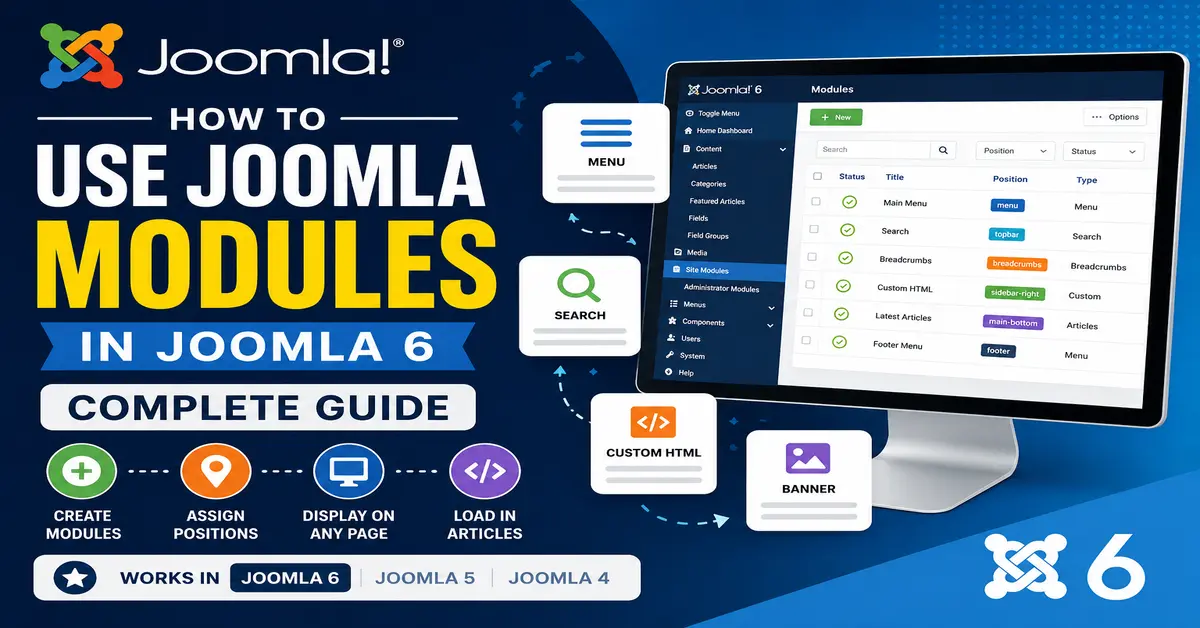
Joomla modules are one of the easiest ways to add useful content and functionality to different areas of your website. You can use modules to display a navigation menu, login form, search box, latest articles, breadcrumbs, custom HTML, banners, images, or other content without changing the main article content.
In this guide, you will learn how to use Joomla modules in Joomla 6, including how to create a module, choose a module position, control where it appears, change its order, assign it to specific pages, and display a module directly inside a Joomla article.
If you are specifically looking for available template positions, you can also learn how to check Joomla module positions in Joomla 6. This article focuses on the next step: actually using and managing those modules on your website.
If you are completely new to modules, start with our guide on how to create a Joomla module. It explains the module structure and how to create a custom module before you configure its display settings.
What Is a Joomla Module?
A Joomla module is a lightweight extension that displays content or functionality around the main content of a page. Unlike a component, which normally controls the main content area, a module can appear in different areas provided by the active template.
For example, Joomla websites commonly use modules for:
- Main navigation menus
- Login forms
- Search forms
- Breadcrumbs
- Latest articles
- Popular articles
- Custom HTML content
- Images and banners
- Tag lists
- Language switching
- Other functionality provided by Joomla extensions
Modules are flexible because you can create multiple instances of the same module type and configure each instance differently. For example, you could create two Custom modules and display different messages on different pages.
How Joomla Modules Work
Using a Joomla module generally involves four important settings: the module type, position, menu assignment, and published status.
First, you select what type of module you want to use. Next, you choose where it should appear. You can then decide which pages should display it and whether visitors have permission to see it.
This means that simply creating a module is not enough. If the module is unpublished, assigned to the wrong pages, placed in an unsuitable position, or restricted by its access level, visitors may not see it.
How to Add a Module in Joomla 6
The easiest way to learn how to add a module in Joomla 6 is to create a simple Custom module. A Custom module is useful for displaying your own text, HTML, images, announcements, calls to action, or other manually created content.
Step 1: Open Site Modules
Log in to your Joomla Administrator and open:
Content → Site Modules
This screen contains the site modules currently configured on your Joomla website.
Step 2: Click New
Click the New button to create a new module.
Joomla will display the available module types. Select Custom if you want to create a simple block of your own content.
You can also select another module type depending on what you want to display. For example, Joomla provides modules for menus, breadcrumbs, articles, search, tags, login, and other common functions.
Step 3: Enter the Module Title
Enter a descriptive title for your module.
For example:
Website AnnouncementThe title may be displayed on the frontend depending on the module’s settings and template styling. You can choose to hide the title when appropriate.
Step 4: Add Module Content
If you are creating a Custom module, enter your content in the editor.
For example, you could add:
<p>Welcome to our Joomla website!</p>You can use the editor to add text, links, images, and other supported content.
Step 5: Select a Module Position
The Position setting determines where Joomla should render the module within the template layout.
For example, your template may provide a position such as:
sidebar-rightSelect the appropriate position from the available positions provided by your active template.
Remember that module position names and their visual locations depend on the template. A position named sidebar-right is only a name; the template developer decides exactly where that position appears.
Before assigning a module, it is helpful to know which positions are available in your template. If you are not sure where a particular position is located, read our guide on how to check Joomla module positions in Joomla 6. It explains how to identify the available positions before you configure your modules.
Step 6: Configure Menu Assignment
Open the Menu Assignment settings and decide where the module should appear.
Depending on your requirements, you can display the module on all pages, no pages, only selected pages, or all pages except selected pages.
This is one of the most important parts of using Joomla modules. For example, you may want a promotional module to appear only on your blog pages instead of throughout the entire website.
When you assign a module, you can select an available position and control which menu items display the module. Joomla also allows multiple modules to use the same position, with their order determining how they are displayed. You can read more about assigning a Joomla module to a position in the official documentation.
Step 7: Publish the Module
Make sure the module status is set to Published.
Then save your changes and visit the frontend of your website. The module should now appear in the selected position on the pages where it has been assigned.
How to Change a Joomla Module Position
One of the most common reasons for using Joomla modules is the ability to move content from one area of the website to another without changing the module itself.
Open:
Content → Site Modules
Select the module you want to edit and find the Position field.
Select another available position and save the module.
For example, you could move a Custom module from:
sidebar-rightto:
footerThe actual result depends on the template you are using. If you are unsure where a particular position is located, check the module positions provided by your template before making the change.
A module position is essentially a placeholder provided by the template where Joomla can render one or more modules. Because the template controls the position and its layout, the same position name can appear in different locations depending on the template you are using. For more information, see the official Joomla documentation on module positions.
The available module positions depend on the active Joomla template, so changing your template can also change where modules can be displayed. If you are setting up a new website or changing its design, you can also learn how to install a Joomla template on a server before configuring your site modules.
How to Control Where a Joomla Module Appears
Joomla gives you more control than simply choosing a position. You can also decide exactly which pages should display each module.
Display a Module on All Pages
Select the option that assigns the module to all pages when you want it to appear throughout the website.
This can be useful for modules such as a site-wide announcement, contact information, or a common call-to-action.
Display a Module on Selected Pages
If you only want a module on particular pages, choose the option to display it on selected menu items and select the required pages.
For example, you could display a newsletter module only on your blog category and article pages.
Exclude Selected Pages
You can also display a module throughout most of the website while excluding selected menu items.
This is useful when a module should normally be visible but would be inappropriate on certain pages, such as a login page or checkout page.
How to Order Joomla Modules
You can have multiple modules assigned to the same position. Joomla lets you control the order in which those modules are displayed.
Open Content → Site Modules and use the ordering controls to arrange modules within their assigned position.
For example, you could place:
- Search
- Latest Articles
- Categories
in the same sidebar position and control which module appears first.
This is especially useful when a template contains a limited number of positions but you need to display several modules in the same area.
How to Display a Joomla Module Inside an Article
Sometimes a normal template position is not the best place for a module. You may want to display a newsletter signup, advertisement, related content, custom HTML block, or another module between two paragraphs of an article.
Joomla provides the Content – Load Modules plugin for this purpose. It allows you to load a module by position, module type, or module ID.
The three commonly used methods are:
{loadposition position_name}
{loadmodule mod_type}
{loadmoduleid module_id}
Step 1: Enable the Content – Load Modules Plugin
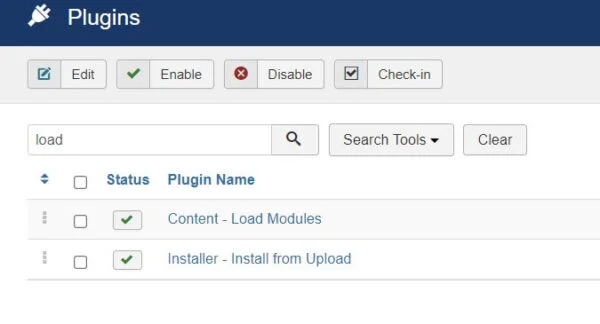
Before using the module loading syntax, make sure the Joomla core Content – Load Modules plugin is enabled.
Open the Joomla Administrator and go to the plugin management area. Search for:
Content – Load Modules
Make sure the plugin is enabled.
If the plugin is disabled, Joomla may display the {loadposition}, {loadmodule}, or {loadmoduleid} code as ordinary text instead of rendering the module.
Step 2: Insert a Module Using the Module Button
Joomla can also make it easier to insert a module into an article through the editor’s Module button.
Open the article in the Joomla Administrator and look for the Module button available around the editor area.
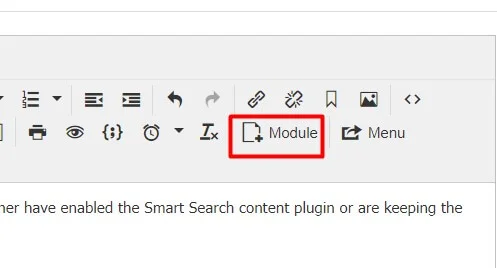
Module button
Click the button and select the module you want to insert.
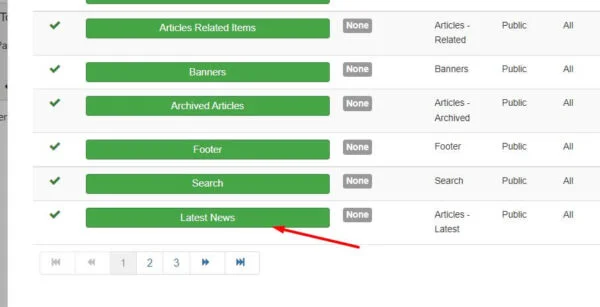
Joomla will insert the appropriate module tag into your article.
For example, a module with ID 28 can be loaded with:
{loadmoduleid 28}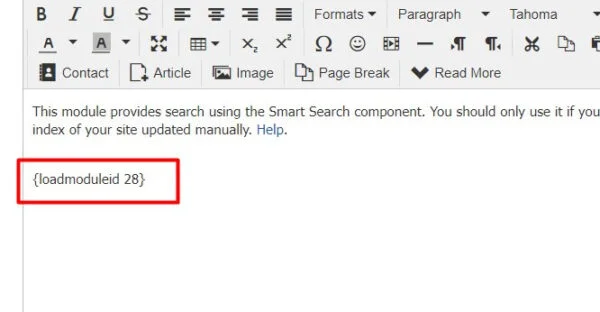
After saving the article, Joomla processes the tag and displays the selected module at that location.
How to Use {loadmodule} in Joomla 6
The {loadmodule} syntax lets you load a module by its module type. This can be useful when you want to place a particular module type directly inside article content.
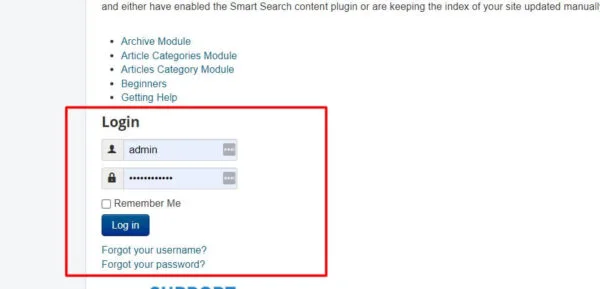
For example, the Joomla Login module can be loaded using:
{loadmodule mod_login}The Content – Load Modules plugin processes this syntax and loads the appropriate module.
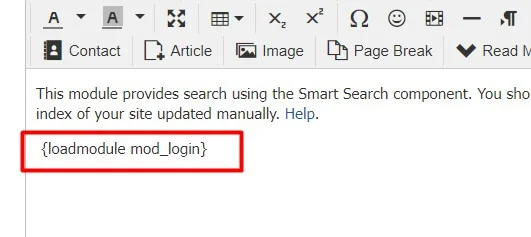
After saving the article, open it on the frontend to see the module in the location where the tag was inserted.
How to Use {loadposition} in Joomla 6
The {loadposition} method is useful when you want to assign a module to a dedicated position and then place that position inside an article.
For example, create a position named:
article-sidebarThen place this code inside your article:
{loadposition article-sidebar}Joomla will render the module assigned to that position where the tag appears in the article.
Why Use loadposition?
The advantage of {loadposition} is that the position does not have to be a visible template area. You can assign a module to a dedicated position name and load that position from an article when required.
This makes the method useful for inserting a module between paragraphs or at a specific point in an article without modifying your template files.
Configure the Module for loadposition
Create or edit the module and enter a dedicated position name such as:
article-sidebarThen configure the module and make sure it is published.
- Create or edit the module.
- Enter the module title if required.
- Enter the custom position name.
- Configure the module content.
- Set the appropriate menu assignment.
- Publish the module.
- Save the changes.
For example, you could create a Custom module and assign it to:
article-sidebar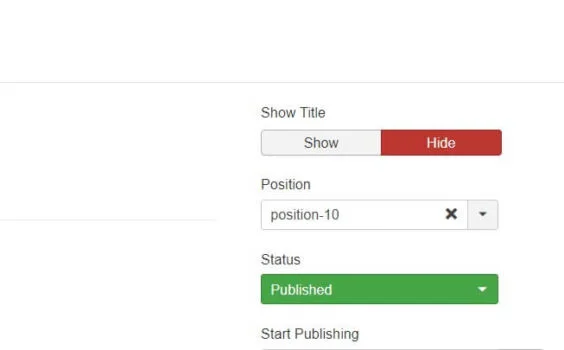
Then insert the following code into the article:
{loadposition article-sidebar}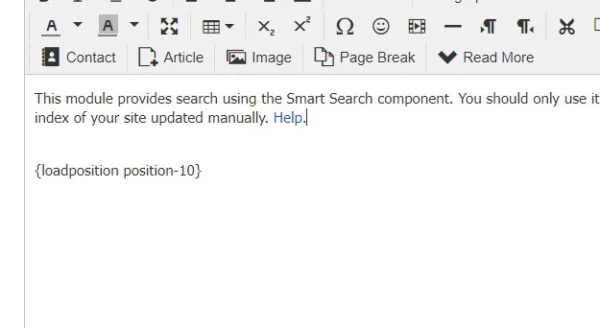
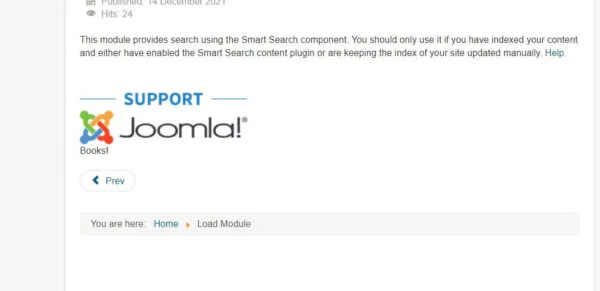
Save the article and view it on the frontend. The module should appear where the {loadposition article-sidebar} tag was placed.
This technique is particularly useful when you want to place a module between paragraphs, below an introduction, before a conclusion, or at another specific location inside your content.
If you are changing your website design or moving modules to a new template, you may also want to review our guide on how to install a Joomla template on a server.
loadposition vs loadmodule vs loadmoduleid
All three methods allow you to display a Joomla module inside article content, but they are useful in different situations.
| Syntax | What It Does | When to Use It |
|---|---|---|
{loadposition position_name} | Loads modules assigned to a specific position. | Useful when you want to manage the module through a dedicated position. |
{loadmodule mod_type} | Loads a module based on its type. | Useful when you want to load a particular module type. |
{loadmoduleid module_id} | Loads a specific module instance by its ID. | Useful when you need to display one specific module. |
How to Use Joomla Modules Effectively
Choose the Right Module Type
Start by deciding what you actually want to display. Joomla already includes many useful module types, so you may not need a third-party extension for common requirements.
For example, use a Custom module for manually created content, a Menu module for navigation, a Breadcrumbs module for navigation context, or an Articles module when you want to display article-related content.
Use Menu Assignment Carefully
Always check the module’s Menu Assignment settings when it does not appear where expected. A published module can still remain hidden on a page if that page is not included in its assignment rules.
Check the Access Level
The module’s access setting determines which visitors can see it. If a module is configured for a restricted access level, logged-out visitors or other user groups may not see it.
Use Module Ordering
When several modules share the same position, use the module ordering controls to determine which one appears first. This is especially important in sidebars and footer areas.
Use Language Assignment When Needed
If your Joomla website is multilingual, check the module’s language setting as well. A module configured for a specific language may not appear when visitors are viewing another language version of the site.
Common Joomla Module Problems and Solutions
My Module Is Published but Does Not Appear
Start by checking the following:
- Confirm that the module is published.
- Check the selected module position.
- Check the Menu Assignment settings.
- Check the module’s Access setting.
- Check the selected language if your site is multilingual.
- Confirm that the active template actually renders the selected position.
The Module Position Is Not Available
Module positions are provided by the active template, so the available positions can differ between templates. If you cannot find the position you need, use the template’s position preview feature to identify the available positions.
If your goal is to place a module inside an article rather than a normal template area, using {loadposition} with a dedicated position can be a better solution.
The {loadposition} Code Appears as Text
If visitors see the {loadposition ...} code instead of the module, check whether the Content – Load Modules plugin is enabled.
Also check that the syntax matches the position name assigned to the module.
The Module Works on One Page but Not Another
This is usually related to Menu Assignment. Open the module and check whether the page where you expect the module to appear is included in the module assignment.
The Module Is in the Wrong Order
If several modules are assigned to the same position, check their ordering in the Site Modules list. Reorder the modules and reload the frontend page.
Joomla Modules vs Joomla Module Positions
It is useful to understand the difference between a module and a module position.
A module is the actual content or functionality you want to display. A module position is the location provided by the template where Joomla can render that module.
For example, a Login module is the module, while sidebar-right may be the position where that Login module is displayed.
This distinction is important because changing the module position changes where the module appears, while changing the module itself changes what the visitor sees.
If you are unsure which positions are available in your current template, Joomla provides a module-position preview feature. You can enable Preview Module Positions and use the ?tp=1 parameter to visualize the positions on a page. See the official guide on finding module positions on a Joomla page for the complete procedure.
Conclusion
Learning how to use Joomla modules gives you much more control over the layout and functionality of your Joomla 6 website. You can create modules, assign them to template positions, control which pages display them, change their order, and insert them directly into articles when necessary.
For most websites, the basic workflow is simple: choose the right module type, configure the content, select a position, assign the appropriate pages, set the access level, publish the module, and check the frontend.
When you need more precise placement inside an article, Joomla’s built-in {loadposition}, {loadmodule}, and {loadmoduleid} methods provide a convenient way to display modules without editing your template files.
If your website is still running an older Joomla version, it is a good idea to update Joomla before following a Joomla 6 tutorial. See our step-by-step guide on how to update Joomla to the latest version to review the recommended update process.
Frequently Asked Questions About Joomla Modules
What is a Joomla module?
A Joomla module is a lightweight extension that displays content or functionality around the main content area of a page. Examples include menus, login forms, breadcrumbs, search, latest articles, and Custom HTML content.
How do I add a module in Joomla 6?
Go to Content → Site Modules, click New, choose a module type, configure the module, select a position, configure Menu Assignment, publish it, and save your changes.
How do I put a Joomla module inside an article?
Enable the Content – Load Modules plugin and use {loadposition}, {loadmodule}, or {loadmoduleid} in the article where you want the module to appear.
Why is my Joomla module not showing?
Check that the module is published, assigned to the correct position and menu items, available to the visitor’s access level, and configured for the correct language. If you are using a load tag inside an article, also make sure the Content – Load Modules plugin is enabled.
Can I display multiple Joomla modules in the same position?
Yes. You can assign multiple modules to the same position and control their display order using the module ordering controls in the Joomla Administrator.
Stay updated with our latest news, special offers, and exclusive updates directly in your inbox.