Last Updated on April 28, 2026
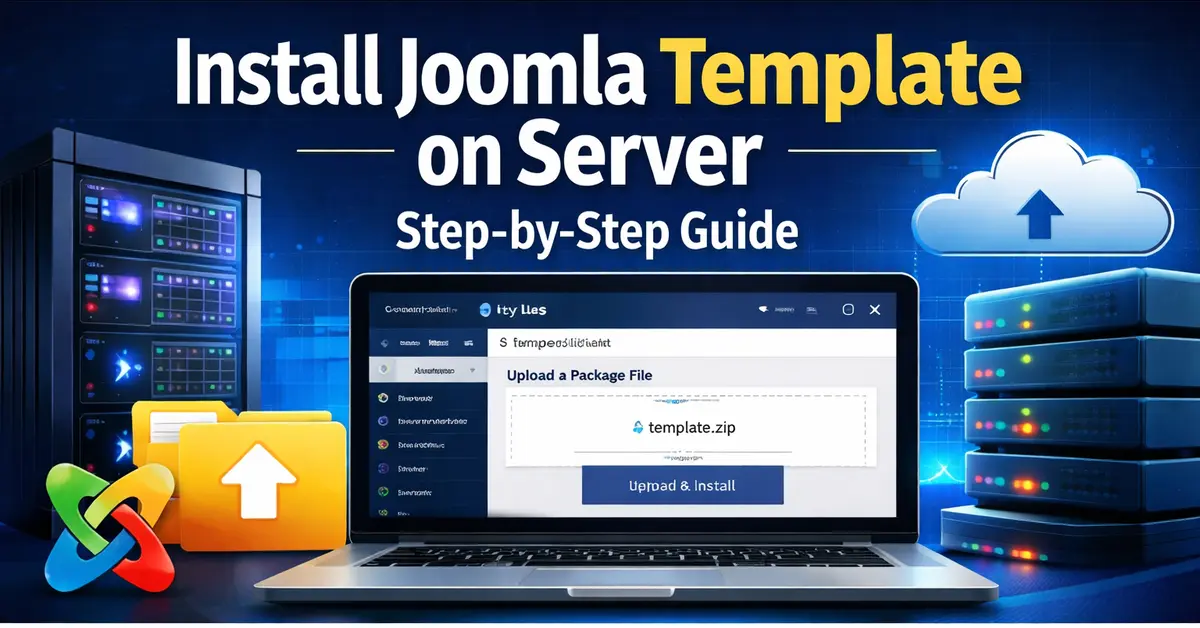
Installing a Joomla template on a live server is one of the most important steps in launching a professional website. A template defines the overall design, layout structure, typography, and user experience of your website. Whether you are building a business website, blog, portfolio, or eCommerce platform, choosing and installing the right template is crucial.
This detailed guide will walk you through the complete process of installing a Joomla template on a live server in a simple, professional, and beginner-friendly way. The instructions apply to both Joomla 4 and Joomla 5.
Understanding Joomla Templates
A Joomla template is essentially the design framework of your website. It controls how your content is displayed to visitors. While Joomla manages the content, the template controls the visual presentation. If you want a deeper beginner-friendly explanation, you can read our guide on How to Install Joomla Template on Localhost.
Modern Joomla templates include:
- Responsive design for mobile and desktop
- Pre-built layouts and page styles
- Typography and color settings
- Module positions for flexible content placement
- Custom styling options and framework integration
Choosing a high-quality template ensures better performance, SEO optimization, and user experience. You can also explore templates and resources on the Joomla official website.
Step 1: Access Joomla Administrator Panel
The first step is to log in to your Joomla backend. Open your browser and go to:
https://yourdomain.com/administrator
Enter your administrator username and password. Once logged in, you will see the Joomla control panel, where all website management tasks are performed.
If you are working on a local environment before going live, you can follow Install Joomla 5 on Windows 11 using XAMPP.
Step 2: Navigate to Template Installation Section
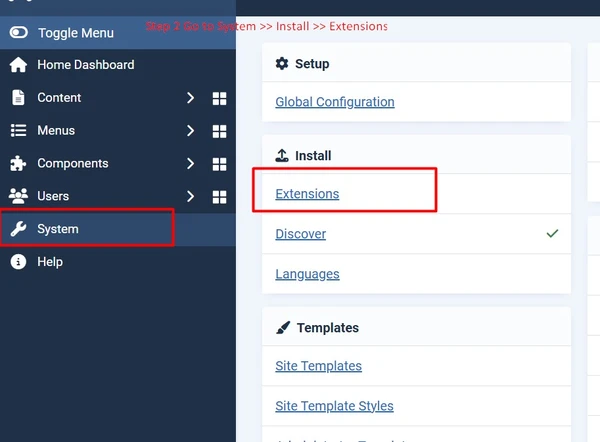
In Joomla 4 and 5, the extension management system is centralized. To install a template, follow this path:
System → Extensions → Drag and drop file here to upload or browse for file
This section allows you to install templates, plugins, modules, and components. If you’re new to Joomla installation workflows, you may also want to check How to Install Joomla QuickStart Package for a complete website setup with demo content.
Step 3: Upload and Install Template Package
Most Joomla templates are provided as a ZIP file. To install it:
- Click on “Upload Package File”
- Select your template ZIP file
- Wait for the upload and installation process
If the template is valid and compatible, Joomla will display a success message confirming installation.
Step 4: Verify Installed Template
After installation, go to:
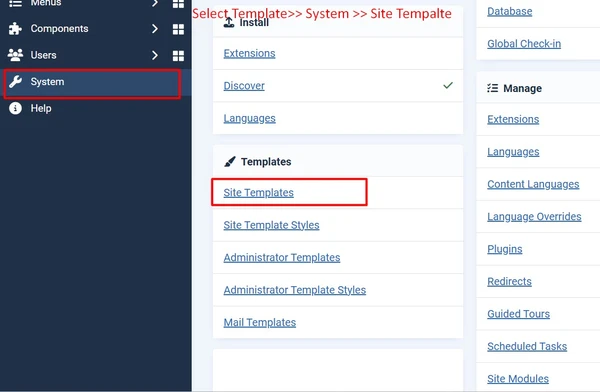
System → Site Templates
Here you will see a list of installed templates. Your newly installed template should appear in this list.
Step 5: Set Template as Default
Installing a template is not enough; you must set it as the default template for your website.
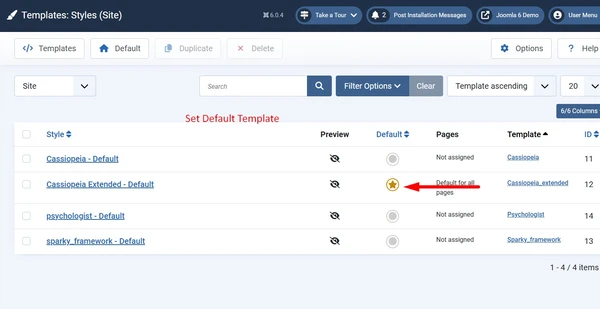
To do this:
- Find your installed template
- Click the star icon next to it
- This action sets it as the active template
Once set, your website frontend will immediately reflect the new design.
Step 6: Clear Joomla Cache
Sometimes changes may not appear immediately due to cached data. To fix this:
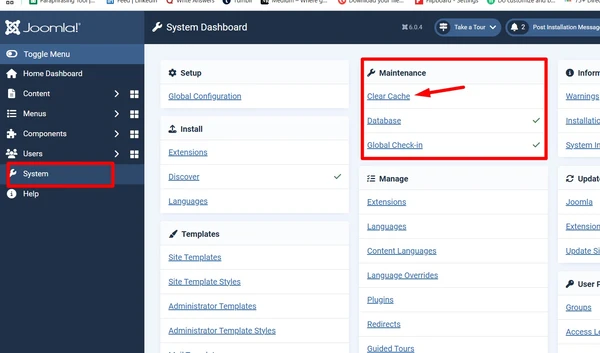
System → Clear Cache
Select all cache items and delete them. This ensures that the latest template changes are applied correctly.
Step 7: Check Your Website Frontend
After completing the template installation and configuration, the final step is to check your website frontend. Open your website in a browser and verify that the new Joomla template is applied correctly.
Ensure that the layout, design elements, menus, and module positions are displaying properly across all pages. If changes are not visible, clear the Joomla cache and refresh your browser to see the updated design.
Common Issues and Troubleshooting
This section covers the most common problems users face while installing a Joomla template and provides quick solutions to fix them. It helps beginners and developers identify errors, understand their causes, and resolve issues efficiently to ensure a smooth template installation process.
Error 1: Template not installing
Ensure that your ZIP file is not corrupted and is compatible with your Joomla version.
Error 2: Layout broken or missing styles
This usually happens when the template version does not match your Joomla version. Always check compatibility before installation.
Error 3: CSS changes not visible
Clear both Joomla cache and browser cache to ensure updates are loaded properly.
Best Practices for Template Installation
- Always take a backup before installing new templates
- Use only trusted template providers
- Check Joomla version compatibility
- Install templates in a staging environment first
Conclusion
Installing a Joomla template is a straightforward process when done correctly. By following the steps outlined in this guide, you can successfully install and activate any Joomla template on your server. A well-designed template not only improves the visual appearance of your website but also enhances user experience and overall performance.
With proper setup and configuration, your Joomla website can achieve a professional look that is fast, responsive, and optimized for modern web standards. If you’re testing your template before deploying it live, you can also follow How to Install Joomla Template on Localhost Using XAMPP.
For more resources and updates, you can visit the Joomla official website.
Frequently Asked Questions (FAQ)
Can I install a Joomla template without coding knowledge?
Yes, Joomla templates can be installed easily using the Joomla Extension Manager. No coding is required.
Where do I upload the Joomla template file?
You can upload the template ZIP file in System → Extensions → Upload Package File.
Why is my Joomla template not showing after installation?
This usually happens when the template is not set as the default. Go to System → Site Templates and set it as the default.
Do I need to clear cache after installing a template?
Yes, clearing the cache ensures that the new template changes are visible on the frontend.
Can I use the same template for Joomla 4 and Joomla 5?
Only if the template is compatible with both versions. Always check template requirements before installation.
Stay updated with our latest news, special offers, and exclusive updates directly in your inbox.