Last Updated on August 13, 2026
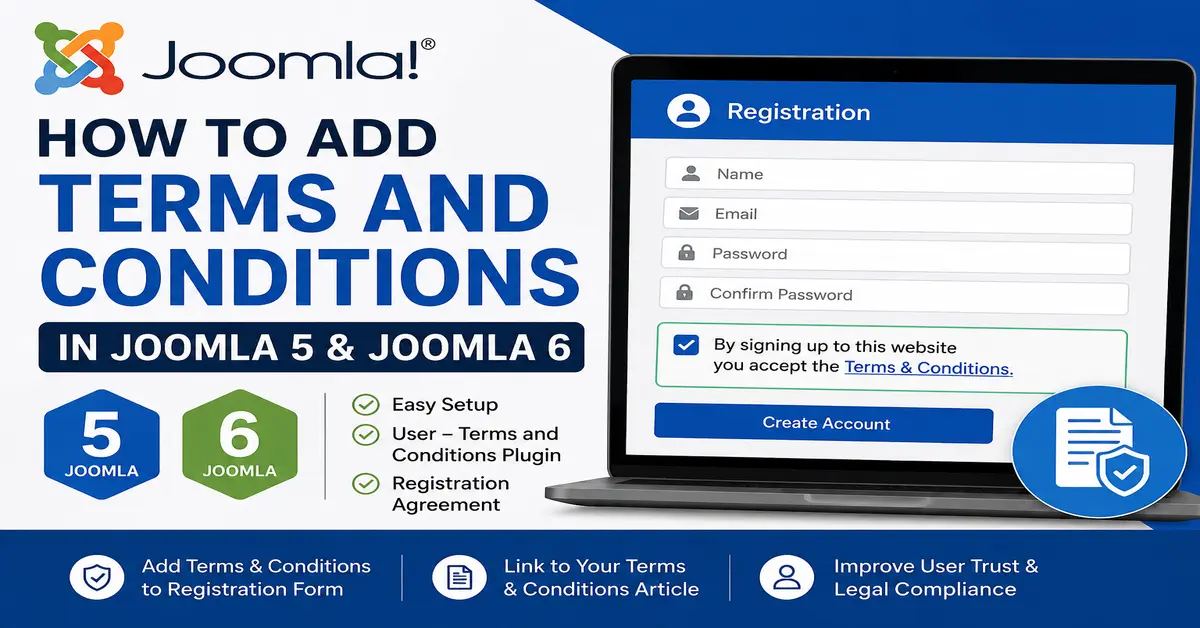
Adding a Terms and Conditions statement to the Joomla registration form is straightforward in Joomla 5 and Joomla 6. You do not need to create a custom registration form or write PHP code. Joomla includes the User – Terms and Conditions plugin, which can display a terms and conditions message and require users to agree before creating an account.
In this tutorial, you will learn how to add Terms and Conditions to the Joomla 5 and Joomla 6 registration form. We will enable the required plugin, configure the short terms message, connect it to a Joomla article containing your complete terms, and test the registration form from the frontend.
This method is useful for websites where visitors need to agree to specific terms before creating a user account. It also gives you a simple way to keep the detailed Terms and Conditions in a normal Joomla article that you can update later.
If you are learning Joomla 5 or Joomla 6, our Joomla 5 Tutorial for Beginners is a useful starting point for understanding Joomla’s administrator panel, users, articles, menus, and other core features.
What Are Terms and Conditions for Joomla Registration?
When visitors create an account on a Joomla website, they may not always read the site’s Terms and Conditions. If your website requires users to acknowledge specific rules before registration, displaying a clear agreement message on the registration form can make the process easier to understand.
Joomla provides the User – Terms and Conditions plugin to collect users’ consent to the site’s Terms and Conditions during registration. When enabled and configured, the plugin can display a short terms-and-conditions message on the registration form and provide a link to a Joomla article containing the complete terms.
Joomla provides the User – Terms and Conditions plugin specifically for collecting users’ consent to the site’s terms and conditions. For more information about configuring this plugin, see the official Joomla documentation.
For example, you can display a message such as:
By signing up to this website you accept the Terms & Conditions.
You can also customize the short message to better match your website’s requirements.
How the Joomla Terms and Conditions Plugin Works
The User – Terms and Conditions plugin works with Joomla’s user registration process. Instead of manually modifying the registration form, you configure the plugin from the Joomla administrator panel.
The general process is:
- Create an article containing your complete Terms and Conditions.
- Open the User – Terms and Conditions plugin.
- Enable the plugin.
- Customize the short terms message if required.
- Select the article containing your full Terms and Conditions.
- Save the plugin configuration.
- Test the registration form from the frontend.
This approach is easier to maintain because your full terms can remain in a standard Joomla article rather than being hard-coded into your registration template.
How to Add Terms and Conditions to the Joomla 5 and Joomla 6 Registration Form
Follow the steps below to add a Joomla Terms and Conditions checkbox or agreement statement to your registration process.
Step 1: Log in to the Joomla Administrator Panel
First, log in to your Joomla 5 or Joomla 6 administrator dashboard.
Use your administrator login details and open the Joomla backend.
Step 2: Open the Joomla Plugin Manager
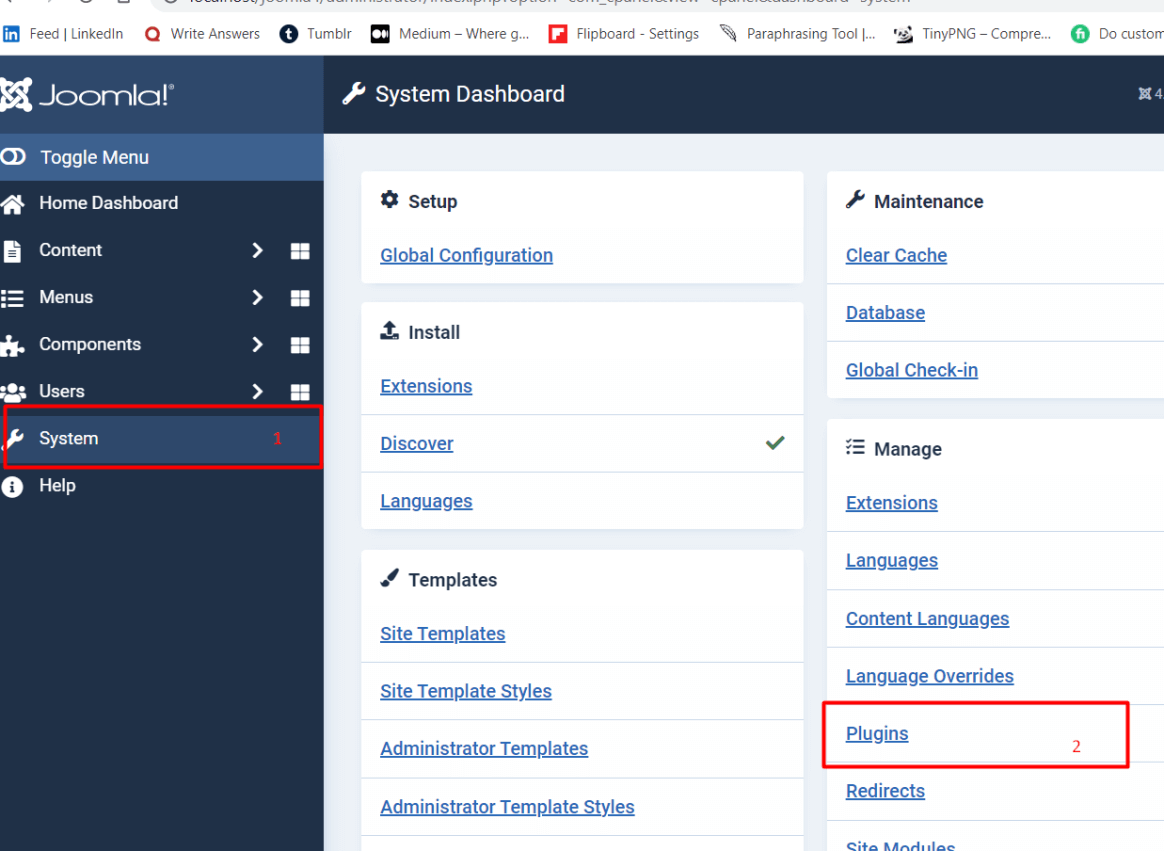
From the Joomla administrator dashboard, select System from the left sidebar.
Under the Manage section, select Plugins.
You can also use the plugin search functionality to quickly find the required plugin.
Step 3: Find the User – Terms and Conditions Plugin
In the Plugins screen, search for:
User – Terms and Conditions
Make sure you select the user plugin with this exact purpose. Joomla’s User – Terms and Conditions plugin is designed to add terms acceptance to the user registration process.
For more information about Joomla plugins, you can also refer to the official Joomla plugin documentation.
Step 4: Enable the Plugin
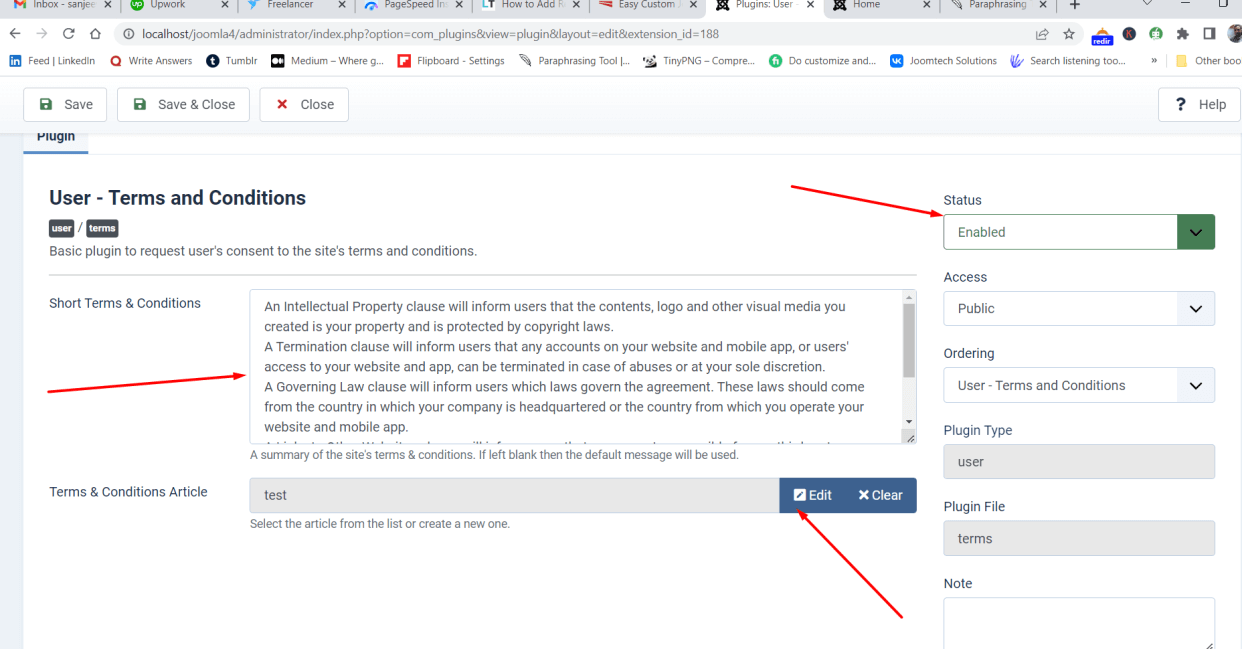
Click User – Terms and Conditions to open its configuration screen.
Change the plugin status to Enabled.
If the plugin is disabled, Joomla will not display the terms and conditions statement during registration.
Step 5: Customize the Short Terms and Conditions Message
Look for the setting for the Short Terms & Conditions message.
You can enter your own text to explain what users are agreeing to when they register.
For example:
By registering on this website, you agree to our Terms & Conditions.If you leave the field empty, Joomla can use its default terms and conditions message.
Keep this message short and easy to understand. The purpose of this field is to provide a clear registration agreement, while the linked article can contain the complete terms.
Step 6: Create a Terms and Conditions Article
If you want to provide users with complete information about your terms, create a Joomla article containing the full Terms and Conditions.
For example, you could create an article titled:
- Terms and Conditions
- Website Terms of Use
- Terms of Service
Write the complete terms in the article and publish it. You can then select this article from the User – Terms and Conditions plugin settings.
This also makes it easier to update your terms later because you can edit the Joomla article without changing the registration form itself.
Step 7: Select the Terms and Conditions Article
Return to the User – Terms and Conditions plugin configuration.
Use the available article selection option to choose the article that contains your complete Terms and Conditions.
Check the selected article carefully before saving. The registration form will use this article as the detailed terms page linked from the registration agreement.
Step 8: Save the Plugin Configuration
After configuring the plugin, click Save & Close.
The plugin is now configured to display the terms and conditions statement during user registration.
If you need to collect additional information from users during registration, see our guide on User Custom Fields in Joomla 5. Joomla custom fields can be used to extend the information collected from registered users.
How to Test Terms and Conditions on the Joomla Registration Form
After configuring the plugin, you should test the registration form from the frontend.
Open the Joomla Registration Page
Visit the user registration page on your Joomla website while logged out.
If you are already logged in as an administrator or another user, log out first. You can also test the form using a private or incognito browser window.
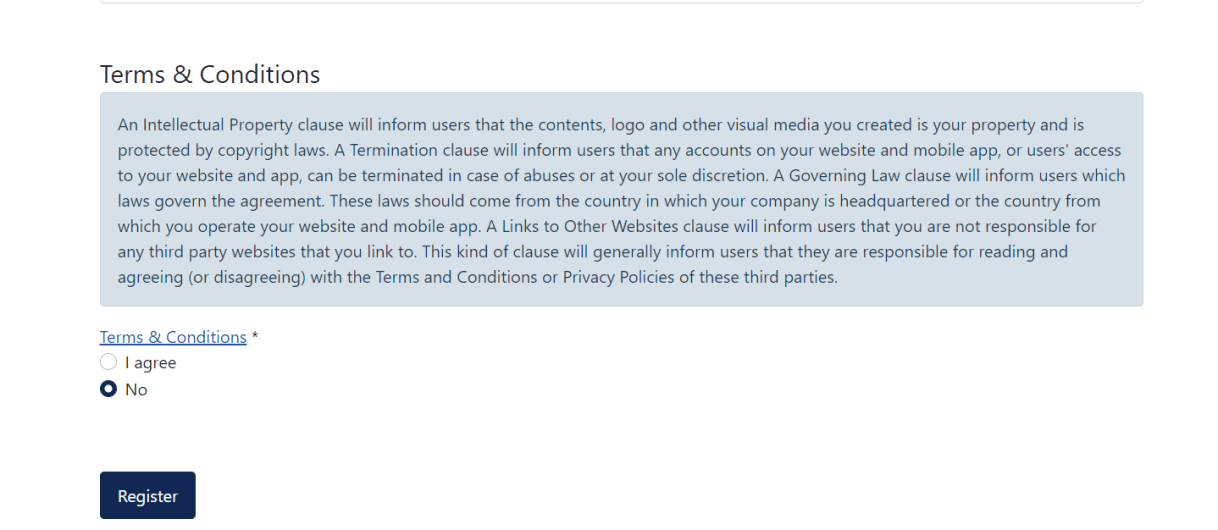
Open the registration page and check whether the Terms and Conditions statement appears.
You should see the terms agreement near the registration fields.
Test the Terms and Conditions Link
Click the Terms and Conditions link displayed on the registration form.
It should open the Joomla article that you selected in the plugin configuration.
Check the article carefully and make sure the content is publicly accessible to visitors who have not yet created an account. If the article requires special access permissions, a new visitor may not be able to read it before completing registration.
Test the Registration Agreement
Try submitting the registration form without accepting the Terms and Conditions.
The registration process should prevent the user from continuing when agreement is required and has not been provided.
Then accept the terms and submit the form again to confirm that the normal registration process works correctly.
Once your registration form is configured, you may also want to customize the information collected from new users. Learn how to create and manage user custom fields in Joomla 5.
Joomla 5 vs Joomla 6: Is the Setup Different?
The basic approach described in this tutorial applies to both Joomla 5 and Joomla 6. The important point is that the solution is based on Joomla’s user plugin system rather than a custom registration-form modification.
However, when updating an older Joomla tutorial, it is important not to blindly copy Joomla 4 instructions. Joomla 5 and Joomla 6 have newer administrator interfaces, updated APIs, and changes to deprecated functionality.
If you are maintaining an older Joomla website, check the current Joomla documentation before using code or extensions originally written for Joomla 4.
Terms and Conditions vs Privacy Policy in Joomla
Terms and Conditions and a Privacy Policy are not the same thing.
Terms and Conditions generally explain the rules, conditions, responsibilities, limitations, and requirements associated with using your website or service.
A Privacy Policy explains how your website collects, uses, stores, and handles personal information.
If your website needs both, you can create separate Joomla articles for each document. Avoid using a Terms and Conditions article as a replacement for a Privacy Policy.
Best Practices for Joomla Registration Terms and Conditions
Adding a terms statement is only one part of creating a good registration experience. Keep the following points in mind:
- Use clear and easy-to-understand language.
- Keep the registration message short.
- Provide a visible link to the complete Terms and Conditions.
- Make sure visitors can read the full terms before registering.
- Keep the Terms and Conditions article updated.
- Test the registration process after changing the plugin settings.
- Test the registration page on both desktop and mobile devices.
- Do not hide important terms in tiny or difficult-to-read text.
If your website operates in a specific country or industry, consider having your Terms and Conditions reviewed by an appropriate legal professional. The Joomla plugin provides the technical mechanism for displaying and accepting your terms; it does not create the legal content for your website.
What If the Terms and Conditions Do Not Appear?
If the Terms and Conditions statement does not appear on your Joomla registration form, check the plugin configuration first.
Make sure the User – Terms and Conditions plugin is enabled and that a valid article has been selected where required.
Also check whether your website uses a custom registration template, third-party user registration extension, or custom form override. Such customizations can affect how Joomla’s standard registration form is displayed.
Finally, test the registration page while logged out or in an incognito browser window. A logged-in administrator may not see the same registration experience as a new visitor.
Conclusion
Adding Terms and Conditions to a Joomla 5 or Joomla 6 registration form does not require custom PHP code. The built-in User – Terms and Conditions plugin provides a simple way to display a registration agreement and link visitors to a full Terms and Conditions article.
The recommended process is simple: create your Terms and Conditions article, enable the plugin, customize the short message, select the article, save the settings, and test the registration form from the frontend.
If you are migrating an older Joomla 4 tutorial to Joomla 5 or Joomla 6, make sure you also update the screenshots, terminology, links, and instructions instead of simply replacing the version number. This will make your Joomla tutorial more useful for users working with current Joomla releases.
Frequently Asked Questions
How do I add Terms and Conditions to Joomla 5?
Enable the User – Terms and Conditions plugin from the Joomla administrator panel, configure the short terms message, select your Terms and Conditions article, and save the settings. The agreement will then appear on the Joomla registration form.
Does Joomla 6 have a Terms and Conditions plugin?
Yes. Joomla provides the User – Terms and Conditions plugin for displaying Terms and Conditions during user registration. You can configure the plugin and connect it to a Joomla article containing your complete terms.
Where should I create my Terms and Conditions in Joomla?
Create a normal Joomla article containing your complete Terms and Conditions. You can then select that article in the User – Terms and Conditions plugin configuration.
Why are my Terms and Conditions not showing on the Joomla registration form?
First check that the User – Terms and Conditions plugin is enabled and configured correctly. Also check the selected article’s access level and test the registration page while logged out or in an incognito browser window.
Are Terms and Conditions the same as a Privacy Policy in Joomla?
No. Terms and Conditions generally describe the rules and conditions for using a website or service, while a Privacy Policy explains how personal information is collected and handled. They should normally be treated as separate documents.
Stay updated with our latest news, special offers, and exclusive updates directly in your inbox.