Last Updated on August 17, 2026
If you are building a website with Joomla, understanding the Joomla Menu Manager is essential. Menus are not only used to help visitors navigate your website, but they also play an important role in organizing your content and creating useful URLs.
Whether you are creating a simple business website, a blog, a news portal, or a large Joomla website with hundreds of pages, you will eventually need to work with menus and menu items.
In this guide, you will learn what the Joomla Menu Manager is, how Joomla menus work, how to create a menu, how to add menu items, how menu item types work, how to create submenu items, and how to manage menu modules.
If you are new to Joomla, it is helpful to understand the overall Joomla administrator interface before working extensively with menus. Our Complete Joomla 6 Beginner Guide covers the essential Joomla concepts, including creating articles, managing categories, creating menus, installing extensions, and configuring your website.
What Is Joomla Menu Manager?
Joomla Menu Manager is the part of the Joomla administrator area that allows you to create and manage menus and menu items on your website.
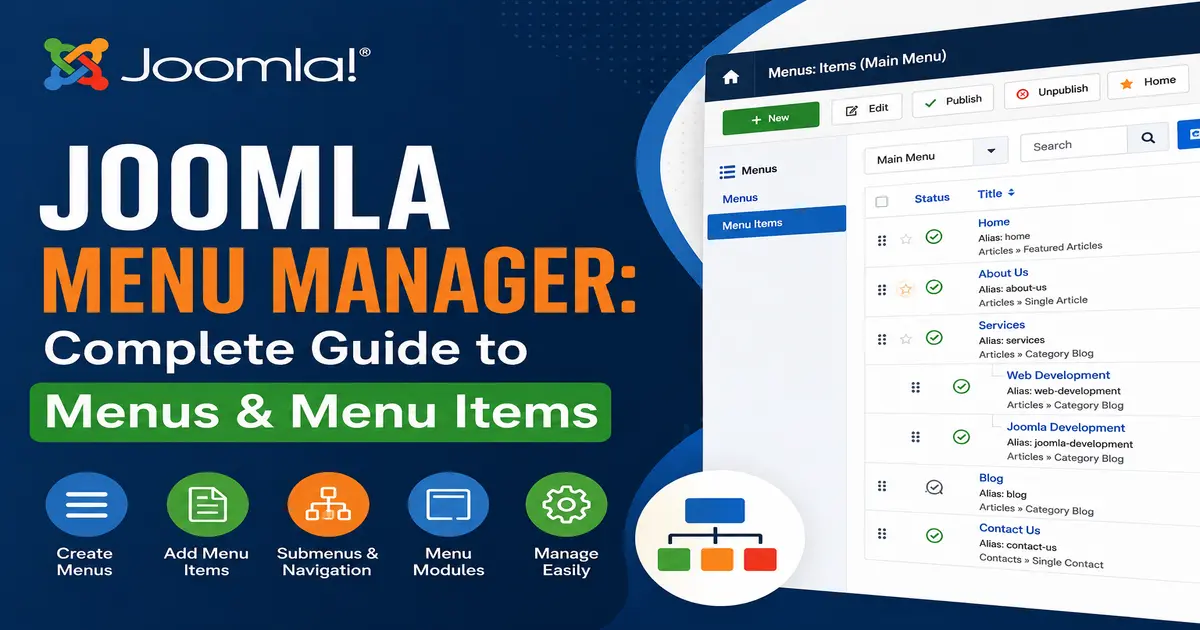
A menu is a collection of links that helps visitors move from one section of your website to another. For example, a typical Joomla website may have a main menu containing links such as:
- Home
- About Us
- Services
- Blog
- Contact Us
Each link in a Joomla menu is called a menu item. A menu item can point to an article, category blog, contact page, component, external website, or another type of Joomla content.
The Menu Manager gives you control over these menus and menu items from one central location.
Joomla Menu vs Menu Item
One of the first things beginners need to understand is the difference between a menu and a menu item.
What Is a Joomla Menu?
A menu is a container that holds multiple menu items. For example, you might create a menu called Main Menu and add Home, About, Services, Blog, and Contact as menu items.
What Is a Joomla Menu Item?
A menu item is an individual link inside a menu. It tells Joomla what should happen when a visitor clicks that link.
For example, the Blog menu item might display a category blog, while the Contact Us menu item might display a contact form.
This distinction is important because Joomla allows you to create multiple menus and place different menu items in each menu.
Menu items are closely connected with your Joomla content structure. Before creating navigation links, make sure your articles and categories are properly organized. This makes it easier to create logical navigation and gives visitors a clearer path through your website.
Menu items are closely connected with your Joomla content structure. Before creating navigation links, make sure your articles and categories are properly organized. This makes it easier to create logical navigation and gives visitors a clearer path through your website.
How to Open Joomla Menu Manager
To manage menus in Joomla, log in to your Joomla administrator dashboard.
Depending on your Joomla version and administrator interface, open the menu management area from the administrator menu. In modern Joomla versions, you can access your menus through the Menus section.
You will see the menus that already exist on your website. A default Joomla installation normally includes a main menu, although the exact menus available can depend on the installation and template.
From this area, you can create new menus, edit existing menus, manage menu items, change their ordering, publish or unpublish items, and configure menu item settings.
How to Create a New Menu in Joomla
Creating a new menu is useful when you want to organize a specific group of links separately from your main navigation.
Once you understand how menus and menu items work, you can move on to more practical Joomla navigation tasks. If you want to learn the menu creation process in more detail, see our guide to creating menus in Joomla, where you can follow the process step by step.
Step 1: Open the Menus Section
Log in to your Joomla administrator panel and open the Menus section.
Step 2: Create a New Menu
Choose the option to create a new menu. Joomla will ask you for basic information such as the menu title and menu type.
Step 3: Enter the Menu Details
Enter a descriptive title for your menu. For example:
- Main Menu
- Footer Menu
- Services Menu
- Resources Menu
The menu type is an internal identifier used by Joomla. It is usually better to keep it simple and use a unique value without spaces.
Step 4: Save the Menu
Click Save & Close to create the menu.
At this point, the menu exists in Joomla, but visitors may not see it on your website. You normally need to create menu items and display the menu through an appropriate menu module or template position.
How to Add a Menu Item in Joomla
After creating a menu, the next step is to add menu items. This is where you decide what each link should display.
Step 1: Open the Menu
From the Joomla administrator area, open the menu where you want to add the item.
Step 2: Click New
Click New to create a new menu item.
Step 3: Enter a Menu Title
Enter the text that visitors should see. For example, if the page contains information about your company, you could use About Us.
Step 4: Select a Menu Item Type
Click Select next to the menu item type. Joomla will display the available menu item types.
The available options depend on the Joomla core features and the extensions installed on your website.
Step 5: Configure the Menu Item
Configure the options required by the selected menu item type. For example, an article menu item will require you to select an article.
Step 6: Save the Menu Item
Click Save & Close.
Your menu item is now available inside the selected menu.
If you are creating your first Joomla menu item, the official Joomla user guide also provides a step-by-step explanation of the process, including selecting the menu item type and configuring the destination content. You can follow the official Joomla guide to adding a menu item for additional reference.
Understanding Joomla Menu Item Types
One of the most powerful features of the Joomla Menu Manager is the ability to choose different menu item types.
A menu item does not simply have to link to an ordinary page. It can control how Joomla displays content or interacts with a component.
Articles
Article-related menu items can display individual articles, categories, featured articles, or other article views depending on the available Joomla options.
For example, you can create a menu item that directly opens your About Us article.
Category Blog
A category blog menu item is useful when you want to display multiple articles from a category.
This is commonly used for blog sections where visitors can see article introductions and click through to read the complete content.
Featured Articles
The Featured Articles menu item can be used to create a page containing articles that have been marked as featured.
This can be useful for creating a homepage or a dedicated featured-content page.
Single Contact
Joomla also provides menu item options for displaying contact information. You can create a menu item that opens a specific contact page.
External URL
An external URL menu item allows you to create a menu link to another website.
For example, you could create a menu item that points to a partner website, documentation website, or social media profile.
Joomla provides many different menu item types, and each type determines what is displayed when a visitor opens the menu link. For more information about menu item types and how to add them, you can refer to the official Joomla documentation for Menu Items.
How to Create a Submenu in Joomla
Large websites often need more than a simple horizontal menu. You can create parent and child menu items to build a submenu structure.
For example:
- Services
- Joomla Development
- WordPress Development
- Website Migration
Here, Services is the parent menu item, while the other three items are child menu items.
Set the Parent Menu Item
When editing a menu item, look for the Parent or Parent Item option. Select the menu item that should become the parent.
For example, if you want Joomla Development to appear under Services, select Services as its parent.
Save the menu item and Joomla will place it within the menu hierarchy.
Your template must also support the required dropdown or submenu behavior for the submenu to appear as expected on the frontend.
For Joomla developers who want to understand what happens behind the scenes, Joomla also provides developer documentation covering menus and menu items. The Joomla developer documentation for Menus and Menuitems explains how menus and menu items are represented and managed within Joomla.
How to Change Joomla Menu Item Order
The order of menu items determines how links are displayed in a menu.
For example, you may want your navigation to appear in this order:
- Home
- About Us
- Services
- Blog
- Contact Us
In the Joomla Menu Manager, you can change the ordering of menu items using the available ordering controls or drag-and-drop functionality where supported.
Remember that ordering can also matter for submenu structures because Joomla uses the parent-child relationship together with ordering to build the menu hierarchy.
How to Publish or Unpublish a Joomla Menu Item
You may not always want to permanently delete a menu item. If you temporarily want to remove a link from the frontend, you can usually unpublish it.
An unpublished menu item remains available in the administrator area but will not be displayed as a published menu item on the frontend.
This is useful when you are preparing a new page or temporarily removing an old page from navigation.
How to Display a Joomla Menu on Your Website
Creating a menu does not automatically mean that visitors will see it everywhere on your website.
Joomla commonly uses a Menu module to display menu items in a template position.
Configure the Menu Module
Open the Joomla module management area and create or edit a menu module.
Select the menu that you want to display and choose an appropriate template position.
You can also control where the module appears by configuring its menu assignment and other module settings.
Choose the Correct Template Position
The available template positions depend on your Joomla template. A template might provide positions such as navigation, sidebar, footer, or header.
Select the position where you want your menu to appear and save the module.
After publishing the module, check the frontend of your website.
Joomla Menu Manager and SEO
The Joomla Menu Manager is also important for SEO because menu items can influence how visitors and search engines navigate your website.
When you create a menu item, Joomla can generate a URL based on the menu structure and the configured SEO settings.
A well-organized navigation structure makes it easier for visitors to discover important content. It can also help search engines understand the relationship between different pages on your website.
Use clear menu titles that describe the destination page. Avoid creating navigation labels that are confusing or unrelated to the content.
For example, instead of using a generic label such as Click Here, use something descriptive such as Joomla Tutorials.
Common Joomla Menu Manager Problems
Menu Is Not Showing on the Website
If your menu is not visible, first check whether the menu module is published and assigned to the correct template position.
Also verify that the menu items themselves are published and that the module is configured to display the correct menu.
Menu Item Opens the Wrong Page
Check the menu item’s selected menu item type and its configuration. If the item points to an article or category, verify that the correct content has been selected.
Dropdown Menu Is Not Working
A submenu may require support from your Joomla template and its JavaScript or CSS. Check your template’s menu configuration and make sure the parent-child menu relationship is configured correctly.
Old Menu Items Still Appear
Check whether another menu module is displaying the old menu. Joomla websites can have multiple menu modules assigned to different positions and pages.
Best Practices for Joomla Menu Management
Follow these practices when managing menus on a Joomla website:
- Use clear and descriptive menu titles.
- Keep your main navigation simple.
- Use submenu items for logically related pages.
- Avoid creating unnecessary duplicate menu items.
- Review menu links after moving or deleting important content.
- Keep important pages easy to reach.
- Check your navigation on mobile devices.
- Use meaningful URLs and page titles.
- Regularly remove or update outdated navigation links.
Frequently Asked Questions About Joomla Menu Manager
Conclusion
The Joomla Menu Manager is one of the most important tools for building and organizing a Joomla website. It gives you control over menus, menu items, navigation hierarchy, submenu structures, and the way visitors access your content.
Once you understand the difference between menus and menu items, creating and managing Joomla navigation becomes much easier. You can create dedicated menus, add different types of menu items, build dropdown navigation, display menus through modules, and create a clear structure for your website.
Joomla menus are only one part of building a complete website. If you are learning Joomla from the beginning, explore our Joomla tutorials for additional guides covering Joomla configuration, content management, extensions, SEO, APIs, and other Joomla development topics.
If you are learning Joomla, menu management should be one of the fundamental skills you master because almost every Joomla website relies on menus to connect visitors with its content.
Stay updated with our latest news, special offers, and exclusive updates directly in your inbox.