Last Updated on August 10, 2026
When you create or manage a Joomla website, understanding Joomla module positions is important. Module positions are predefined areas in your Joomla template where modules can be displayed, such as the header, sidebar, footer, navigation area, or other sections of a page.
Every Joomla template can define its own module positions. This means the available positions and their names can be different depending on the template you are using. A module position is essentially a placeholder that tells Joomla where the output of an assigned module should appear on the website.
If you want to move a module from one area of your website to another, you usually need to assign that module to a different available position from the Joomla Administrator panel.
In this tutorial, you will learn how to check Joomla module positions on the front end of your website using the built-in module position preview feature available in modern Joomla versions, including Joomla 5 and Joomla 6.
If you are also looking for a suitable design for your website, check out our guide to Top 10 Free Joomla Templates before configuring your module positions.
What Are Joomla Module Positions?
A Joomla module position is a placeholder provided by the website template. Joomla uses these placeholders to determine where modules should be displayed on a page.
For example, a template might provide positions with names such as:
- top
- menu
- sidebar-left
- sidebar-right
- banner
- footer
- debug
However, these names are not universal. The template developer decides which positions are available and where those positions appear in the template.
For a deeper explanation, see the official Joomla documentation about Joomla module positions and how templates control where modules are displayed.
For example, a position named left does not automatically mean that it must appear on the left side of your website. Its actual location is determined by the template design.
Why Do You Need to Check Joomla Module Positions?
When working with a new Joomla template, you may not know the names or locations of its available module positions. This can make it difficult to assign modules correctly.
Checking the module positions can help when you need to:
- Find the correct position for a Joomla menu module.
- Place a custom HTML module in a specific area.
- Move a sidebar module to another location.
- Identify available header and footer positions.
- Configure banners, advertisements, or other modules.
- Troubleshoot why a module is not appearing where expected.
- Understand the layout of an unfamiliar Joomla template.
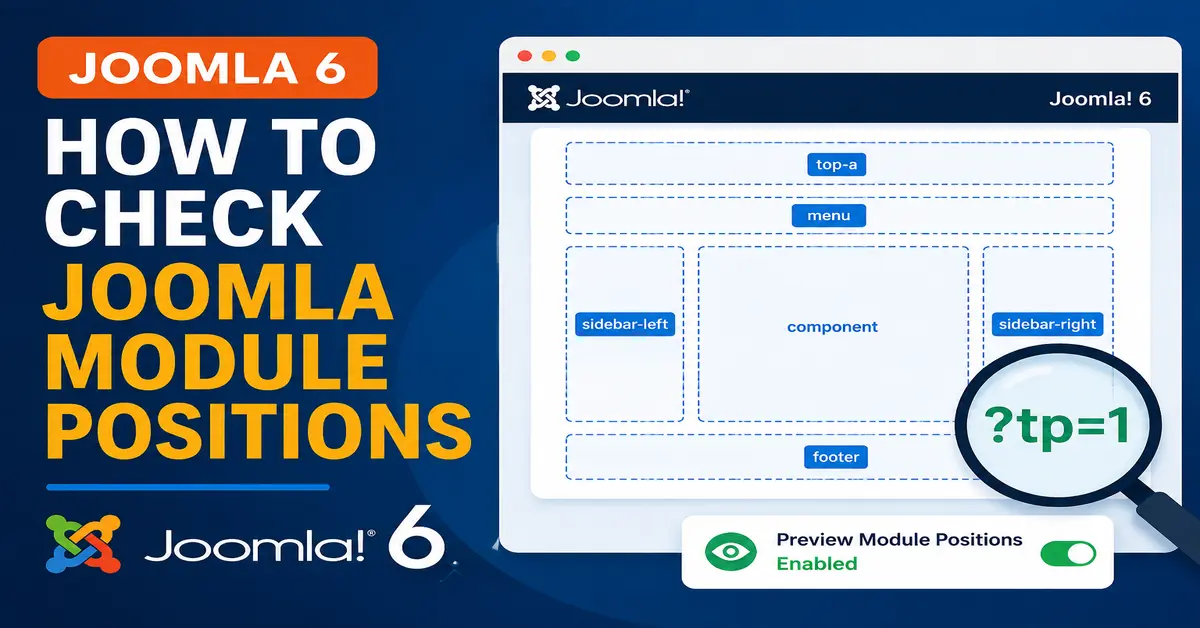
The easiest way to identify these positions is to enable Joomla’s Preview Module Positions option and then add ?tp=1 to the website URL.
How to Check Joomla Module Positions
Follow the steps below to find and preview module positions in Joomla 6.
Step 1: Open Site Templates in Joomla 6
Log in to your Joomla 6 Administrator dashboard.
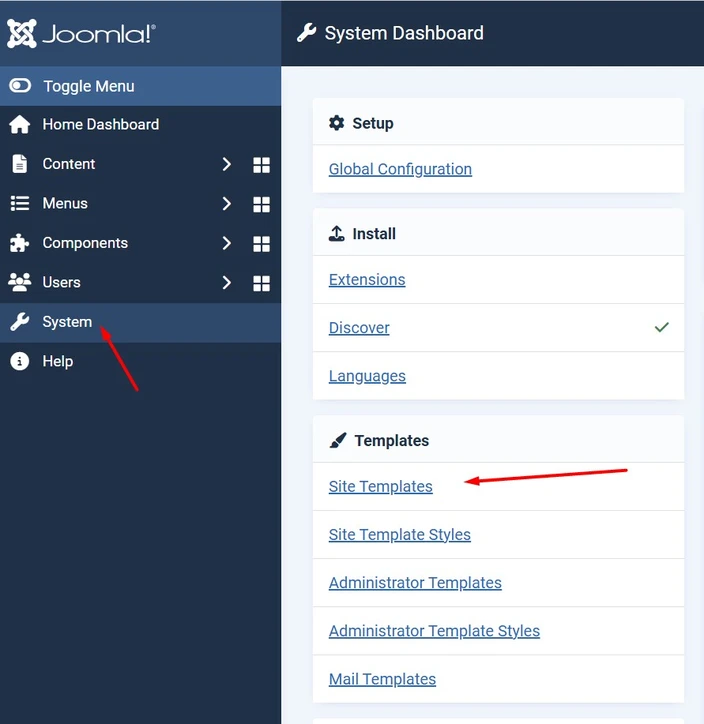
From the administrator menu, go to:
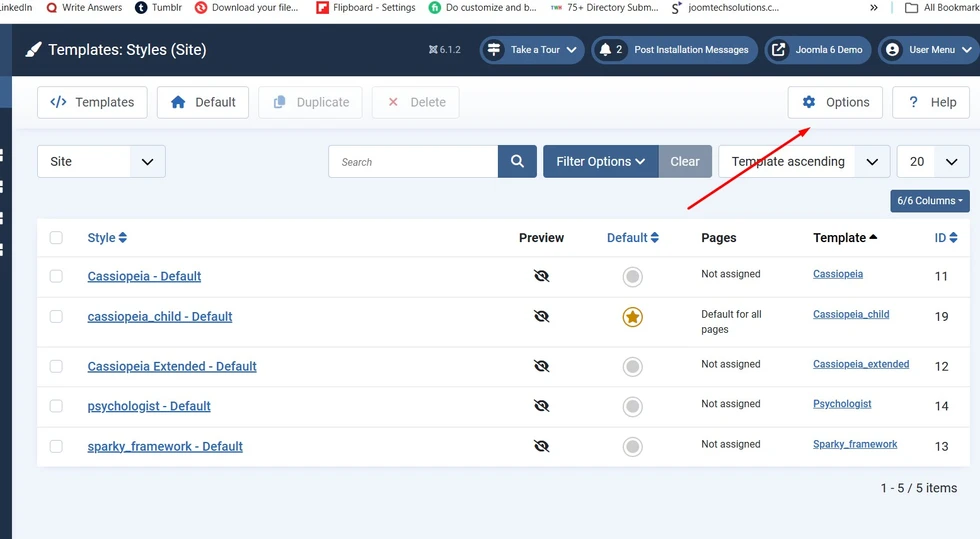
System → Site Templates
In Joomla 6, the Site Templates section allows you to manage the templates installed on your website. From here, you can access the template options and enable Preview Module Positions to identify the available module positions on your website.
Related: Top 10 Free Joomla Templates
Step 2: Open Template Options
From the Site Templates screen, click the Options button in the toolbar.
This opens the template-related options where you can configure the Preview Module Positions setting.
Step 3: Enable Preview Module Positions
In the Template Options screen, find the Preview Module Positions option.
Set this option to Enabled and then click Save & Close.
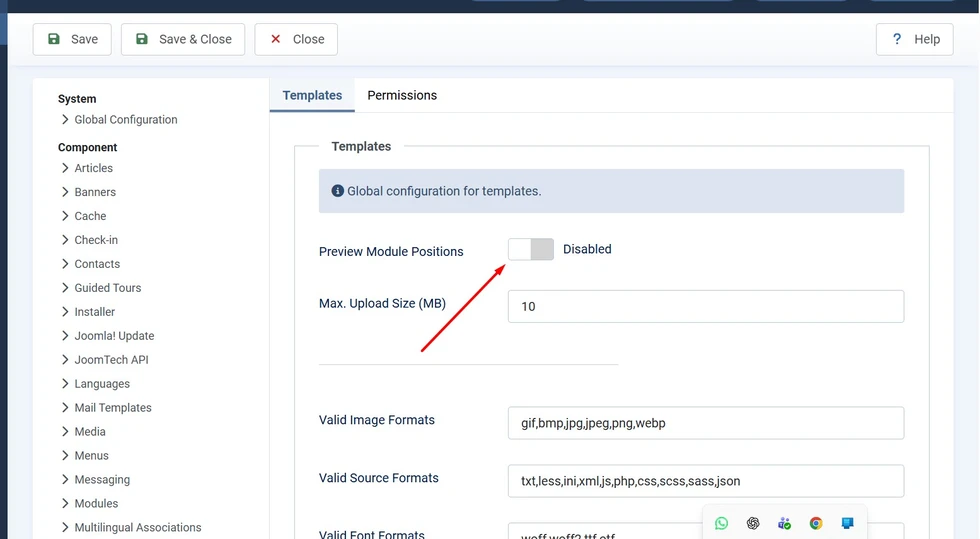
Enabling this option allows Joomla 6 to display the module positions defined by the active site template when you use the tp=1 parameter in a front-end URL.
Related: 5 Best Sitemap Plugins for Joomla
Step 4: Add ?tp=1 to Your Website URL
Now open the front end of your Joomla 6 website and visit the page where you want to identify the available module positions.
Add the following parameter to the end of the page URL:
?tp=1For example:
https://example.com/?tp=1Press Enter to reload the page.
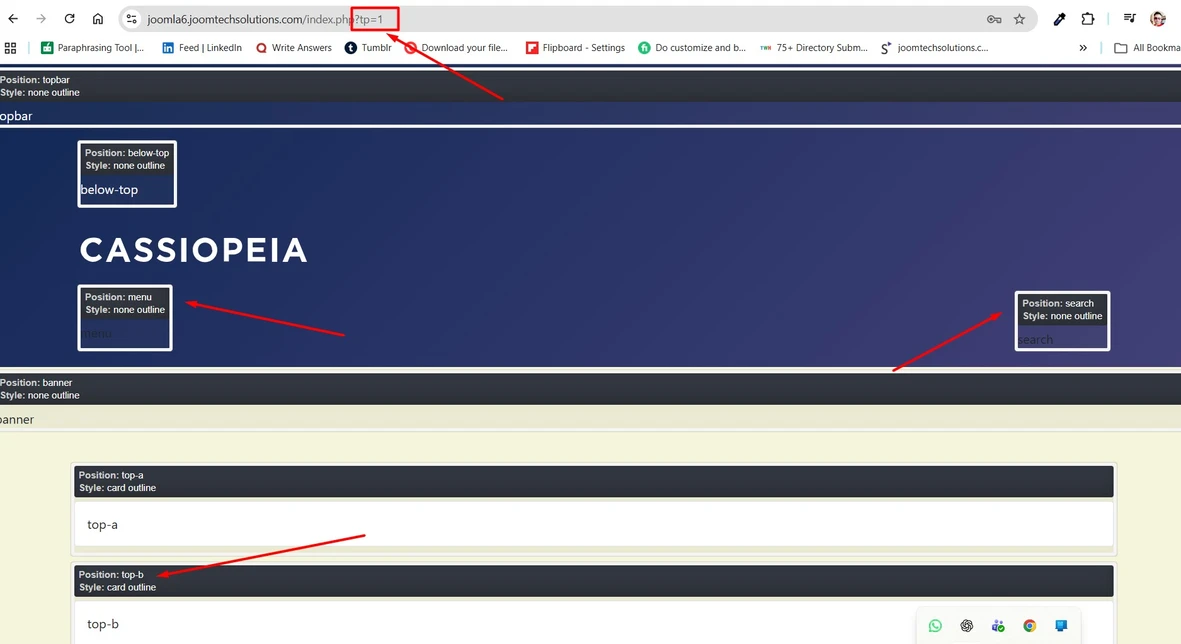
Joomla 6 will display the available module positions on the page, making it easier to identify where you can assign modules. The exact position names and their locations depend on the site template you are using.
For additional details about finding module positions, see the official Joomla documentation on finding module positions.
What If the URL Already Contains a Question Mark?
If your Joomla 6 page URL already contains a query parameter, do not add another question mark. Instead, use &tp=1 to add the module position preview parameter.
For example:
https://example.com/index.php?id=17&tp=1This distinction is important because the first query parameter in a URL starts with ?, while additional query parameters are separated using &.
Therefore, use ?tp=1 when the URL does not already contain a query string. If the URL already contains a query parameter, use &tp=1 instead.
How to Find the Correct Joomla Module Position
Once module position preview is enabled, Joomla will show the positions available on the page. You can then identify the position where you want to display a particular module.
For example, if you want to display a menu in a position shown as sidebar-right, edit the menu module from the Joomla Administrator and select sidebar-right as its position.
Keep in mind that the module position must be supported by the template. The template determines where each position is rendered on the page.
How to Assign a Module to a Joomla Module Position
After finding the correct position, you can assign a module to it from the Joomla Administrator.
Go to:
Content → Site Modules
Open the module you want to configure.
In the module settings, find the Position field and select the module position you identified earlier.
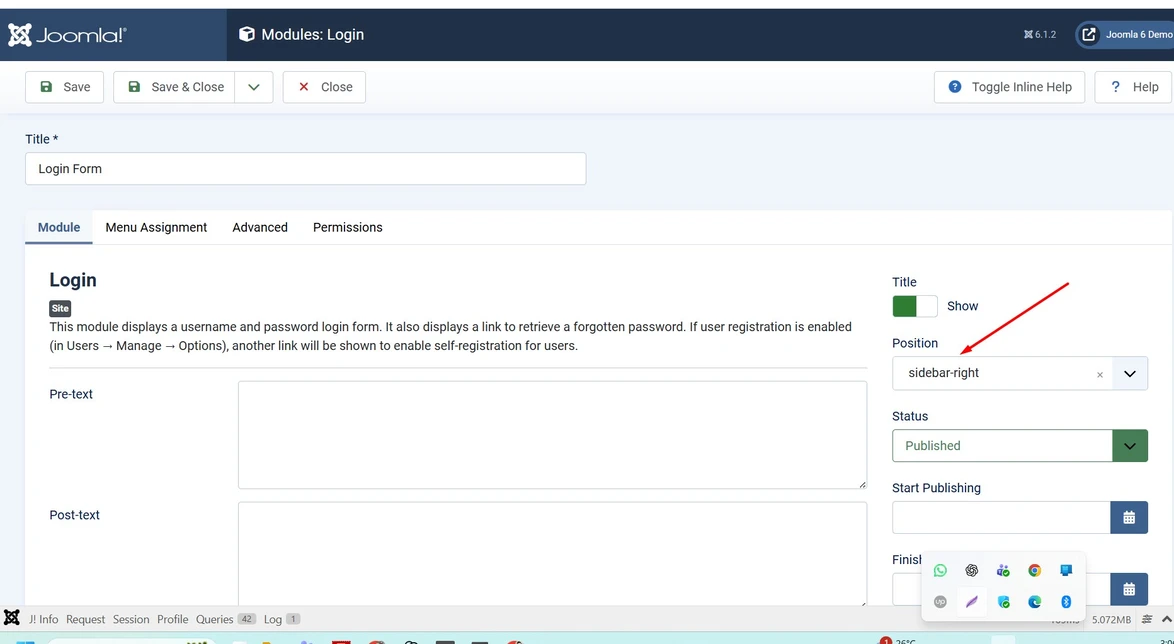
Also check the module’s publishing status and menu assignment. A module can have the correct position but still not appear if it is unpublished or not assigned to the page you are viewing.
Joomla allows multiple modules to be assigned to the same position. Their order can then be controlled from the module management screen.
After configuring your Joomla template and modules, you should also make sure your website has a properly configured sitemap. See our guide to 5 Best Sitemap Plugins for Joomla to learn more.
Why Can’t I See a Joomla Module Position?
Sometimes you may enable Preview Module Positions but still not see every position you expect. This does not necessarily mean that something is broken.
Some templates use conditional layouts. A position may only become visible when a module is assigned to it. Joomla’s documentation also notes that template-defined positions can be conditional, so positions without modules may not always be outlined in the preview.
Other common reasons include:
- The position is not defined by the active template.
- The template uses conditional rendering.
- The module is unpublished.
- The module is assigned to different menu items.
- You are previewing a different template style.
- The module position preview option is disabled.
- The template has a custom layout that changes how positions are displayed.
How Joomla Templates Define Module Positions
Module positions are controlled by the Joomla template. In a traditional Joomla template, available positions are declared in the template’s templateDetails.xml file.
A simplified example looks like this:
<positions>
    <position>top</position>
    <position>sidebar-left</position>
    <position>sidebar-right</position>
    <position>footer</position>
</positions>
The template then uses its template code to render modules in those positions. This is why different Joomla templates can have completely different position names and layouts.
If you are developing or customizing a Joomla template, understanding how module positions are declared can be especially useful.
Remember to Disable Module Position Preview on a Live Website
After you finish checking the positions, it is a good practice to return to:
System → Site Templates → Options
Then set Preview Module Positions back to Disabled.
This is particularly important for production websites. Joomla’s documentation recommends disabling the preview option on production sites after you have finished using it.
Joomla Module Positions: Quick Summary
Finding module positions in Joomla is straightforward once you know where the option is located. In Joomla 5 and Joomla 6, you can enable Preview Module Positions from the Site Templates options and then append ?tp=1 to the front-end URL.
Remember these steps:
- Log in to Joomla Administrator.
- Go to System → Site Templates.
- Click Options.
- Enable Preview Module Positions.
- Save the settings.
- Open the desired front-end page.
- Add
?tp=1to the URL. - If the URL already contains parameters, use
&tp=1. - Identify the required module position.
- Assign your module to that position from Content → Site Modules.
- Disable module position preview after finishing your work.
Conclusion: Joomla module positions make it easy to control where modules appear on your website. If you are working with a new template and do not know which positions are available, enabling Preview Module Positions and using the tp=1 URL parameter is one of the quickest ways to identify them.
Once you know the position name, you can assign your Joomla modules to the appropriate location from the Administrator panel. This is especially useful when customizing Joomla websites, configuring menus, sidebars, banners, footer content, and other modules.
If you have any questions about Joomla module positions, templates, or module configuration, feel free to leave a comment or contact us through our website.
If you are a Joomla developer, you can learn more about how module positions are declared in the official Joomla documentation for declaring module positions.
Frequently Asked Questions About Joomla Module Positions
What is a module position in Joomla?
A Joomla module position is a placeholder defined by a template where one or more modules can be displayed. The template controls where that position appears on the page.
How do I see module positions in Joomla 6?
Go to System → Site Templates → Options, enable Preview Module Positions, save the settings, and add ?tp=1 to the front-end page URL.
What does tp=1 mean in Joomla?
The tp=1 URL parameter tells Joomla to display a preview of the template’s module positions when module position preview is enabled.
Why are some Joomla module positions not visible?
Some templates use conditional module positions that only appear when a module is assigned to them. A position may also be unavailable because it is not defined by the active template or because you are viewing a different template style.
Can multiple Joomla modules use the same position?
Yes. Multiple modules can be assigned to the same Joomla module position. Joomla displays them according to their configured ordering for that position.
Stay updated with our latest news, special offers, and exclusive updates directly in your inbox.