Last Updated on July 8, 2026
If your Joomla website suddenly starts showing a blank page, a PHP warning, or an unexpected error after installing an extension, updating Joomla, or modifying custom code, enabling Joomla debug mode and PHP error reporting is one of the fastest ways to identify the problem.
By default, Joomla hides many PHP errors on live websites for security reasons. While this is recommended for production websites, it makes troubleshooting much more difficult. Enabling Joomla debug configuration and PHP error reporting allows you to view detailed error messages, warnings, notices, and deprecated messages that help you quickly identify the root cause.
For more information about Joomla administration and configuration, refer to the official Joomla Documentation.
In this tutorial, you’ll learn how to Joomla Enable Debug Configuration PHP using both the Joomla Administrator dashboard and the configuration.php file. The guide has been updated for Joomla 4, Joomla 5, Joomla 6, and PHP 8.2/8.3.
Related Tutorial: What is Joomla and How Does Joomla Architecture Work?
Table of Contents
- What is Joomla Debug Mode?
- Why Enable PHP Error Reporting?
- Joomla Error Reporting Levels Explained
- Method 1: Enable Debug from Joomla Administrator
- Method 2: Enable Debug Using configuration.php
- Best Practices
- Common Troubleshooting Tips
- Frequently Asked Questions
What is Joomla Debug Mode?
Joomla Debug Mode is a built-in feature that helps developers and website administrators troubleshoot problems by displaying detailed PHP errors, SQL queries, language debugging information, and execution details.
When combined with PHP Error Reporting, it becomes much easier to identify issues such as:
- PHP Fatal Errors
- Deprecated PHP functions
- Extension compatibility problems
- Database query errors
- Template issues
- Plugin conflicts
- Missing files or classes
- PHP Warnings and Notices
Debug mode is especially useful after upgrading Joomla or migrating your website to a newer PHP version.
Why Enable PHP Error Reporting in Joomla?
PHP error reporting provides detailed information whenever your website encounters a problem. Instead of seeing a blank page or a generic error message, you’ll receive the exact file name, line number, and reason for the issue.
Some common situations where enabling PHP error reporting is helpful include:
- White Screen of Death
- 500 Internal Server Error
- Extension installation failures
- Template customization errors
- Custom module development
- Plugin development and debugging
- PHP version compatibility issues
- Database connection problems
Note: Enable Maximum or Development error reporting only while troubleshooting. Once your issue has been resolved, switch it back to System Default or None on production websites.
You can also learn how PHP handles error reporting by reading the official PHP Error Reporting documentation.
Joomla Error Reporting Levels Explained
Joomla provides several levels of PHP error reporting. Each level is designed for different situations.
| Error Reporting Level | Description | Recommended For |
|---|---|---|
| System Default | Uses your web server’s PHP configuration. | Production websites |
| None | Disables PHP error messages. | Live websites |
| Simple | Displays only basic PHP errors. | Basic troubleshooting |
| Maximum | Shows all PHP errors, warnings, and notices. | Developers |
| Development | Displays all errors, including deprecated notices. | Testing Joomla extensions and PHP compatibility |
For Joomla 6 websites running PHP 8.2 or PHP 8.3, the Development option is particularly useful because it highlights deprecated code that should be updated before future PHP releases.
Method 1: Joomla Enable Debug Configuration PHP from Administrator
The easiest way to enable Joomla PHP error reporting is through the Administrator dashboard.
Step 1: Log in to Joomla Administrator
Sign in to your Joomla Administrator panel using your Super User account.
- Open your Joomla Administrator URL.
- Enter your username and password.
- Log in successfully.
Step 2: Open Global Configuration
From the Administrator dashboard, navigate to:
System → Global Configuration
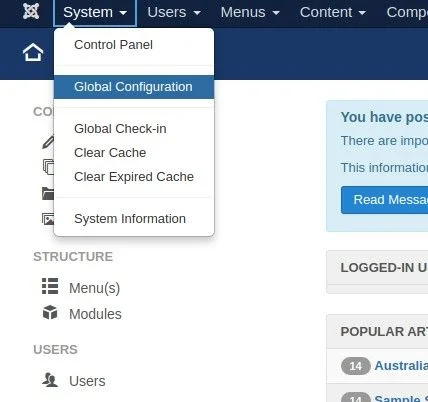
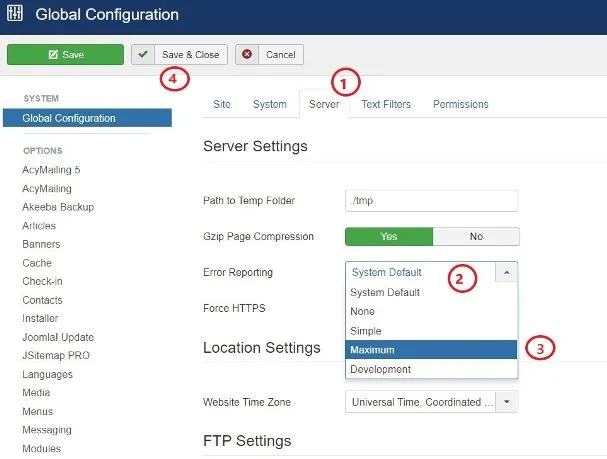
The Global Configuration page contains all major Joomla settings, including Server, Site, System, Users, and Permissions.
Related Guide: How to Install Joomla Quickstart Package
Step 3: Open the Server Tab
Click the Server tab.
Scroll until you find the Error Reporting setting.
By default, most Joomla installations use System Default.
Step 4: Select an Error Reporting Level
Click the Error Reporting dropdown and choose one of the following:
- Maximum
- Development
For most debugging tasks, Maximum is sufficient.
If you’re checking PHP compatibility after upgrading to PHP 8.2 or PHP 8.3, select Development.
- Select the Server tab.
- Locate the Error Reporting option.
- Choose Maximum or Development.
- Click Save & Close.
Step 5: Reproduce the Error
Visit the page that was showing the issue.
Instead of a blank page, Joomla will now display useful debugging information including:
- Error type
- PHP file location
- Line number
- Stack trace
- Deprecated functions
- Extension causing the problem
This information helps you identify the exact cause of the issue much faster.
Method 2: Enable Joomla Debug Using configuration.php
If you cannot access the Joomla Administrator area because of a fatal PHP error, you can enable PHP error reporting manually by editing the configuration.php file.
This method is especially useful when your Administrator login page displays a blank screen or a 500 Internal Server Error.
Step 1: Locate configuration.php
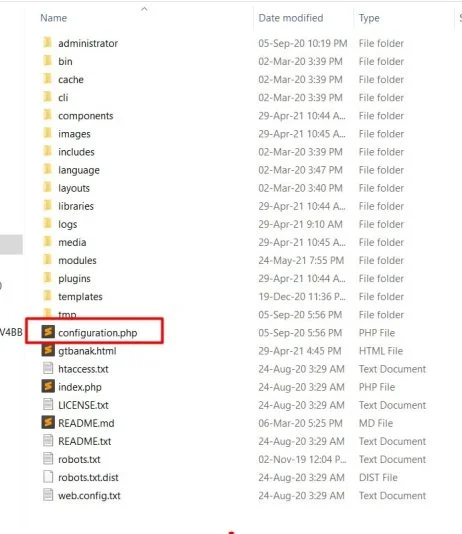
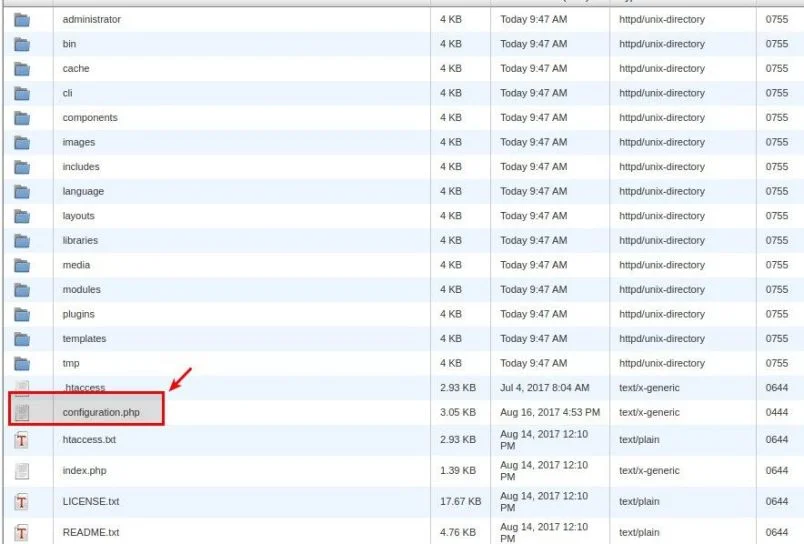
The configuration.php file is located in the root directory of your Joomla installation.
If you’re working on localhost, it may look similar to the following:
Related Guide: How to Install Joomla Template on Localhost
If your website is hosted online, open your hosting File Manager or connect through FTP and locate the Joomla root directory.
Step 2: Edit the Error Reporting Setting
Open the configuration.php file using a text editor.
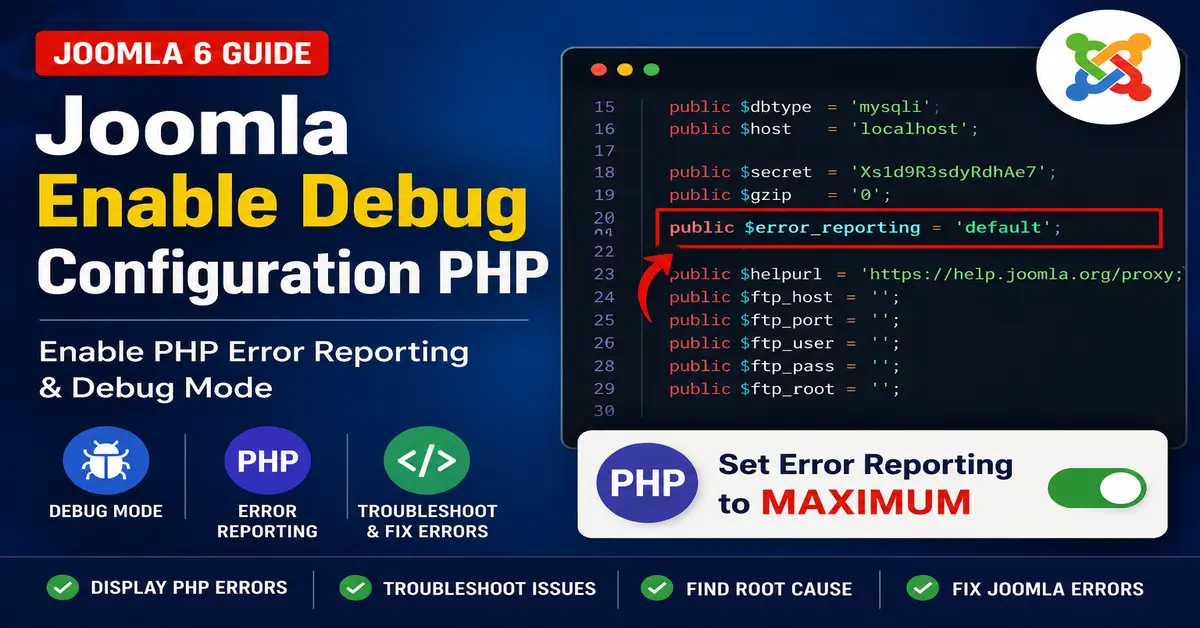
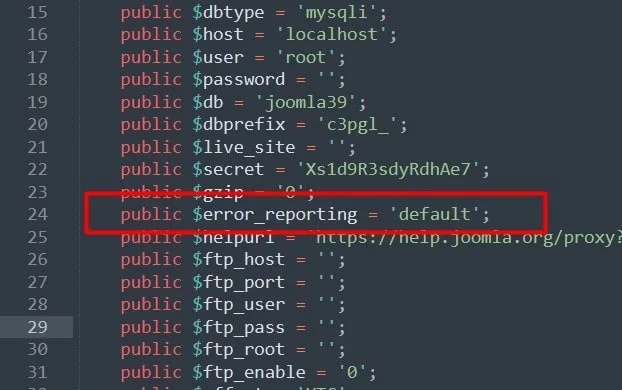
Locate the following line:
public $error_reporting = 'default';Depending on your Joomla version, this value may already be set to none, simple, maximum, or development.
Step 3: Change the Value
To display all PHP errors, modify it as follows:
public $error_reporting = 'maximum';Or, if you’re testing extension compatibility with newer PHP versions:
public $error_reporting = 'development';
Save the file and upload it back to your server if you’re editing it locally.
Step 4: Verify the Setting
After saving the file, log in to your Joomla Administrator and navigate to:
System → Global Configuration → Server
You should now see the Error Reporting value updated to Maximum or Development.

Best Practices When Using Joomla Debug Mode
- Enable debug mode only while troubleshooting.
- Disable Maximum or Development mode once the issue is fixed.
- Never leave detailed PHP errors enabled on a live production website.
- Always create a full website backup before editing
configuration.php. - Keep Joomla, PHP, templates, and extensions updated.
- Test third-party extensions with the latest supported PHP version before deploying updates.
Common Issues Debug Mode Can Help You Fix
- Blank white page after Joomla update
- 500 Internal Server Error
- Extension compatibility issues
- Deprecated PHP warnings after upgrading to PHP 8.2 or 8.3
- Missing class or file errors
- Database query failures
- Template override problems
- Plugin conflicts
- Custom component development errors
Conclusion
Enabling Joomla Debug Configuration PHP is one of the most effective ways to troubleshoot Joomla errors and identify the root cause of website issues. Whether you enable error reporting through the Joomla Administrator or directly from the configuration.php file, detailed PHP messages can significantly reduce debugging time.
For Joomla 6 websites running PHP 8.2 or PHP 8.3, using the Development error reporting level during testing is highly recommended because it reveals deprecated code that should be updated before future PHP releases.
Once you’ve resolved the issue, remember to switch the error reporting level back to System Default or None to keep your production website secure and prevent sensitive debugging information from being exposed.
Before upgrading your Joomla website, always verify that your server is running a supported PHP version for improved security and compatibility.
Stay updated with our latest news, special offers, and exclusive updates directly in your inbox.