Last Updated on April 14, 2026
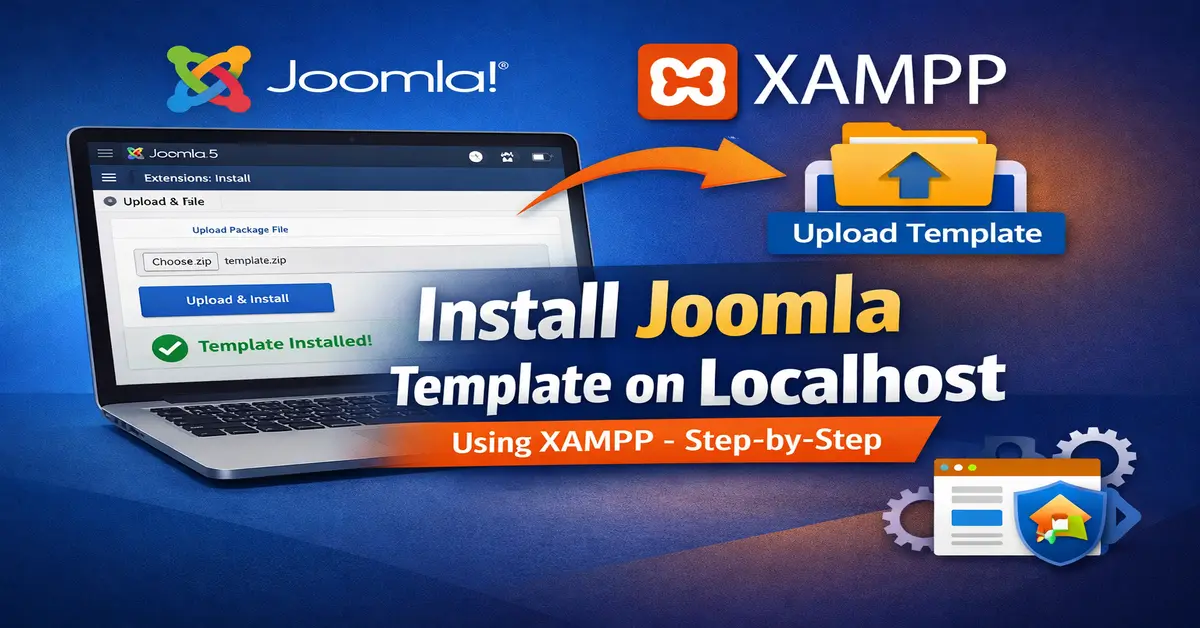
If you’re wondering how to install Joomla template on localhost, you’re in the right place. Installing a Joomla template on localhost using XAMPP is a crucial step for developers and beginners who want to build, customize, and test websites efficiently. A local environment allows faster development, easier debugging, and zero risk to your live (production) website.
If you haven’t set up your local environment yet, you can follow Install Joomla 5 on Windows 11 using XAMPP to get started quickly.
This tutorial provides a clear, step-by-step process to help you install and configure your Joomla template on localhost. For a deeper understanding of how templates work in Joomla CMS , you can explore the official resources.
What is a Joomla Template?
A Joomla template is the design layer of your website in Joomla. It controls how your site looks—such as layout, colors, fonts, and the positioning of elements—without changing the actual content like articles, images, or menus.
For beginners, you can think of a template as a ready-made design that instantly changes the appearance of your website without any coding. If you want a quicker setup with demo content, you can explore How to Install Joomla QuickStart Package, which installs Joomla along with a pre-configured template and sample data.
For developers who are new to Joomla, a template is a structured collection of files (such as PHP, CSS, and XML) that define the frontend output. It uses module positions and layouts to render content dynamically, allowing full design customization while keeping content separate. Once you’re comfortable with localhost, you can also learn how to install a Joomla Template on a Server to deploy templates on a live website. For a deeper technical understanding, you can refer to the Joomla Documentation.
Joomla Template vs Quickstart Package
- Template: Design only (used on existing Joomla site)
- Quickstart: Full demo site with Joomla + template + sample data
After understanding what a Joomla template is, it’s important to know how it differs from a Quickstart package. While both are used in
Joomla CMS serves different purposes depending on your website setup.
A Joomla template only controls the design and layout of your website, and it requires an existing Joomla installation. On the other hand, a Quickstart package is a complete website setup that includes Joomla, the template, extensions, and demo content—all in one installation.
If you want to quickly launch a ready-made website with sample data, you can follow How to Install Joomla QuickStart Package – Complete Step-by-Step Guide.
However, if your Joomla site is already installed and you just want to change the design, then installing a template is the right approach, which is exactly what this guide will help you achieve.
Steps to Install Joomla Template in Joomla 5
Follow these simple steps to install a Joomla template in your Joomla 5 website using the administrator panel.
Make sure your template file is ready and your Joomla site is properly set up before proceeding with the installation process.
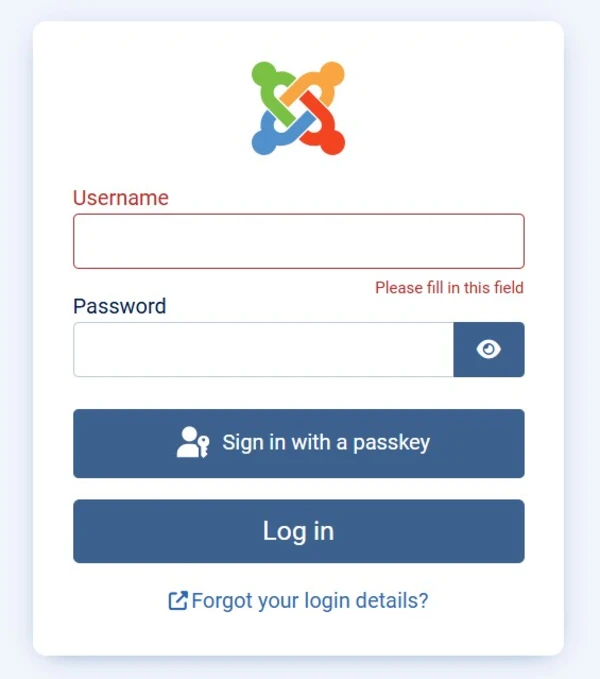
Step 1: Login to Joomla Administrator
Go to your Joomla admin panel (usually /administrator) and log in using your credentials.
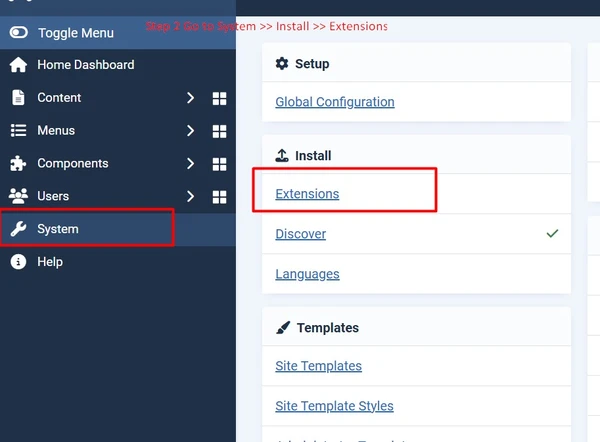
Step 2: Go to System→ Extensions→ Install
From the dashboard, navigate to:
System→ Extensions→ Install
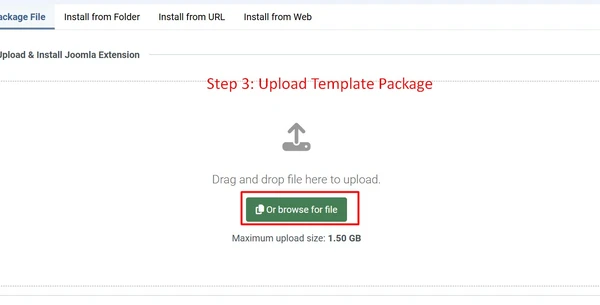
Step 3: Upload Template Package
Click on Upload Package File and select your template ZIP file. Joomla will automatically install it.
Step 4: Set Template as Default
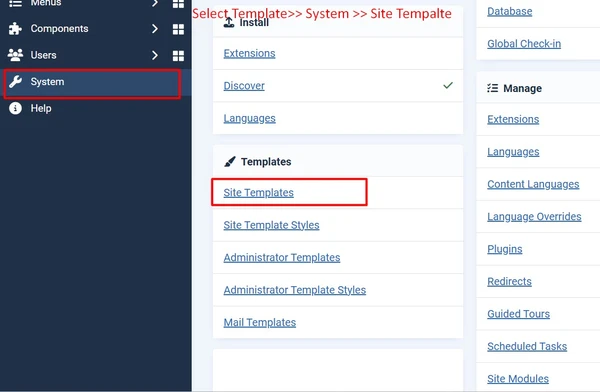
After installation, go to:
System → Site Templates → Styles
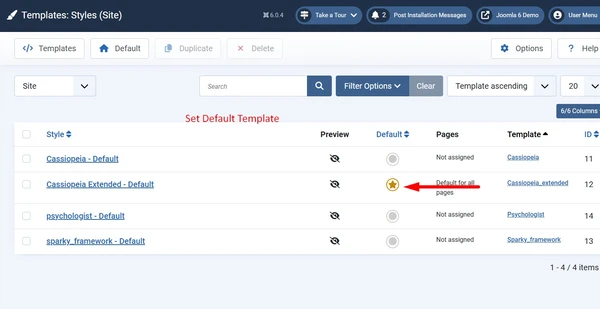
Find your template and click the star icon to make it the default template for your website.
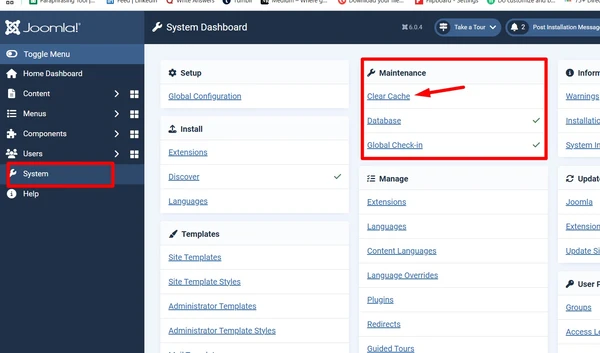
Step 5: Clear Cache (Recommended)
To ensure changes appear correctly, go to:
System → Maintenance → Clear Cache
Pro Tips (2026)
- Always use templates compatible with Joomla 5+
- Check template supports Bootstrap 5 and modern PHP versions
- Use a staging site before installing on the live server
- Optimize template assets for better Core Web Vitals
Related Tutorials
- Create a Custom Administrator Module for Joomla 5
- Best Free Joomla Templates (Updated 2026)
- Top Joomla eCommerce Extensions
- How to Upgrade Joomla 4 to Joomla 5
Frequently Asked Questions
How to install Joomla template on localhost?
To install a Joomla template on localhost, log in to your Joomla admin panel, go to System → Extensions → Browse, upload your template ZIP file, and click “Upload & Install“.
Can I install Joomla template using XAMPP?
Yes, you can install a Joomla template using XAMPP by setting up a local server environment and then installing the template through the Joomla administrator panel.
Why is my Joomla template not showing after installation?
If your Joomla template is not showing, make sure you have set it as the default template and cleared the Joomla cache from the admin panel.
What is the difference between Joomla template and Quickstart package?
A Joomla template only changes the design of your site, while a Quickstart package includes Joomla, template, extensions, and demo content in one installation.
Do I need coding knowledge to install a Joomla template?
No, you do not need coding knowledge to install a Joomla template. Joomla provides an easy interface to upload and activate templates.
Stay updated with our latest news, special offers, and exclusive updates directly in your inbox.