Last Updated on August 7, 2026
If you’re wondering how do I add an RSS feed to my Joomla site, you’ve come to the right place. RSS (Really Simple Syndication) is one of the easiest ways to distribute your website content automatically. It allows visitors, news aggregators, and other websites to receive your latest articles without manually checking your website for updates.
Although RSS has been around for many years, it is still widely used by bloggers, news websites, content aggregators, podcast platforms, and automation tools. Joomla includes built-in support for RSS feeds, making it simple to publish or display syndicated content without installing additional extensions.
In this step-by-step tutorial, you’ll learn how to configure RSS feeds in Joomla, understand how they work, and discover the latest recommendations for Joomla 6. While the screenshots in this guide were originally captured using Joomla 3, the overall concept remains useful, and we’ve updated the instructions to match the latest Joomla interface wherever applicable.
By the end of this guide, you’ll know how to create an RSS feed, display syndicated content, and configure your Joomla website for better content distribution.
For official information about Joomla CMS, features, and documentation, visit the Official Joomla Documentation. It provides detailed guidance for administrators, developers, and website owners using the latest Joomla versions.
What Is an RSS Feed?
An RSS (Really Simple Syndication) feed is an XML-based file that automatically shares your latest website content with subscribers. Instead of visiting your website repeatedly, users can subscribe to your feed using an RSS reader or compatible application and receive new content as soon as it’s published.
RSS feeds are commonly used for:
- Blog posts
- News articles
- Forum discussions
- Product updates
- Podcast episodes
- Event announcements
- Video content
Many automation services, mobile applications, and newsletter platforms also use RSS feeds to retrieve fresh content automatically.
Now that you understand how RSS feeds work, it’s worth exploring the latest improvements in Joomla 6. Our Joomla 6 Features guide explains the new administrator interface, performance enhancements, security updates, and developer-friendly improvements that make Joomla 6 more powerful than previous versions.
Why Should You Use RSS Feeds in Joomla?
Even in Joomla 6, RSS feeds remain useful for websites that publish content regularly. They make it easier for users and third-party services to stay updated without manually visiting your website.
Some key benefits include:
- Automatically share newly published articles.
- Increase content visibility across different platforms.
- Allow users to subscribe to updates.
- Improve content syndication.
- Support automation tools and feed readers.
- Reduce the need for manual content sharing.
If your Joomla website regularly publishes news, tutorials, blogs, or announcements, enabling RSS feeds can improve the overall user experience.
Related Tutorial: How to Install a Joomla Quickstart Package on Your Server
How Do I Add an RSS Feed to My Joomla Site?
Let’s walk through the complete process step by step.
Step 1: Log in to Your Joomla Administrator Panel
First, sign in to your Joomla Administrator dashboard using an account with administrator or Super User privileges.
In Joomla 6, the administrator interface has been modernized compared to Joomla 3, but the overall workflow remains similar.
Once you’re logged in, you’ll have access to all the tools needed to configure RSS feeds.
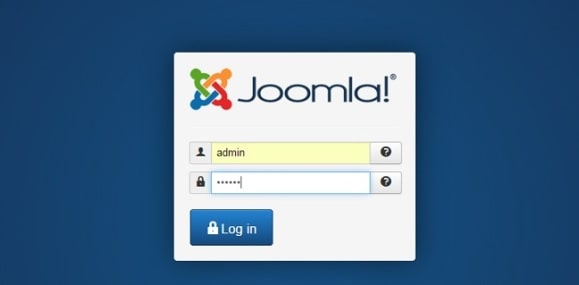
Log in to the Joomla Administrator Dashboard.
If you’re setting up a new Joomla website, make sure your installation is configured correctly before creating RSS feeds. Follow our How to Install Joomla tutorial for a complete step-by-step installation guide, including server requirements and post-installation recommendations.
Step 2: Open the Modules Section
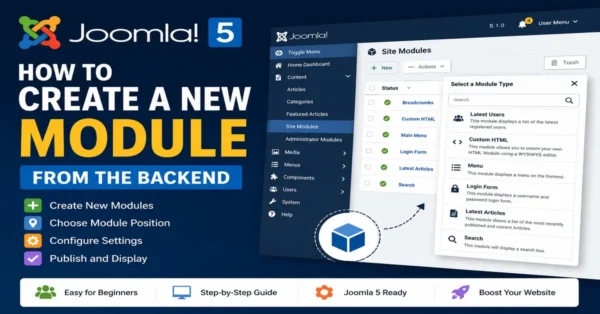
In Joomla 6, modules are managed from the Administrator panel under:
System → Site Modules
If you’re using an older Joomla version, you may still see:
Extensions → Module Manager
Both locations allow you to create and manage Joomla modules, including the module used for displaying syndicated feeds.

Open the Modules Manager.
Note: The screenshot above is from Joomla 3. The navigation path has changed in Joomla 6, but the configuration process remains nearly identical.
Step 3: Create a New Module
Click the New button to create a new module.
Joomla will display a list of available module types. Each module serves a different purpose, such as displaying menus, custom HTML, banners, login forms, or syndicated content.
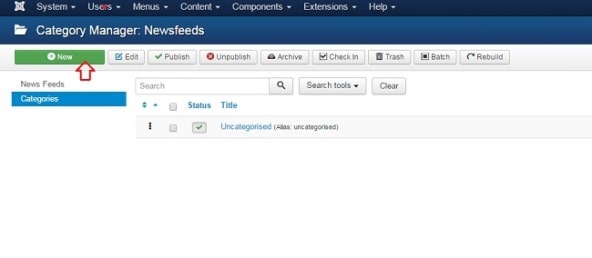
Creating a new module is the first step toward displaying RSS content on your Joomla website.
Step 4: Select the Syndication Feeds Module
From the available module types, choose Syndication Feeds (or the equivalent RSS-related module available in your Joomla installation).
This module enables Joomla to display syndicated content from external RSS or Atom feeds.
Depending on your Joomla version and installed extensions, the available module names may vary slightly, but the purpose remains the same.
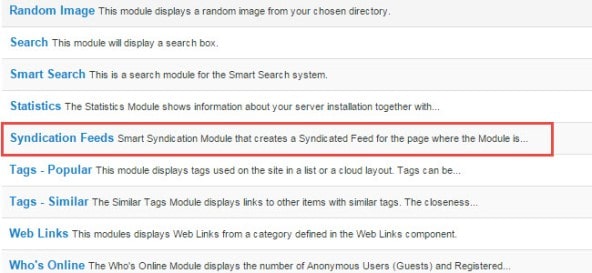
Once selected, Joomla opens the module configuration screen where you can enter the feed title, description, publishing options, display settings, and other parameters.
Related Tutorial: Top 10 Free Joomla Templates
In the next section, we’ll configure the RSS feed by adding the title, description, category, images, and feed URL before publishing it on the front end of your Joomla website.
Configure and Publish Your Joomla RSS Feed
After selecting the Syndication Feeds module, the next step is configuring your RSS feed. In this section, you’ll define the feed title, choose the appropriate category, optionally add an image, and connect the module to the feed you want to display.
Although the screenshots below were taken from Joomla 3, the same concepts apply to Joomla 4, Joomla 5, and Joomla 6. The interface has been updated, but the settings remain very similar.
Step 5: Enter the RSS Feed Title and Description
Give your RSS feed a clear and descriptive title. This title helps visitors understand the type of content being syndicated.
You can also add a short description that explains what users will receive when they subscribe to your feed.
For example:
- Title: JoomTech Solutions Tutorials
- Description: Latest Joomla tutorials, tips, extensions, and development guides.
A meaningful title and description improve usability and help users identify your feed in RSS readers.
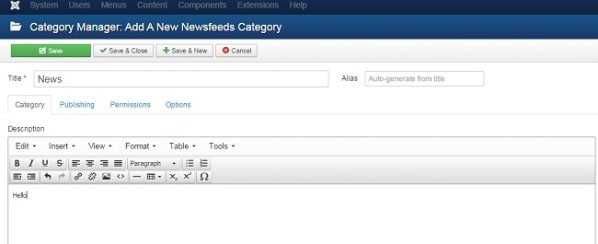
Enter a descriptive title and description for your RSS feed.
Step 6: Choose the Feed Category
Select the category that contains the content you want to publish through your RSS feed.
For example, if your website includes categories such as:
- Joomla Tutorials
- WordPress Tutorials
- PHP Development
- Website News
You can choose the category that best matches the content you want visitors to receive.
Using categories helps keep your RSS feed organized and ensures subscribers receive only relevant updates.
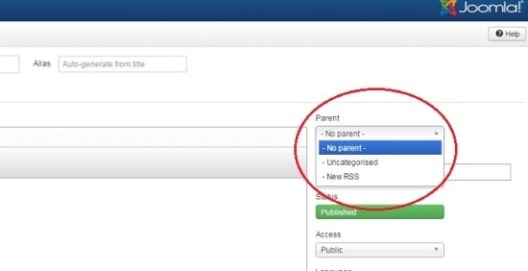
Choose the category that will be associated with your RSS feed.
Step 7: Add an RSS Feed Image (Optional)
Adding an image is optional, but it can improve the appearance of your RSS feed in compatible readers and applications.
Click the Image button near the editor to select or upload an image from your Joomla Media Manager.
Choose a logo or representative image that matches your website or brand.
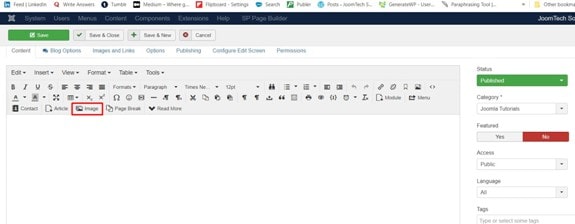
After clicking the Image button, Joomla opens the Media Manager where you can select an existing image or upload a new one.
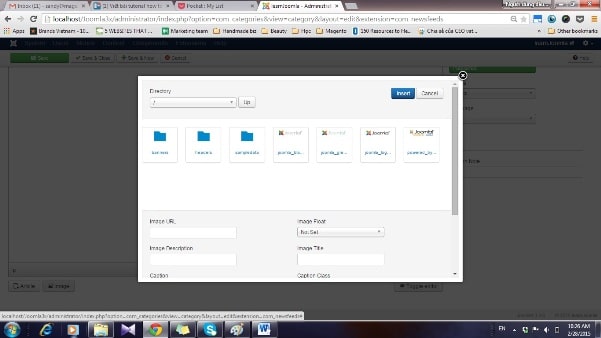
Choose an image for your RSS feed.
Step 8: Save the RSS Feed Module
After completing the required settings, click the Save button.
Saving the module stores all your configuration changes and prepares the feed for publication.
At this point, your module has been created, but you’ll still need to configure the feed source.
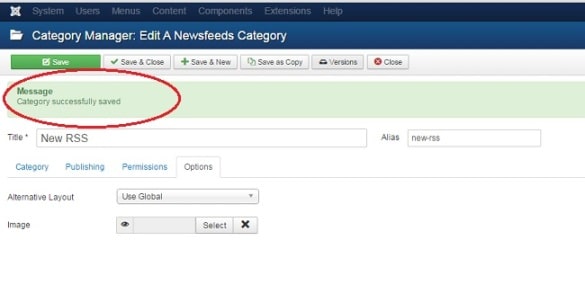
Save the RSS feed configuration.
Step 9: Create a News Feed
Next, create the actual News Feed item that Joomla will display.
In modern Joomla versions, navigate to the News Feeds component and click New.
This allows Joomla to connect to an external RSS or Atom feed.

Create a new News Feed.
Assign the News Feed to the appropriate category so it remains organized within your Joomla administration panel.
Step 10: Enter the RSS Feed URL
Now enter the URL of the RSS feed you want Joomla to display.
The feed URL should point directly to a valid RSS or Atom feed.
For Joomla-generated feeds, the URL often ends with parameters similar to:
?format=feed&type=rss
Depending on your Joomla version, menu structure, and router configuration, your feed URL may look slightly different.
Always verify the feed URL in your browser before saving it.
If you’d like to understand how RSS feeds work behind the scenes, the RSS 2.0 Specification explains the XML structure, feed elements, and standards followed by most RSS readers and publishing platforms.

Enter the RSS feed URL and choose the appropriate category.
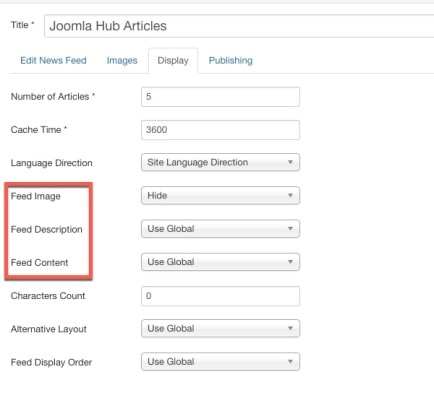
You can also configure several display options, including:
- Number of articles to display
- Display feed description
- Show or hide images
- Display publication dates
- Show author information
- Character limits for article descriptions
Adjust these settings according to the layout and design of your Joomla website.
Preview the RSS Feed on Your Website
After saving all settings, publish the module if it isn’t already published.
Visit the front end of your Joomla website and refresh the page.
If everything has been configured correctly, your RSS feed should now appear on your selected page or module position.
RSS feed successfully displayed on the Joomla website.
If the feed doesn’t appear immediately, clear your Joomla cache and browser cache before testing again.
In the final part of this guide, we’ll cover common RSS feed issues, troubleshooting tips, SEO best practices, a conclusion, and five frequently asked questions with FAQ Schema for Joomla 6.
Common RSS Feed Problems and How to Fix Them
If your RSS feed is not displaying correctly, don’t worry. Most RSS-related issues in Joomla are caused by incorrect configuration, unpublished modules, or an invalid feed URL. Here are some common problems and their solutions.
1. RSS Feed Is Not Displaying
If your RSS feed doesn’t appear on the frontend, check the following:
- Ensure the module is published.
- Verify that the module is assigned to the correct menu item.
- Confirm that the selected template position exists.
- Clear Joomla and browser caches.
2. Invalid RSS Feed URL
Always verify that the feed URL is accessible in your browser before adding it to Joomla. If the URL returns an error or displays HTML instead of XML, double-check the address.
For Joomla-generated feeds, ensure you’re using the correct feed endpoint for your website.
3. Images Are Not Appearing
Some RSS readers intentionally hide images, while others display them only when they are included in the feed content. Review your display settings and test your feed using different RSS readers.
4. Feed Content Doesn’t Update
If your feed isn’t showing newly published articles, try clearing Joomla’s cache, checking your server cache, and confirming that the articles are published in the selected category.
5. Permission Issues
If you’re displaying content from a restricted category, make sure the articles are accessible to the intended audience. Public RSS feeds should generally use content with Public access permissions.
SEO Best Practices for Joomla RSS Feeds
Although RSS feeds don’t directly improve search engine rankings, they help distribute your content more efficiently and increase the chances of your articles being discovered through feed readers, aggregators, and automation platforms.
Follow these best practices:
- Use descriptive article titles.
- Write unique meta descriptions.
- Publish high-quality original content.
- Organize articles into meaningful categories.
- Keep your RSS feed updated regularly.
- Use clean URLs.
- Optimize article images.
- Avoid duplicate content.
Should You Still Use RSS Feeds in Joomla 6?
Yes. Although social media and email newsletters have become popular ways to distribute content, RSS feeds continue to play an important role in content syndication, automation, and integrations.
Many applications still rely on RSS feeds, including:
- Feed readers
- News aggregation websites
- Podcast directories
- Automation platforms like Zapier and Make
- Email marketing tools
- Content curation services
If your Joomla website publishes regular updates, enabling RSS is still a smart choice.
Conclusion
Now you know how to add an RSS feed to your Joomla site. Joomla includes built-in functionality that makes it easy to publish or display RSS feeds without relying on complex third-party extensions.
While the screenshots in this tutorial were taken from Joomla 3, the same concepts apply to Joomla 4, Joomla 5, and Joomla 6. The administrator interface has changed over time, but the overall process of creating and displaying RSS feeds remains very similar.
Whether you’re running a blog, news portal, educational website, or business site, RSS feeds can help distribute your latest content automatically, improve user engagement, and integrate your website with other platforms.
If you’re building a modern Joomla website, RSS feeds are still a valuable feature worth enabling.
After creating your RSS feed, it’s a good idea to validate it using the W3C Feed Validation Service. This free tool checks your feed for formatting errors and helps ensure compatibility with RSS readers and content aggregation services.
Frequently Asked Questions
1. How do I add an RSS feed to my Joomla site?
Create or configure a News Feed, publish the appropriate module, enter a valid RSS feed URL, assign it to a menu position, and save your changes. Joomla will then display the RSS feed on your website.
2. Does Joomla 6 support RSS feeds?
Yes. Joomla 6 continues to support RSS feeds through its built-in News Feeds functionality and compatible modules, allowing you to publish or display syndicated content.
3. Can I display external RSS feeds in Joomla?
Yes. Joomla allows you to display RSS and Atom feeds from external websites by providing the correct feed URL and configuring the display settings.
4. Why is my Joomla RSS feed not working?
Common reasons include an incorrect feed URL, unpublished module, invalid template position, caching issues, or permission settings. Checking these areas usually resolves the problem.
5. Is RSS still useful in 2026?
Absolutely. RSS feeds remain useful for blogs, news websites, podcast publishing, content syndication, and automation tools that rely on regularly updated website content.
Continue Learning Joomla
If you’re learning Joomla step by step, explore more tutorials to improve your website management and development skills:
- How to Install a Joomla Quickstart Package
- Top Free Joomla Templates
- How to Create Joomla Menus and Modules
- Joomla 6 Features Explained
- Joomla 6 REST API Tutorials
Keep your Joomla website updated, follow the latest best practices, and continue exploring new features to build faster, more secure, and more powerful websites.
Stay updated with our latest news, special offers, and exclusive updates directly in your inbox.