Last Updated on August 4, 2026
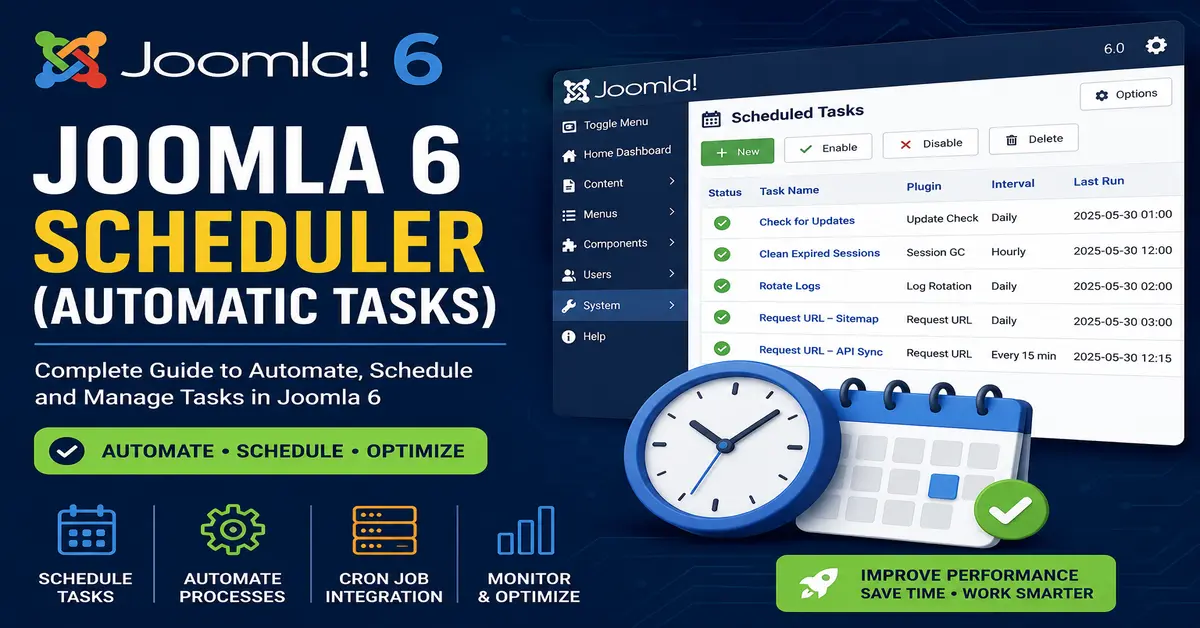
Managing a Joomla website involves many repetitive tasks, such as clearing expired sessions, checking for updates, sending emails, synchronizing data, and performing routine maintenance. Completing these tasks manually can consume valuable time and increase the chances of human error. To simplify website administration, Joomla includes a powerful built-in automation system called Scheduler.
The Joomla Scheduler allows administrators and developers to execute tasks automatically at predefined intervals. Whether you’re managing a personal blog, a business website, or a large enterprise portal, the Scheduler helps automate recurring jobs without relying heavily on third-party extensions.
Before configuring automated tasks, it’s helpful to understand what’s new in the latest Joomla release. Our comprehensive Joomla 6 Features guide explains the major improvements, including performance enhancements, developer tools, template updates, and security improvements introduced in Joomla 6.
In this comprehensive guide, you’ll learn what Joomla 6 Scheduler is, how it works, how to configure automatic tasks, create scheduled jobs, integrate cron jobs, troubleshoot common issues, and discover best practices for maintaining a reliable Joomla website.
What is Joomla Scheduler?
Joomla Scheduler is a built-in automation framework that executes predefined tasks automatically based on a schedule. Instead of manually performing repetitive maintenance operations, Joomla runs them in the background according to the configuration you define.
Think of Joomla Scheduler as your website’s personal assistant. Once configured, it continuously performs routine maintenance and operational tasks while you focus on creating content and growing your website.
The Scheduler works together with Joomla Task Plugins, allowing both Joomla core and third-party extensions to register tasks that can be executed automatically.
Examples of Automated Tasks
- Publishing scheduled articles
- Cleaning expired sessions
- Checking Joomla updates
- Executing CLI commands
- Calling external APIs
- Synchronizing data with third-party services
- Sending automated emails
- Deleting temporary files
- Rotating log files
- Running maintenance scripts
Why Use Joomla Scheduler?
Modern websites require regular maintenance to ensure security, performance, and reliability. Performing these tasks manually increases administrative overhead and may result in missed updates or delayed maintenance.
Joomla Scheduler automates these repetitive jobs, reducing workload while improving website consistency.
Benefits of Joomla Scheduler
- Saves administration time
- Reduces manual intervention
- Automates repetitive maintenance tasks
- Improves website reliability
- Provides execution logs
- Supports custom automation plugins
- Works with server cron jobs
- Easy to manage from Joomla Administrator
Manual Process vs Automated Process
| Manual Website Management | Using Joomla Scheduler |
|---|---|
| Administrator performs tasks manually. | Tasks run automatically. |
| Easy to forget maintenance. | Scheduled execution. |
| Higher maintenance effort. | Minimal manual work. |
| No automation. | Fully automated workflow. |
| Requires administrator availability. | Runs even when nobody is logged in. |
How Joomla Scheduler Works
The Joomla Scheduler is based on a simple automation workflow. A trigger starts the Scheduler, which checks available tasks, determines whether they should run, executes the associated task plugin, and records the result.
Scheduler Workflow
Server Cron Job
       │
       ▼
Joomla Scheduler
       │
       ▼
Find Enabled Tasks
       │
       ▼
Check Schedule
       │
       ▼
Execute Plugin
       │
       ▼
Generate Log
       │
       ▼
Complete
Every scheduled task has its own configuration, execution interval, logging information, and current status.
Main Components
The Scheduler is built using several interconnected components.
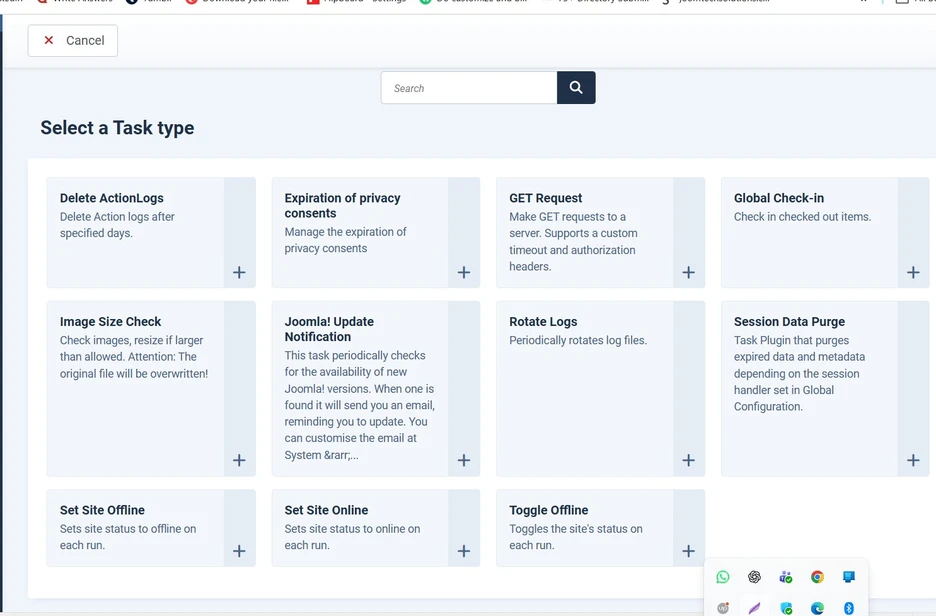
1. Scheduled Tasks
A task is an individual job that Joomla executes automatically.
Examples include:
- Delete ActionLogs
- Image Size Check
- Set Site Offline
- Get Request
- Global Checkin
- Rotate log files
- and so on, as below screenshot
2. Task Plugins
Every scheduled task is powered by a plugin. These plugins define what action Joomla should perform whenever the task is executed.
Developers can create custom Scheduler plugins to automate virtually any process within Joomla.
3. Scheduler Engine
The Scheduler Engine determines which tasks should run based on their configured intervals and current execution status.
4. Logging System
Every execution is recorded, making it easy to monitor successful runs, failures, execution time, and troubleshooting information.
When a scheduled task fails unexpectedly, enabling Joomla Debug Mode can provide detailed information about plugin errors, execution problems, and PHP exceptions. Follow our guide on How to Enable Joomla Debug Mode to troubleshoot Scheduler issues more effectively.
Scheduler Requirements
Before using Joomla Scheduler, ensure your hosting environment meets the recommended requirements.
- Joomla 6 installed
- PHP supported by Joomla 6
- Cron Job access (recommended)
- Task plugins enabled
- Administrator access
Although Scheduler can sometimes be triggered through web requests, production websites should always use a server cron job for reliable execution.
If you’re new to Joomla, start with a clean installation before configuring automated tasks. Our step-by-step Joomla installation tutorial explains how to install Joomla 6, configure your environment, and prepare your website for development.
Accessing Scheduled Tasks
Joomla provides an intuitive administrator interface for managing scheduled tasks.
Follow these steps:
- Login to Joomla Administrator.
- Open the System menu.
- Select Manage.
- Click Scheduled Tasks.
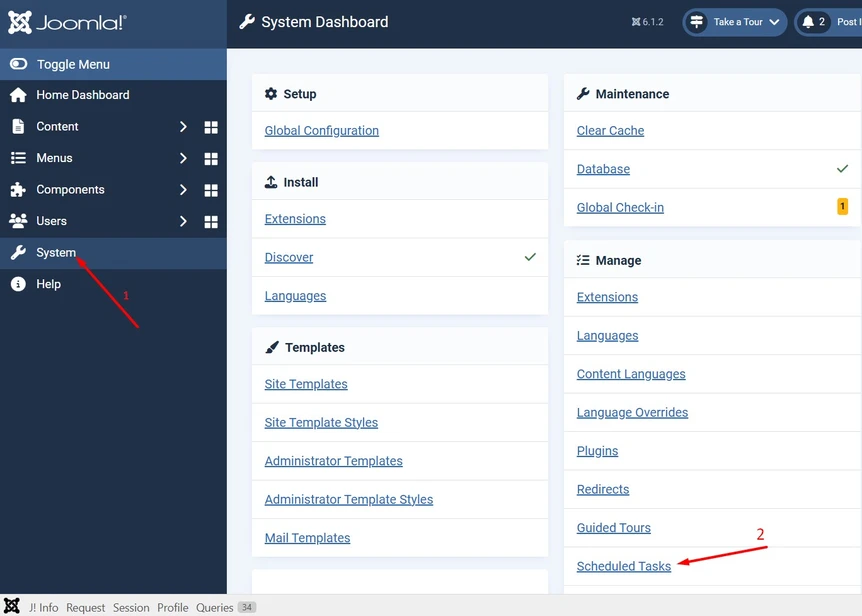
You will see a list of all available tasks, including their execution schedule, current status, and execution history.
If you’re planning to build your own Scheduler task plugin, the Joomla API Documentation provides detailed information about Joomla classes, namespaces, events, and extension development.
Understanding the Scheduler Interface
The Scheduled Tasks screen provides complete control over automated jobs.
Each row contains useful information about a task.
| Column | Description |
|---|---|
| Task Name | Name of the scheduled task. |
| Status | Published or unpublished. |
| Plugin | Associated Scheduler plugin. |
| Last Execution | Most recent execution time. |
| Next Execution | Next scheduled run. |
| Exit Code | Result returned after execution. |
| Duration | Total execution time. |
Monitoring these values helps identify failed tasks before they become larger problems.
Creating Your First Scheduled Task
Creating a scheduled task requires only a few minutes.
Step 1 — Open Scheduled Tasks
Navigate to:
System
↓
Manage
↓
Scheduled Tasks
Step 2 — Click New
Select the New button located in the toolbar.
Joomla will display the task creation screen where you can configure a new automated task.
Step 3 — Choose a Task Plugin
Select the plugin that defines the work Joomla should perform.
Common options include:
Step 4 — Configure the Task
Provide the required information:
- Task Name
- Execution Interval
- Status
- Plugin Parameters
- Execution Behaviour
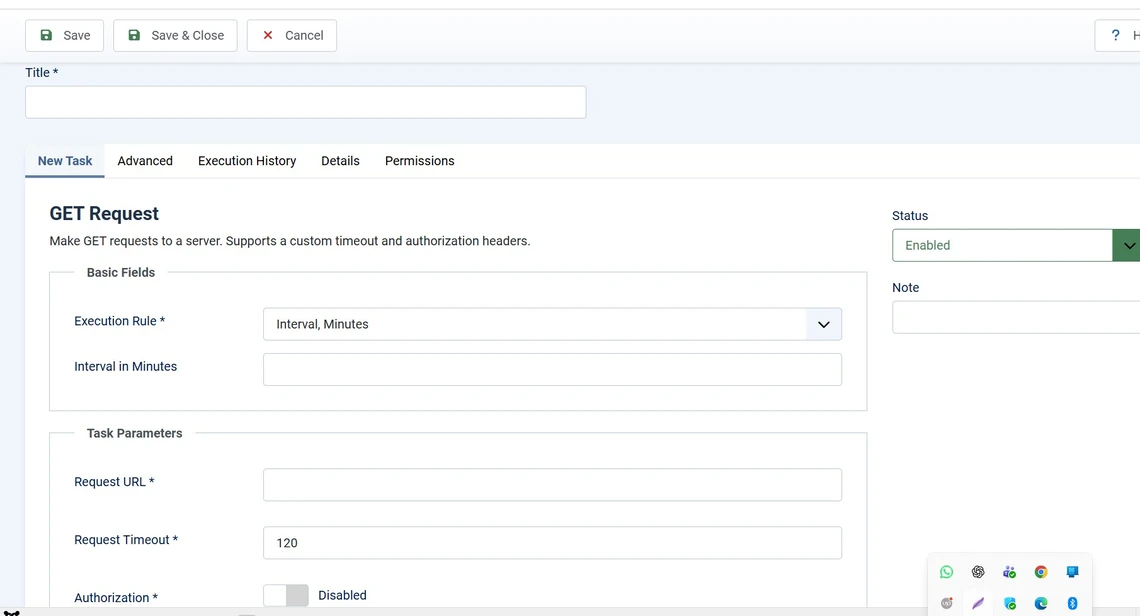
Once everything is configured correctly, save the task. Joomla will now execute it automatically according to its schedule.
Developers interested in Joomla’s source code or contributing to the project can explore the Joomla CMS GitHub repository, where the latest code, issue tracking, and development discussions are available.
Built-in Joomla Scheduler Task Plugins
Joomla includes several built-in Scheduler task plugins that automate common maintenance activities. These plugins can be enabled or disabled depending on your website requirements. Each plugin performs a specific operation whenever the Scheduler executes it.
Request URL
The Request URL task sends an HTTP request to a specified URL. It is useful for triggering webhooks, refreshing external caches, synchronizing data with APIs, or executing custom scripts hosted on your website.
Example use cases include:
- Triggering external API synchronization
- Refreshing CDN cache
- Running webhook endpoints
- Updating inventory from suppliers
Session Cleanup
This task removes expired user sessions from the Joomla database. Regular cleanup improves database performance and prevents unnecessary storage usage.
Rotate Logs
As websites grow, log files can become very large. The Rotate Logs task archives or clears old log files, helping maintain available disk space.
Update Check
Joomla can automatically check whether new core updates are available. This helps administrators stay informed about security patches and feature releases.
Task Scheduling Options
Each task can be configured to run at different intervals depending on your requirements.
| Interval | Recommended Use |
|---|---|
| Every 5 Minutes | API synchronization |
| Every 15 Minutes | Email processing |
| Every Hour | Session cleanup |
| Daily | Reports and backups |
| Weekly | Database maintenance |
| Monthly | Archive cleanup |
Running Joomla Scheduler with Cron Jobs
Although Joomla Scheduler can be triggered manually or through web requests, the recommended method for production websites is using a server cron job. Cron ensures tasks run reliably even when your website receives little traffic.
What is a Cron Job?
A cron job is a server-based scheduler that executes commands automatically at predefined intervals. Joomla Scheduler relies on cron to trigger automatic tasks consistently.
Linux Cron Example
*/15 * * * * php /home/username/public_html/cli/joomla.php scheduler:run
The above example runs Joomla Scheduler every 15 minutes.
Run Every Hour
0 * * * * php /home/username/public_html/cli/joomla.php scheduler:run
Run Once Per Day
0 1 * * * php /home/username/public_html/cli/joomla.php scheduler:run
This executes all eligible scheduled tasks daily at 2:00 AM.
Setting up Cron in cPanel
- Login to cPanel.
- Open Cron Jobs.
- Select the desired execution interval.
- Enter the Joomla Scheduler command.
- Save the cron job.
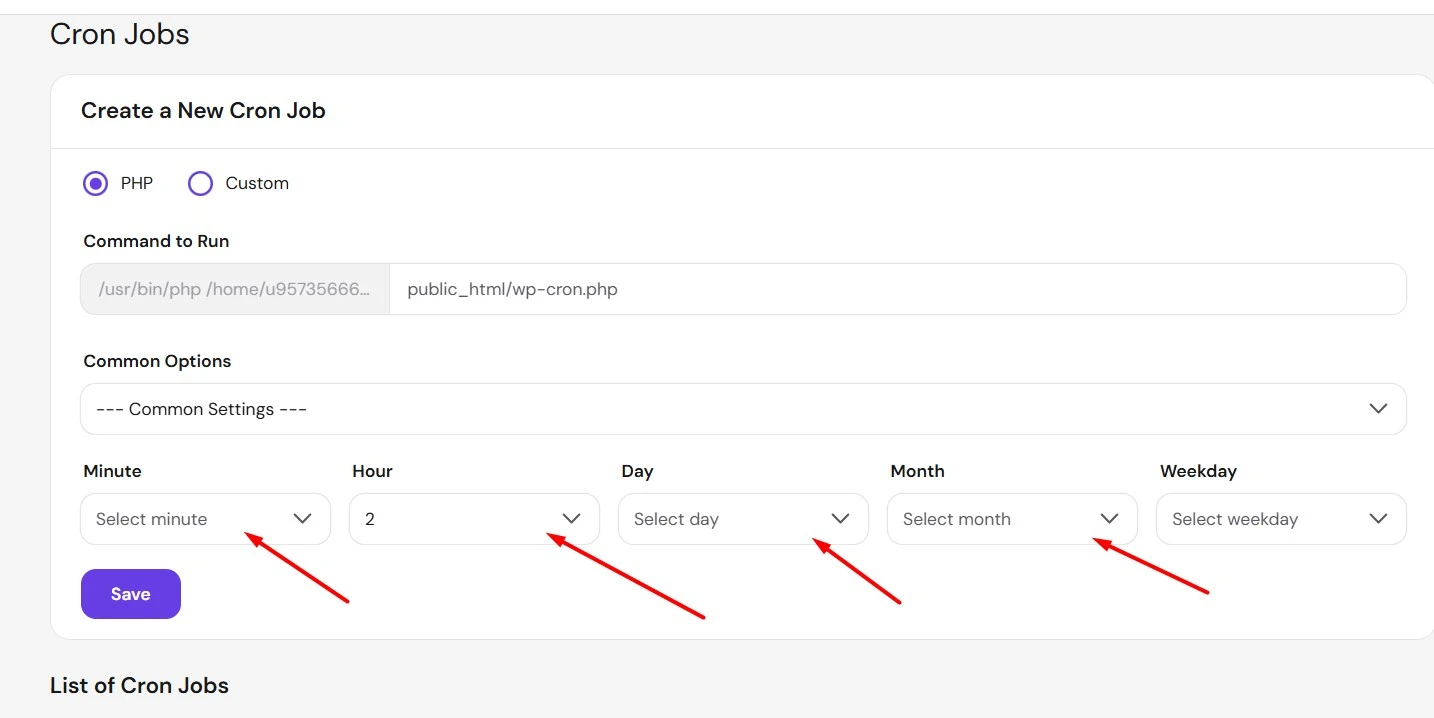
Your hosting provider may provide different command paths. Always verify the PHP binary location before saving the cron job.
Monitoring Task Execution
Joomla records information about every scheduled task execution. Monitoring these logs helps identify failed jobs before they affect your website.
Information Recorded
- Execution date
- Execution time
- Completion status
- Error messages
- Execution duration
- Exit code
Review execution history regularly to ensure every scheduled task continues operating correctly.
Understanding Exit Codes
| Exit Code | Meaning |
|---|---|
| 0 | Task completed successfully. |
| 1 | General error occurred. |
| 2 | Configuration issue. |
| Other | Plugin-specific response. |
Common Use Cases
Automatic Article Publishing
News websites often schedule articles for publication. Joomla Scheduler ensures articles become available exactly when planned.
Synchronizing Products
eCommerce websites can synchronize products with supplier databases multiple times each day without administrator intervention.
Generating Reports
Businesses frequently generate daily or weekly reports automatically using scheduled tasks.
Cleaning Temporary Files
Temporary files accumulate over time. Automated cleanup improves storage management and overall performance.
Sending Notifications
Developers can create Scheduler plugins that send reminder emails, SMS notifications, or webhook alerts.
Creating Custom Scheduler Plugins
One of Joomla Scheduler’s biggest advantages is its extensibility. Developers can build custom Scheduler plugins that perform virtually any automated task.
Examples include:
- Import CSV files automatically
- Synchronize CRM systems
- Generate invoices
- Create database backups
- Synchronize inventory
- Connect ERP software
- Call REST APIs
- Generate PDF reports
Custom Scheduler plugins follow Joomla’s plugin architecture and integrate seamlessly with the Scheduler interface.
Example Workflow
Every Night
      │
      ▼
Cron Job Starts
      │
      ▼
Joomla Scheduler Runs
      │
      ▼
Import Supplier Products
      │
      ▼
Update Inventory
      │
      ▼
Generate Log
      │
      ▼
Send Success Notification
Joomla Scheduler vs Traditional Cron Jobs
| Cron Job | Joomla Scheduler |
|---|---|
| Server-level feature | Joomla application feature |
| Requires server knowledge | Managed through Joomla Administrator |
| No built-in logging | Execution history available |
| Executes commands | Executes Joomla task plugins |
| Difficult for beginners | User-friendly interface |
Common Problems and Solutions
Task Never Runs
- Verify cron job configuration.
- Check task status.
- Confirm task schedule.
Task Fails Repeatedly
- Review Scheduler logs.
- Enable Joomla Debug Mode.
- Check plugin configuration.
- Verify PHP compatibility.
Slow Task Execution
- Increase PHP execution time.
- Reduce task frequency.
- Optimize custom code.
Best Practices
- Always use server cron jobs in production.
- Keep Joomla updated.
- Monitor failed tasks regularly.
- Review execution logs weekly.
- Disable unused Scheduler plugins.
- Test custom tasks before scheduling.
- Avoid running heavy tasks every minute.
- Document custom automation workflows.
If you’re customizing your Joomla website alongside task automation, consider using Joomla 6 Child Templates. Child templates allow you to safely customize layouts, CSS, JavaScript, and HTML overrides without losing changes when updating the parent template.
News Websites
News portals can automatically publish articles at scheduled times, ensuring content goes live exactly when planned without requiring an administrator to log in.
eCommerce Stores
Online stores can synchronize inventory, update product prices, generate daily sales reports, notify administrators about low stock, and communicate with supplier APIs automatically.
Membership Websites
Membership platforms can automate subscription reminders, expire inactive memberships, synchronize payment gateways, and generate monthly invoices.
Educational Websites
Schools and universities can schedule course updates, publish assignments, archive completed courses, and send automated notifications to students.
Corporate Websites
Businesses can automate CRM synchronization, lead management, report generation, employee notifications, and maintenance routines.
Security Tips
- Grant Scheduler management permissions only to trusted administrators.
- Keep Joomla core and Scheduler plugins updated.
- Review Scheduler logs regularly.
- Protect Cron Job URLs from unauthorized access.
- Test custom Scheduler plugins on a staging website before deployment.
- Remove unused automation tasks.
- Back up your website before implementing major automation workflows.
Performance Tips
- Group similar automation tasks together.
- Avoid running resource-intensive tasks every minute.
- Schedule backups during low-traffic hours.
- Monitor execution duration for long-running tasks.
- Optimize custom Scheduler plugins for efficient database queries.
- Use asynchronous processing where possible.
- Regularly clean execution logs and temporary files.
Advantages of Joomla Scheduler
- Built directly into Joomla.
- No additional automation extension required.
- Supports unlimited scheduled tasks.
- Extensible through custom plugins.
- Integrated logging and monitoring.
- Easy-to-use administrator interface.
- Works with standard Linux Cron Jobs.
- Suitable for both beginners and professional developers.
Limitations
- Requires Cron Job configuration for reliable execution.
- Some hosting providers restrict Cron Job frequency.
- Complex automation may require custom development.
- Poorly optimized tasks can affect server performance.
Final Thoughts
Joomla 6 Scheduler is one of the most valuable administrative features available in Joomla. It transforms repetitive manual operations into fully automated workflows, helping website owners reduce maintenance effort while improving reliability, consistency, and overall efficiency.
Whether you need to publish articles automatically, synchronize third-party APIs, clean expired sessions, generate reports, or build sophisticated business automation, Joomla Scheduler provides a flexible and scalable solution. Combined with server Cron Jobs and custom Scheduler plugins, it becomes a powerful automation platform suitable for blogs, business websites, membership portals, educational platforms, and enterprise applications.
Always download Joomla from the official Joomla website to ensure you’re using the latest secure release and receiving official updates.
If you are a Joomla developer, learning the Scheduler API is an excellent investment because it enables you to build professional automation solutions that save clients time and reduce operational costs.
Frequently Asked Questions (FAQs)
1. What is Joomla Scheduler?
Joomla Scheduler is a built-in automation system that allows Joomla to execute scheduled tasks automatically. It can perform maintenance, run CLI commands, request URLs, clean expired sessions, rotate logs, and execute custom automation plugins without manual intervention.
The Joomla Scheduler is officially documented in the Joomla Documentation, which explains Scheduler concepts, task plugins, and administrator features in greater detail.
2. Does Joomla Scheduler require a Cron Job?
While Joomla Scheduler can be triggered manually or through web requests, using a server Cron Job is highly recommended for production websites. Cron ensures tasks execute reliably, even if your website receives little or no traffic.
3. Can I create my own Scheduler tasks?
Yes. Joomla provides a Scheduler plugin architecture that allows developers to create custom task plugins. These plugins can automate business processes such as importing products, synchronizing APIs, generating reports, sending emails, or performing database maintenance.
4. Where can I find Scheduled Tasks in Joomla?
You can access Scheduled Tasks by navigating to System → Manage → Scheduled Tasks in the Joomla Administrator dashboard. From there, you can create, edit, enable, disable, and monitor automated tasks.
5. Is Joomla Scheduler better than traditional Cron Jobs?
Joomla Scheduler and Cron Jobs work together rather than replacing each other. Cron Jobs trigger Joomla Scheduler, while Scheduler manages task execution, logging, status monitoring, and plugin integration through Joomla’s administrative interface.
6. What types of tasks can Joomla Scheduler automate?
Joomla Scheduler can automate a wide range of activities including session cleanup, cache maintenance, update checks, API synchronization, report generation, CLI command execution, email notifications, backup operations, and many other custom workflows.
7. How can I troubleshoot failed scheduled tasks?
Review the Scheduler execution logs, verify your Cron Job configuration, ensure the task plugin is enabled, enable Joomla Debug Mode, and check your server’s PHP error logs. These steps usually identify the cause of failed executions.
Stay updated with our latest news, special offers, and exclusive updates directly in your inbox.