Last Updated on August 8, 2026
Joomla templates control the appearance and layout of your website. If you need to customize the design, change CSS, work with template PHP files, or create a template override, you may need access to the template files.
In this guide, we will explain how to access the Template files in Joomla, where to find them in the Joomla Administrator, and how to safely edit them. The steps are based on the current Joomla 6 workflow.
Joomla provides separate templates for the public website and the Administrator area. Site templates control the front end of your website, while Administrator templates control the Joomla backend.
If you are new to Joomla templates, you may also want to read What Are Joomla Templates? before making changes.
How to Access Template Files in Joomla
Joomla includes a built-in template file editor that allows administrators to view and edit the files belonging to installed templates. In current Joomla versions, template management is available from the System area of the Administrator.
Before editing template files, make sure you have sufficient Administrator permissions. For most template-management tasks, you should use an account with the appropriate access to the Templates area.
If you are new to Joomla templates, it is helpful to understand how templates are installed and configured before editing their files. You can learn the complete process in our guide on how to install a Joomla template on a server.
Step 1: Log in to the Joomla Administrator
First, log in to your Joomla Administrator dashboard using an account that has permission to manage templates.
After logging in, you will see the Joomla Administrator Dashboard.
Step 2: Open the Templates Panel
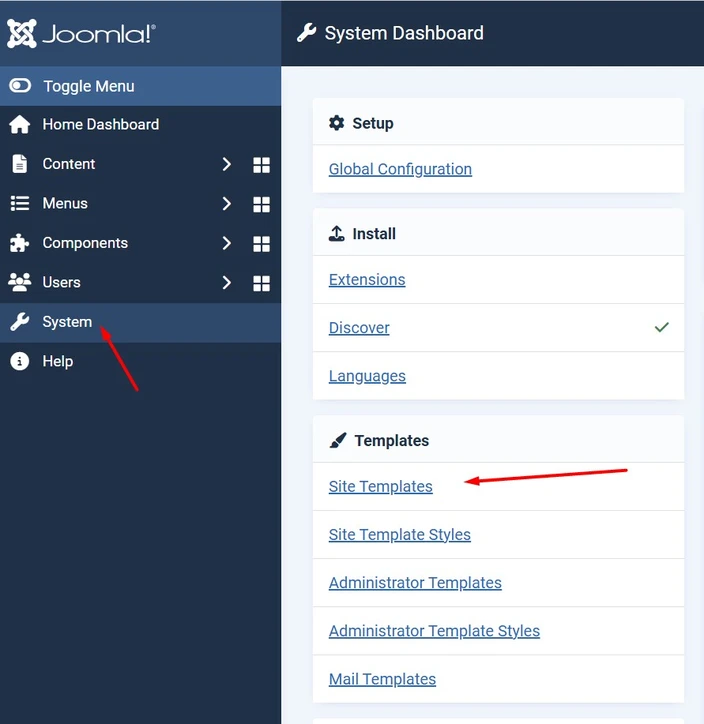
From the Administrator menu, go to:
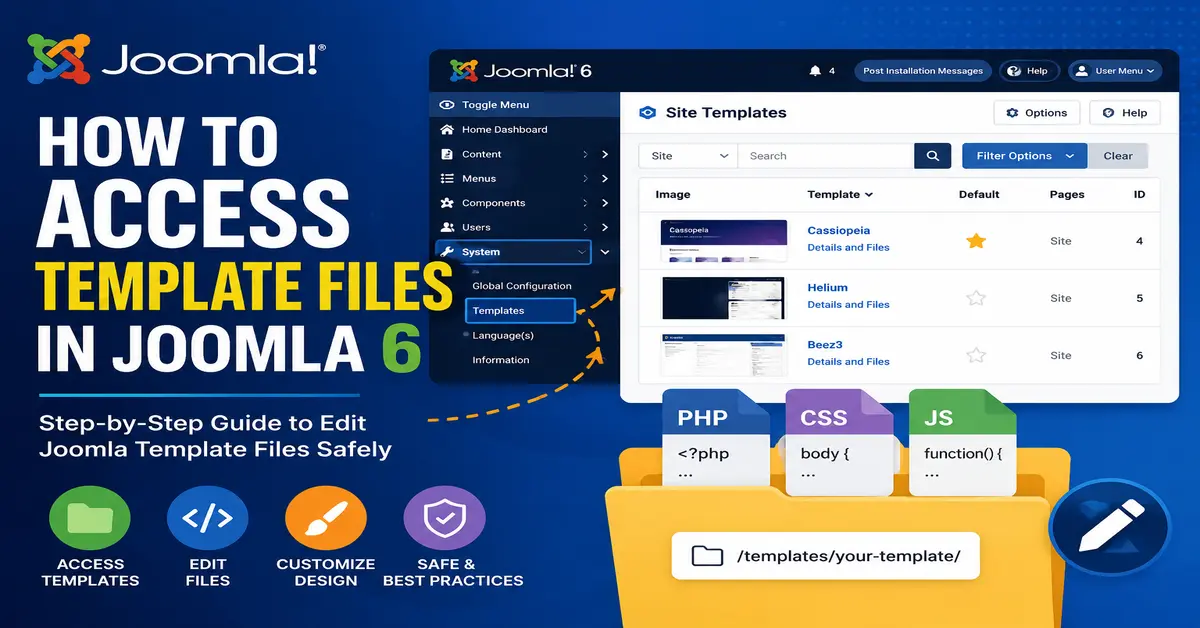
System > Templates
The Templates area provides access to both Site Templates and Administrator Templates.
In Joomla’s current interface, this is different from the older Joomla instructions that used Extensions > Templates. If you are following an older tutorial, the menu location may therefore look different.
Step 3: Open Site Templates
If you want to access the files that control the public-facing website, select Site Templates.
Joomla will display the installed Site Templates. The default Joomla installation includes the Cassiopeia Site Template.
Step 4: Select the Template You Want to Edit
On the Site Templates screen, find the template whose files you want to access.
Click the template name or its Details and Files option. Joomla will open the template customization screen, where you can browse the template’s folders and files.
This is the area you use when you want to edit Joomla template files directly from the Administrator.
Understanding the Joomla Templates Screen
The Templates screen lists the templates installed on your Joomla website. Depending on your Joomla installation, you may have one or several Site Templates and Administrator Templates.
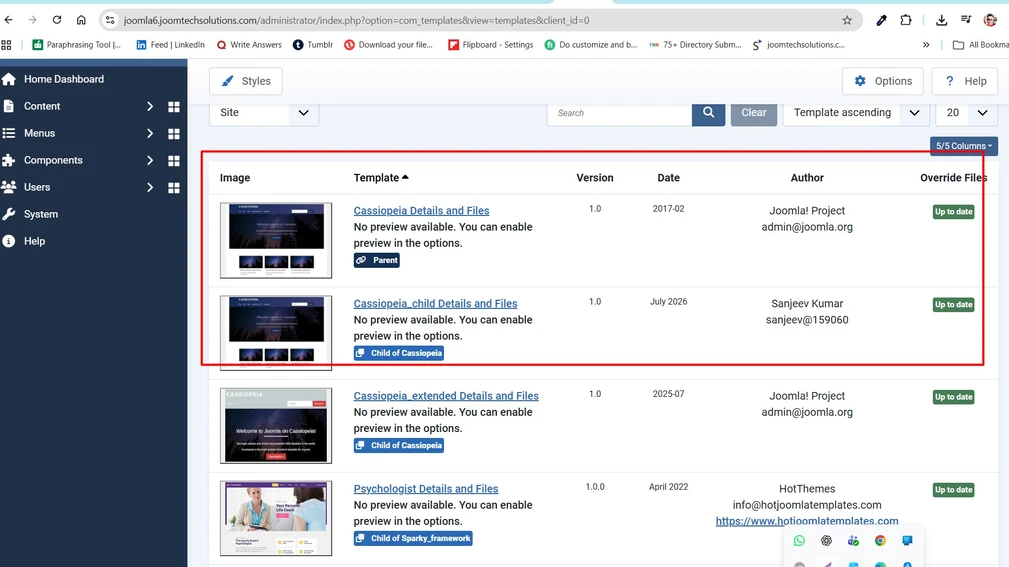
From this screen, you can identify the template you are currently using and open its files. You can also work with template styles and, where supported, create template overrides or child templates.
If you are looking for free Joomla templates, you can also check our guide to the best free Joomla templates.
Template Styles vs Template Files in Joomla
One common source of confusion is the difference between a template style and the actual template files.
A template style contains configuration and presentation settings for a template. For example, a template may allow you to configure colors, logos, layouts, fonts, and other settings.
Template files, on the other hand, contain the actual files used to generate the site’s markup and styling. These can include PHP, CSS, JavaScript, images, XML files, and other assets depending on the template.
Therefore, if you want to change a setting provided by the template, you may only need to edit the template style. If you need to change the underlying HTML or PHP output, you may need to work with template files or, preferably, a template override.
If you are developing or heavily customizing a Joomla template, Joomla’s official documentation provides additional information about template structure, child templates, and template development. See the official Joomla developer documentation for more information.
Open the Joomla Template Files
After opening a template’s Details and Files screen, Joomla displays a file browser for the template.
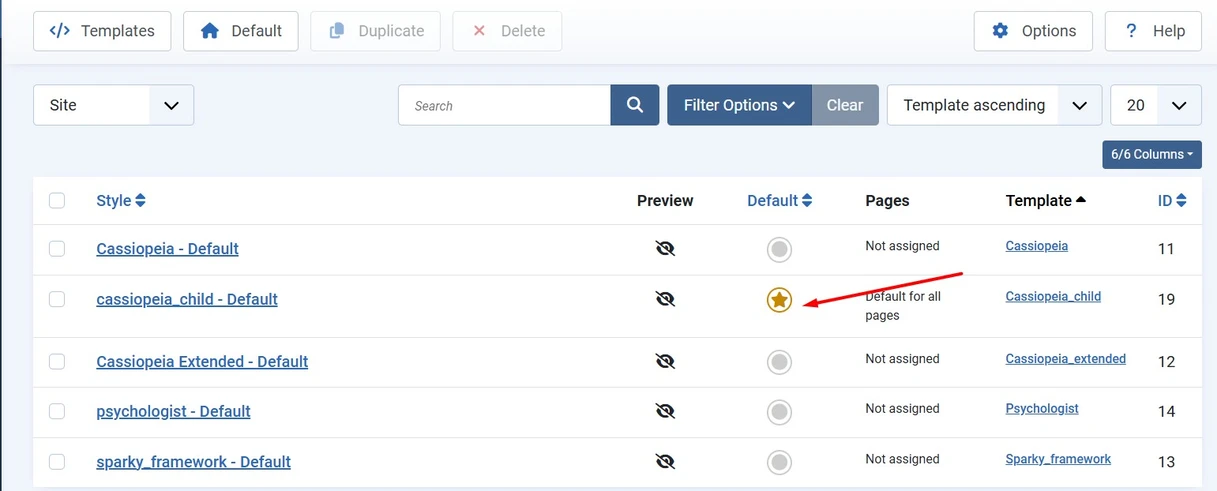
You can expand folders and select individual files to view their contents.
Depending on the template, you may see files such as:
- index.php – commonly used as the main template layout file.
- templateDetails.xml – contains template installation and configuration information.
- CSS files – used to control the visual appearance of the template.
- JavaScript files – used for client-side functionality when included by the template.
- HTML override folders – used for template overrides.
- Images and other assets – used by the template’s design.
The exact structure varies from one Joomla template to another. Modern templates can also use additional files and folders depending on how they are developed.
Where Are Joomla Template Files Stored?
If you have access to your hosting account or server, you can also access Joomla template files directly from the filesystem.
Site templates are normally stored in:
/templates/your-template-name/For example, a template named cassiopeia is located under:
/templates/cassiopeia/Administrator templates are stored separately under:
/administrator/templates/your-template-name/This distinction is important because Site Templates control the public website, while Administrator Templates control the Joomla backend.
You can access these folders through your hosting file manager, FTP/SFTP, SSH, or another server-management tool.
How to Edit Joomla Template Files
Joomla allows you to open supported template files directly from the Administrator’s template customization screen.
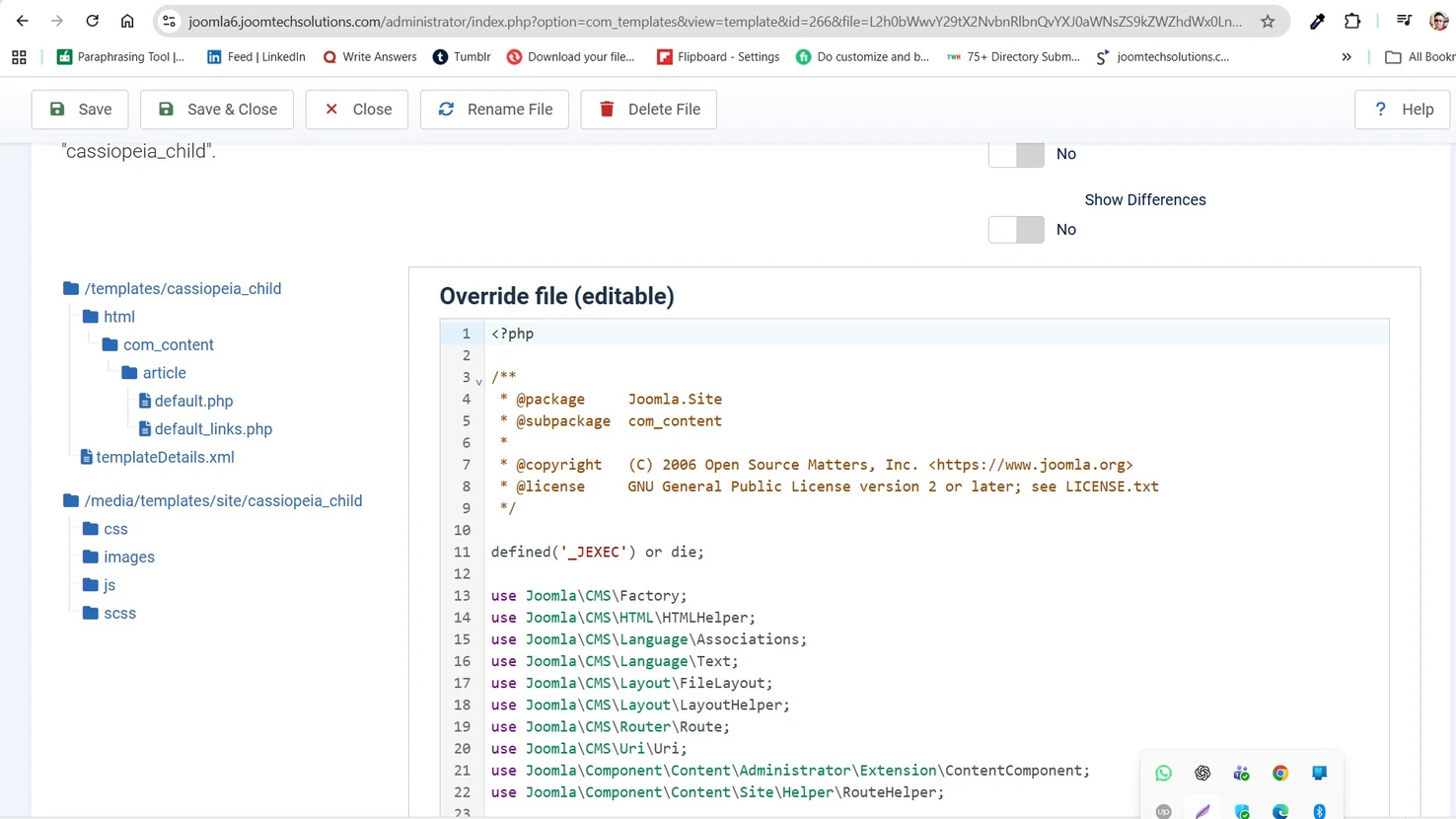
After selecting a file, Joomla opens it in the built-in editor. Depending on the file type, the editor provides syntax highlighting to make the source code easier to read.
You can then make your changes and use Save or Save & Close.
However, directly editing a third-party or core template file is not always the best approach.
For Joomla developers who need to understand the structure of a template, the templateDetails.xml file is particularly important. It defines information such as the template files, positions, languages, media, and configuration fields. Joomla provides a detailed explanation in its templateDetails.xml documentation.
Once you understand how to access template files, you may also want to customize the appearance of your website. Our guide to the best free Joomla templates can help you explore different template options for Joomla websites.
Should You Directly Edit Joomla Template Files?
For a quick test or a controlled development environment, editing a template file directly can be useful. However, you should be careful when modifying files belonging to an installed template.
A future template update may replace files that you have modified. This means your custom changes could be lost.
For this reason, Joomla provides better approaches for many customizations, including template overrides and child templates.
Use Template Overrides Instead of Editing Core Output
A template override allows you to customize the HTML output of a Joomla component or module without changing the original extension file.
For example, if you want to change how a module is displayed, you can create an override inside your template rather than modifying the module’s original PHP file.
Joomla’s Template customization screen includes a Create Overrides option for supported components and modules.
This is generally a safer approach because the original extension files remain unchanged. When the extension is updated, your override can remain in your template while you review any changes that may affect it.
Use a Child Template for Custom Changes
Another useful approach is to create a child template. A child template allows you to customize a parent template while keeping your changes separate from the original template.
This is particularly useful when working with Joomla’s default templates or other templates that support child-template functionality.
Joomla documentation explains that child templates inherit files from their parent template and can contain their own customized files. This makes them a useful option when you want to keep customizations safer during updates.
Important: Back Up Before Editing Template Files
Before changing PHP, CSS, JavaScript, XML, or other template files, create a backup of your website or at least the template files you are about to modify.
A small coding mistake in a PHP template file can cause a PHP error or prevent part of your website from displaying correctly.
For a production website, it is also a good idea to test significant template changes on a staging or development copy before applying them to the live website.
Joomla Template File Editing Best Practices
If you regularly customize Joomla websites, keep these practices in mind:
- Back up before making changes.
- Use a child template when appropriate.
- Prefer template overrides for changing extension output.
- Avoid modifying Joomla core files.
- Keep track of your custom CSS, PHP, and JavaScript changes.
- Test template changes on a staging website when possible.
- Check your changes after Joomla and template updates.
- Use version control such as Git for larger development projects.
What Is the Difference Between Joomla Template Files and Overrides?
Template files are the original files that belong to a template. An override is a customized copy or implementation placed within the template’s override structure so that Joomla can use your customized output instead of the original extension layout.
For example, Joomla can create an override in a location similar to:
/templates/cassiopeia/html/The exact folder depends on the component or module being overridden.
This approach makes it easier to customize Joomla output without modifying the extension’s original files.
When you need to change the HTML output of a Joomla component or module, a template override is often a better solution than modifying the original extension files. Joomla’s official developer documentation explains how template overrides work and how they can be created from the template’s Details and Files area. You can learn more in the official Joomla documentation about template overrides.
If you are making larger changes to your Joomla website, it is better to understand template customization, overrides, and child templates before editing files directly. This approach can help you keep your customizations safer when the template is updated.
Can You Access Joomla Template Files Without the Administrator?
Yes. If you have access to the Joomla server files, you can access the template directories using your hosting file manager, FTP/SFTP, SSH, or another server-management method.
For a Site Template, start from:
/templates/Then open the folder belonging to your template.
For the Administrator template, use:
/administrator/templates/When working on a live Joomla website, use care when modifying files directly on the server. A backup and a staging environment can save considerable time if something goes wrong.
Frequently Asked Questions About Joomla Template Files
How do I access template files in Joomla?
Log in to the Joomla Administrator and go to System > Templates. Open Site Templates or Administrator Templates, select the template, and open its Details and Files screen to browse the template files.
Where are Joomla template files located?
Site template files are normally located in the /templates/ directory. Administrator template files are normally located in /administrator/templates/.
Can I edit Joomla template files from the Administrator?
Yes. Joomla provides a built-in template customization interface where users with the appropriate permissions can browse and edit supported template files.
Should I edit Joomla template files directly?
Direct editing can be useful for development and testing, but template overrides and child templates are often safer choices for customizations because they help keep your changes separate from original template or extension files.
How do I edit Joomla template CSS?
Open your Site Template from System > Templates, access its files, and locate the relevant CSS file. For long-term customizations, check whether your template provides a custom CSS file or use a child template instead of modifying a vendor file directly.
Conclusion
Knowing how to access the Template files in Joomla is useful when you need to customize the appearance or HTML output of a Joomla website. In current Joomla versions, you can access your Site and Administrator templates through System > Templates and open the template’s Details and Files screen.
However, accessing template files and editing them directly are two different things. For simple development work, direct editing may be appropriate, but for long-term production websites, template overrides and child templates are usually better options.
Always create a backup before making changes and test important customizations before applying them to a live Joomla website.
Stay updated with our latest news, special offers, and exclusive updates directly in your inbox.