
Last Updated on August 9, 2026
If you are looking for your Google Domain Authorization Code, there is an important update you should know first: Google Domains is no longer a standalone domain registrar. Google Domains customers were migrated to Squarespace, so domains that were previously managed through Google Domains are now managed through the Squarespace Domains platform.
The good news is that you can still transfer your domain to another registrar. You simply need to access your domain through Squarespace, unlock the domain if required, and request the transfer authorization code.
In this guide, you’ll learn how to find your Google Domain Authorization Code after the Google Domains migration to Squarespace, how to unlock your domain, what an EPP code is, and what you need to know before transferring your domain to another registrar.
If you enjoy practical technology tips and simple solutions to common problems, check out our guide to 10 Tech Tricks You’ll Use Again and Again.
What Is a Google Domain Authorization Code?
A Google Domain Authorization Code is a unique code used to authorize the transfer of a domain from one registrar to another.
You may see this code referred to by several different names, including:
- Authorization code
- Transfer authorization code
- EPP code
- Transfer key
- Auth code
These terms generally refer to the code that your new domain registrar needs before it can accept the domain transfer.
If your domain was originally registered through Google Domains and was migrated to Squarespace, you should now obtain the transfer code through your Squarespace Domains dashboard rather than trying to use the old Google Domains interface.
Is Google Domains Still Available?
No. Google Domains is no longer available as a separate domain registration service.
Google completed the transition of Google Domains customers to Squarespace. As a result, domains that were previously managed through Google Domains are now managed through Squarespace.
This means that older tutorials showing options such as Google Domains > Registration settings > Get authorization code may no longer match the current interface.
If you previously had a domain with Google Domains, sign in to your Squarespace account and look for your domain in the Domains dashboard.
How Do I Find My Google Domain Authorization Code?
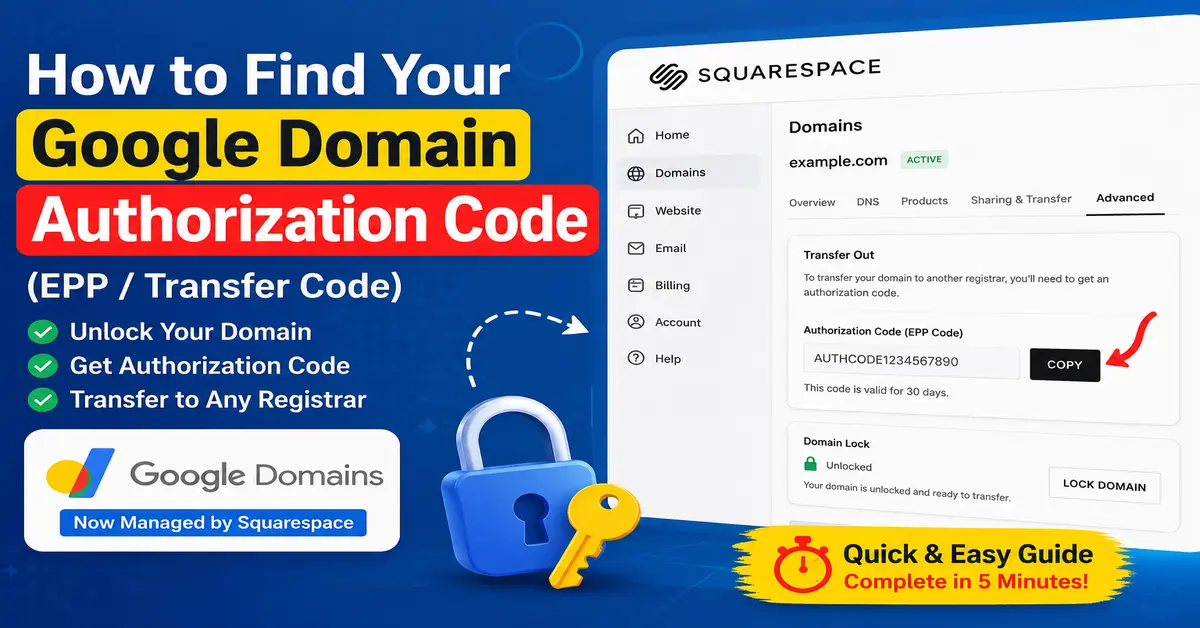
To find the authorization code for a domain that was migrated from Google Domains to Squarespace, follow these steps.
Step 1: Sign in to Squarespace
Start by signing in to the Squarespace account that manages your domain.
Your old Google Domains account may no longer provide the domain-management interface shown in older tutorials. Your migrated domain should now appear in the Squarespace Domains dashboard.
Step 2: Open Your Domain
Open your Domains dashboard and select the domain you want to transfer to another registrar.
Make sure you select the correct domain before requesting the authorization code.
Step 3: Check the Domain Lock
Before transferring a domain, check whether the domain has a transfer lock enabled.
Open the domain settings and look for the Domain Lock option. If the domain is locked, switch the domain lock off before requesting the transfer code.
Some domain extensions have different transfer rules so that the exact options may vary depending on your domain’s TLD.
If you use your domain with Google services, it is also important to understand how domain ownership verification works. Our guide on What Is Google Search Console? explains how Google Search Console helps website owners monitor and manage their site’s presence in Google Search.
Step 4: Request the Transfer Authorization Code
After unlocking the domain, select Request transfer code.
Squarespace may ask you to enter your account password or reauthenticate using two-factor authentication before allowing you to request the code.
After you confirm the request, Squarespace sends a unique transfer authentication code to the registrant contact email address associated with the domain.
Step 5: Check Your Email
Check the email address associated with the domain registration.
According to the current Squarespace process, the transfer code is sent by email. The email may have a subject similar to:
Auth code for yourdomain.com
If you do not see the message, check your Spam or Junk folder.
Step 6: Copy the Authorization Code
Copy the authorization code from the email and keep it somewhere secure.
When you start the transfer with your new registrar, you will normally be asked to enter this code. Copying and pasting the code is recommended because authorization codes can contain a combination of letters, numbers, and other characters.
How to Unlock a Google Domains Domain After Migration
If your domain was originally registered with Google Domains and is now managed through Squarespace, you should use the current Squarespace domain-management interface rather than following old Google Domains instructions.
The general process is:
- Sign in to your Squarespace account.
- Open the Domains dashboard.
- Select the domain you want to transfer.
- Find the Domain Lock setting.
- Turn the domain lock off if it is enabled.
- Select Request transfer code.
- Complete any required password or two-factor authentication step.
- Check the registrant email address for the authorization code.
Squarespace’s current documentation confirms that a domain must be unlocked when applicable before transferring it away, and that the transfer authentication code is sent to the domain’s registrant contact information. :contentReference[oaicite:2]{index=2}
What Is an EPP Code?
An EPP code is another common name for a domain transfer authorization code.
If your new registrar asks for an EPP code, transfer key, authorization code, or auth code, it is generally asking for the code provided by your current domain registrar to authorize the transfer.
For example, when transferring a domain to another provider, you may be asked to enter the authorization code during the transfer process.
If you’re managing a website or online business, choosing the right monetization strategy is also important. Take a look at our guide to the best AdSense alternatives for your website for additional options.
How to Transfer Your Domain to Another Registrar
Once you have your Google Domains transfer authorization code from Squarespace, you can begin the transfer with your new domain provider.
Step 1: Choose a New Domain Registrar
Start the domain-transfer process with the registrar where you want to manage your domain in the future.
Step 2: Enter Your Domain Name
Enter the complete domain name that you want to transfer.
Your new registrar will check whether the domain is eligible for transfer.
Step 3: Enter the Authorization Code
When prompted, enter the authorization code you received from Squarespace.
Make sure you copy the latest code. If you request multiple transfer codes, an older code may no longer be valid.
Step 4: Confirm the Transfer
Follow your new registrar’s instructions to submit and confirm the transfer.
Transfer times vary depending on the registrar and domain extension. A domain transfer can take several days and, in some cases, up to 15 days. :contentReference[oaicite:3]{index=3}
Important Things to Check Before Transferring Your Domain
Before starting a domain transfer, check the following items to avoid unnecessary delays.
- Domain lock: Make sure the domain is unlocked when your registrar requires unlocking.
- Authorization code: Make sure you have the current transfer code.
- Registrant email: Make sure you can access the email address associated with the domain.
- DNS records: Save your important DNS records before transferring the domain.
- DNSSEC: If DNSSEC is enabled, check whether it needs to be disabled before starting the transfer.
- Transfer eligibility: Make sure your domain meets the transfer requirements for its TLD.
Squarespace specifically recommends recording your DNS settings before transferring because DNS records may not automatically remain configured with the new domain provider. :contentReference[oaicite:4]{index=4}
Will My Website Stop Working During the Domain Transfer?
A domain transfer does not automatically mean that your website hosting is transferred.
Your website files, hosting account, email service, and DNS configuration are separate from the domain registration itself. However, DNS settings can cause problems if they are not preserved correctly during the transfer.
Before beginning the transfer, make a record of your current DNS records, especially if you use the domain for a website, business email, Google Workspace, or other online services.
If you use Google Workspace for email, pay particular attention to your MX records so that email service is not interrupted after the transfer.
Why Didn’t I Receive My Google Domain Authorization Code?
If you requested the authorization code but have not received it, check these common causes.
Check Your Spam or Junk Folder
The authorization email may have been filtered by your email provider. Search your inbox and spam folder for an email containing your domain name or the words auth code.
Check the Registrant Email Address
The email address used for domain registration may be different from the email address you use to sign in to your Squarespace account.
Check the domain’s registration information and make sure you can access the registrant email address.
Request a New Authorization Code
If you requested the code more than once, use the most recent authorization code. Squarespace notes that requesting another code can make previously issued codes invalid, so avoid using an older code from an earlier email. :contentReference[oaicite:5]{index=5}
Contact Squarespace Support
If the authorization code does not arrive after checking your email and registration information, contact Squarespace support for assistance.
Why Is My Domain Transfer Being Rejected?
A domain transfer can fail for several reasons.
- The domain is still locked.
- The authorization code is incorrect or expired.
- The domain is not eligible for transfer.
- The domain was registered or transferred recently.
- Domain registration information was recently changed.
- The domain has a transfer restriction.
- The new registrar has not received the correct authorization code.
If your new registrar reports that the authorization code is invalid, copy the latest code carefully and enter it again. Squarespace recommends using copy and paste where possible to avoid typing errors. :contentReference[oaicite:6]{index=6}
Can I Still Manage My Old Google Domains Domain?
Yes, but not through the old Google Domains registrar interface.
Domains previously registered through Google Domains were migrated to Squarespace. You should now manage those domains through the Squarespace Domains dashboard.
Therefore, if an older tutorial tells you to visit the Google Domains registrar dashboard to obtain an EPP code, the instructions are outdated.
Google Domains is no longer a separate domain registrar. If you previously registered a domain through Google Domains, you can learn more about the migration and current domain management process in the official Google Domains migration guide from Squarespace.
What Happens After I Get the Authorization Code?
Getting the authorization code does not transfer the domain by itself. The code simply authorizes the new registrar to request the transfer.
After receiving the code:
- Start a domain transfer with your new registrar.
- Enter your domain name.
- Enter the authorization or EPP code.
- Review the transfer information.
- Pay any applicable transfer fee.
- Confirm the transfer.
- Monitor the transfer status until it completes.
The exact process varies between registrars and domain extensions.
What About Deleted or Expired Google Domains?
The old Google Domains instructions about restoring deleted or expired domains should not be applied as universal rules today.
Domain expiration, redemption, restoration, and deletion periods depend on the domain extension and the registrar’s current policies. A .com domain, for example, can have different rules from a country-code domain.
If a domain is expired or deleted, check the current status in your domain provider’s dashboard before attempting to restore or transfer it.
Do not rely on an old fixed “30-day” or “60-day” rule without checking the current policy for your specific domain extension.
Google Domain Authorization Code vs EPP Code
Many people search for Google Domain Authorization Code while others search for Google Domains EPP code or Google Domains transfer code.
In the context of transferring a domain, these terms generally refer to the same type of transfer credential. The important thing is to obtain the current authorization code from the registrar that currently manages your domain.
For former Google Domains customers, that registrar-management interface is now provided through Squarespace.
Frequently Asked Questions
1. How do I find my Google Domain Authorization Code?
Google Domains is no longer a standalone registrar. If your domain was migrated from Google Domains to Squarespace, sign in to Squarespace, open your Domains dashboard, select the domain, unlock it if required, and choose the option to request a transfer authorization code. The code is sent to the registrant email address.
For the current process, see the official Squarespace guide for transferring a domain away from Squarespace. It explains how to unlock a domain, request the transfer authentication code, and provide the code to your new domain provider.
2. Is the Google Domain Authorization Code the same as an EPP code?
Yes, in most domain-transfer situations, an authorization code, EPP code, transfer key, transfer code, and auth code refer to the credential used to authorize a domain transfer.
3. Where are my old Google Domains now?
Google Domains customers were migrated to Squarespace. Domains that were previously managed through Google Domains are now managed through the Squarespace Domains platform.
4. Why haven’t I received my domain transfer authorization code?
Check your spam or junk folder and verify the registrant email address associated with the domain. If you requested multiple codes, use the most recent code. If the email still does not arrive, contact Squarespace support.
5. How long does a domain transfer take?
Domain transfer times vary by registrar and domain extension. Many transfers complete within about a week, but a transfer can take up to 15 days depending on the circumstances.
According to the Squarespace domain transfer timing guide, most transfers are completed within about one week, although some transfers can take up to 15 days.
Stay updated with our latest news, special offers, and exclusive updates directly in your inbox.