
Last Updated on May 5, 2026
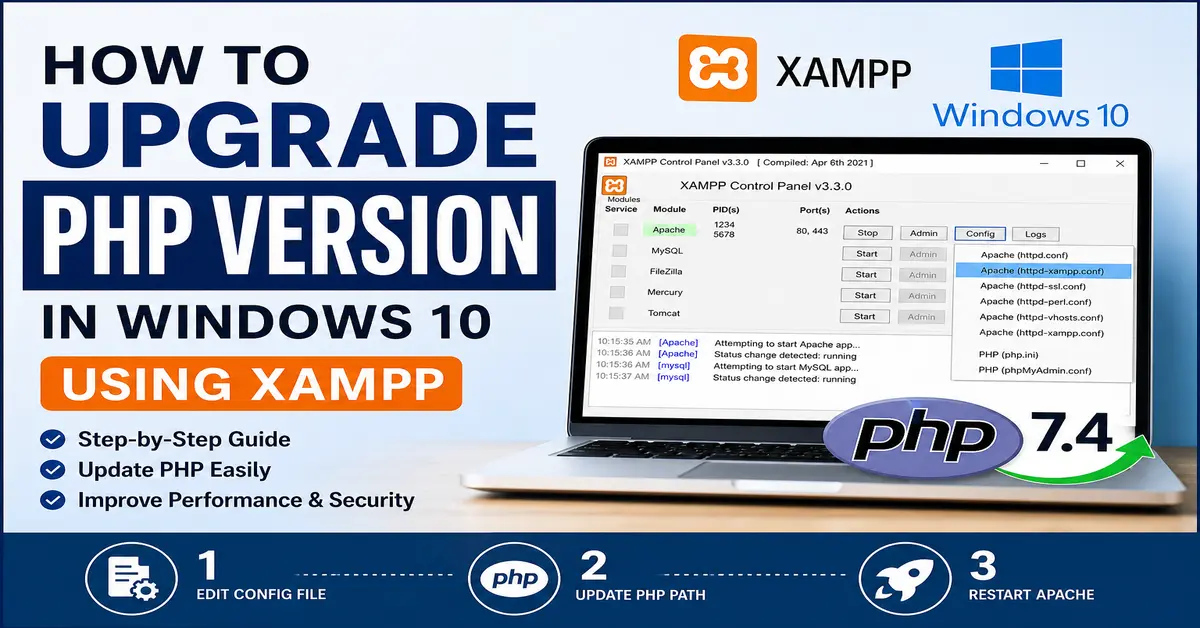
In this article, we will learn how to upgrade the PHP version in Windows 10 using XAMPP.
XAMPP is a complete installation package for the Apache Web Server, MySQL, PHP, Perl, FTP Server, and phpMyAdmin on Linux, Solaris, Windows, and Mac OS X. It also allows you to manage Apache Web Server, MySQL, and PHP.
Despite the fact that XAMPP is constantly updated, it may be necessary to use the latest version of PHP manually until XAMPP includes it in its distribution.
Why Upgrade PHP Version?
- Improves performance and speed
- Enhances security
- Ensures compatibility with latest CMS like Joomla & WordPress
- Fixes bugs and deprecated functions
Before You Upgrade PHP
- Take a backup of your project files
- Backup your database
- Check compatibility with your CMS or extensions
You can also follow the tutorials on How to install XAMPP on Windows 10.
Steps to Upgrade PHP Version in XAMPP
You need to follow the following 6 steps to upgrade the PHP version in Windows 10.
Step 1: Open the XAMPP Control Panel
As seen in screenshot 1, open the XAMPP Control Panel.
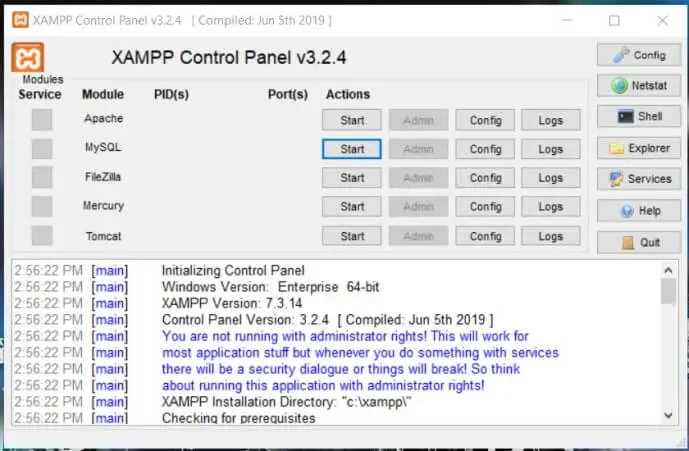
Step 1: Open the XAMPP Control Panel.
Step 2: Open the Apache Configuration Panel
Next to Apache, click the Config button. It will display the setting options as shown in screenshot 2.
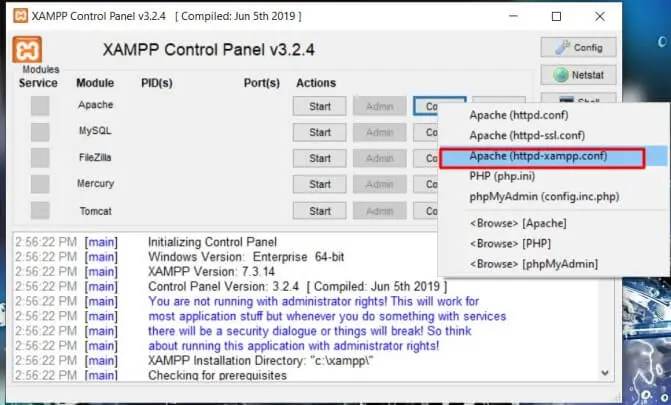
Step 2: Open the Apache Configuration Panel. Next to Apache, click the Config button.
Let See: How to fix Apache not starting on XAMPP
Step 3: Browse to the Config File
Select the Apache (httpd-xampp.conf) option, as shown in screenshot 2. It will open the configuration file, as illustrated in screenshot 3.

Step 3: Browse to the Config File.
Step 4: Modify the PHP Installation Path
In screenshot 3, a few PHP settings are highlighted. While writing this post, the latest version installed was PHP 7.4.0.
As seen in screenshot 4, modify the PHP installation path to point to the new PHP version.
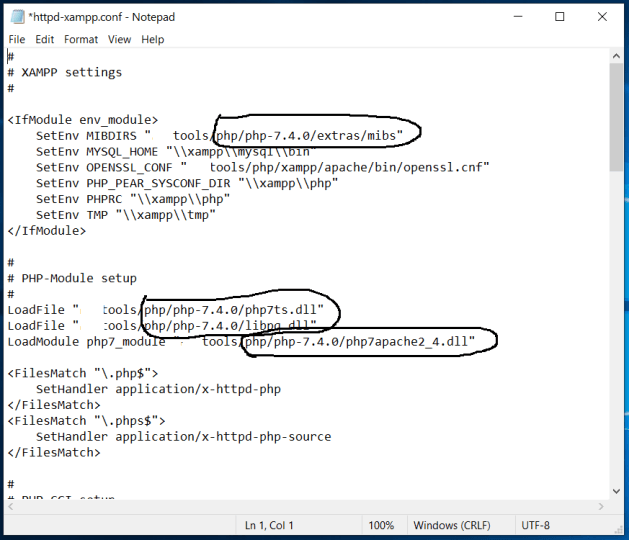
Step 4: Modify the PHP Installation Path
Let See: Which one is better, XAMPP or WAMP
Step 5: Save Configuration and Restart Apache
Save your modifications and start the Apache Web Server.
As illustrated in screenshot 5, it will display the Apache status.
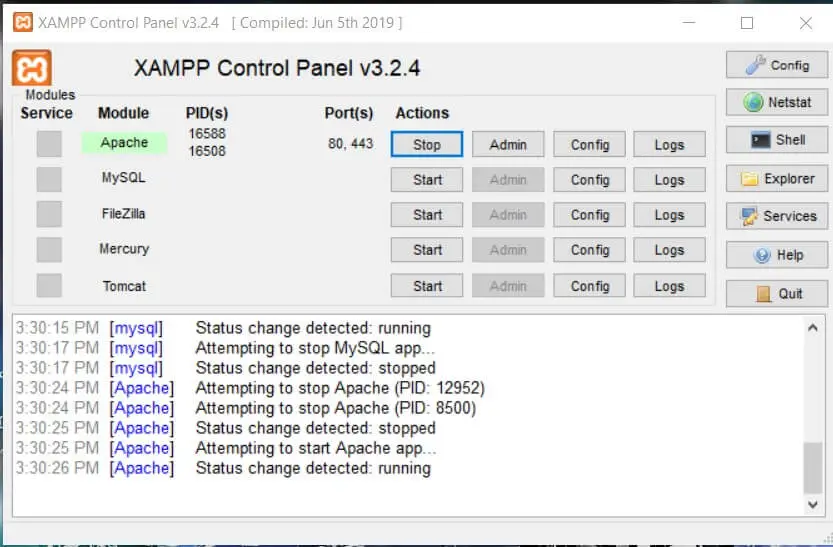
Step 5: Save the configuration and start Apache.
Step 6: Verify PHP Version
In this step, we will check the PHP version that XAMPP is using.
- Open a browser
- Type: http://localhost
- Open XAMPP Dashboard
- Click on PHPInfo
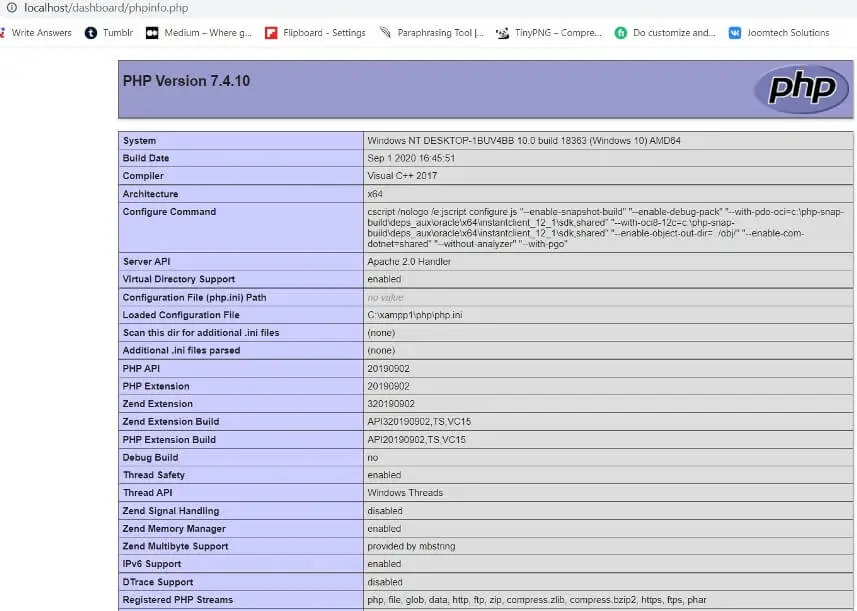
It reflects the updated PHP version as shown in the screenshot.
Common Errors & Fixes
PHP Version Not Changing
- Restart Apache
- Check correct path in
httpd-xampp.conf
Apache Not Starting
Port conflict or incorrect configuration. How to fix Apache not starting on XAMPP
Extensions Missing
- Copy
php.inifrom old version - Enable required extensions (mysqli, openssl, etc.)
Summary
In this guide, we walked through a complete step-by-step process to upgrade the PHP version in Windows 10 using XAMPP.
By updating the Apache configuration file and pointing it to the latest PHP installation, you can easily switch to a newer PHP version without reinstalling XAMPP. Upgrading PHP ensures better performance, improved security, and compatibility with modern applications like Joomla and WordPress. Following the steps carefully—especially updating the configuration path and restarting Apache—will help you avoid common issues. If you encounter any problems, refer to the troubleshooting section or the related guides linked above.
Frequently Asked Questions (FAQ)
1. How do I check my current PHP version in XAMPP?
Open your browser and go to http://localhost, then click on
PHPInfo in the XAMPP dashboard. It will display the currently active PHP version.
2. Why is my PHP version not changing after upgrade?
This usually happens if Apache is not restarted or the configuration file path is incorrect.
Make sure you updated the correct httpd-xampp.conf file and restart Apache.
3. Do I need to reinstall XAMPP to upgrade PHP?
No, you do not need to reinstall XAMPP. You can manually download the latest PHP version
and update the configuration file to use it.
4. What should I do if Apache fails to start after upgrading PHP?
Check for configuration errors, incorrect PHP paths, or port conflicts. You can follow this guide: How to fix Apache not starting on XAMPP.
5. Is it safe to upgrade PHP in XAMPP?
Yes, it is safe as long as you back up your project and database before upgrading.
Also ensure your applications are compatible with the new PHP version.
Stay updated with our latest news, special offers, and exclusive updates directly in your inbox.