
Last Updated on July 31, 2026
Is your computer running slower than it used to? You’re not alone. Many users notice that their PC becomes sluggish after a year or two of regular use. Slow startup times, unresponsive applications, and lagging performance can make even simple tasks frustrating.
If you’re searching for how to make your computer run faster, this guide will help you optimize your Windows PC using practical and proven methods. Most of these tips require no technical expertise and can significantly improve your computer’s speed and overall performance.
You should also read: Top 10 Free Source Code Editors for Developers
Computers slow down for many reasons, including insufficient storage space, too many startup applications, outdated software, malware, and aging hardware. Fortunately, many of these issues can be fixed without replacing your computer.
Why Is My Computer Running Slow?
Before learning how to speed up your computer, it’s important to understand what causes performance issues. Common reasons include:
- Too many startup programs
- Low disk space
- Outdated Windows updates
- Background applications consuming resources
- Malware or unwanted software
- Old hard drives (HDDs)
- Insufficient RAM
The following tips will help improve PC performance and make your computer run faster.
How to Make Your Computer Run Faster
Follow these proven techniques to optimize your computer and improve system performance.
1. Keep Windows and Drivers Updated

Regular updates improve security, fix bugs, and optimize system performance. Microsoft frequently releases updates that enhance stability and speed.
To check for updates:
- Open Settings.
- Select Windows Update.
- Click Check for Updates.
Also update device drivers, especially graphics, chipset, and storage drivers, for better performance.
Keeping Windows Update is one of the easiest ways to improve security and performance. Microsoft regularly releases updates that fix bugs, improve stability, and optimize system resources. You can learn more about Windows updates from the official Microsoft documentation.
2. Restart Your Computer Regularly
Many users keep their computers in Sleep mode for weeks. While convenient, this can cause memory usage to accumulate and slow down performance.
Restarting your computer:
- Clears temporary files
- Resets background processes
- Frees system memory
- Applies pending updates
For optimal performance, restart your PC at least a few times each week.
Related: Everyone Should Know These Simple Computer Tips and Tricks
3. Uninstall Programs You No Longer Use
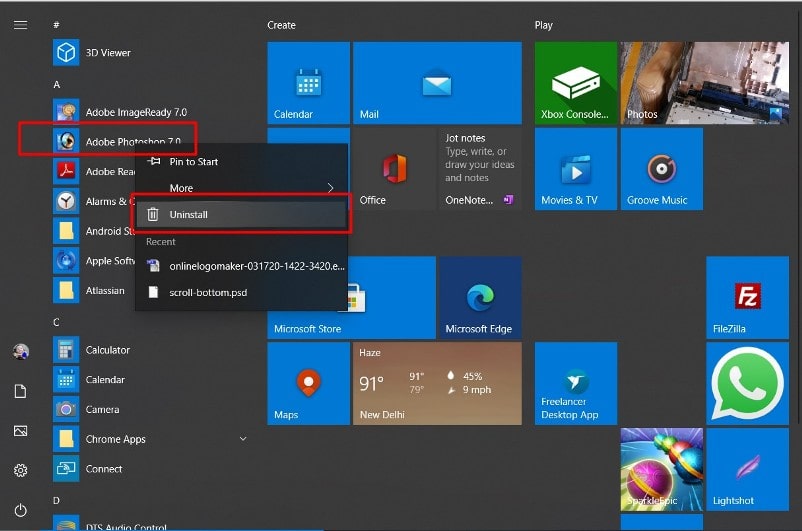
Unused applications consume storage space and sometimes continue running background services.
To remove unnecessary software:
- Open Settings → Apps → Installed Apps.
- Sort applications by size or last used date.
- Remove software you no longer need.
Cleaning up unused applications can free valuable resources and improve computer speed.
4. Delete Temporary and Unnecessary Files

Low disk space is one of the most common reasons a computer becomes slow.
Windows Storage Sense automatically removes temporary files and helps keep your storage optimized. This built-in feature can free up disk space and improve system responsiveness.
You can free storage by removing:
- Temporary files
- Downloads you no longer need
- Duplicate files
- Old videos and images
- Unused installers
Windows Storage Sense can automatically clean temporary files and optimize storage usage.
Related: How to Upgrade PHP Version in Windows
5. Disable Unnecessary Startup Programs

Many applications automatically launch when Windows starts, increasing boot time and consuming memory.
To disable startup applications:
- Press Ctrl + Shift + Esc to open Task Manager.
- Select the Startup Apps tab.
- Disable applications you don’t need immediately after startup.
This simple adjustment can dramatically improve startup speed.
6. Scan for Malware and Viruses
Malware can consume system resources and significantly slow down your computer.
Run a full scan using:
- Microsoft Defender
- Malwarebytes
- Other trusted antivirus software
Keeping your system free from malware helps maintain optimal performance.
7. Upgrade from HDD to SSD
If your computer still uses a traditional hard disk drive (HDD), upgrading to a Solid State Drive (SSD) is one of the biggest performance improvements you can make.
Benefits of SSDs include:
- Faster boot times
- Quicker application loading
- Improved file transfers
- Better overall responsiveness
An SSD upgrade often makes an older computer feel like a new machine.
8. Add More RAM
If you regularly use multiple applications, browser tabs, or productivity software, increasing RAM can improve multitasking performance.
Recommended RAM:
- 8 GB – Basic users
- 16 GB – Most users
- 32 GB+ – Professional workloads
9. Optimize Browser Performance
Web browsers often consume significant system resources.
Improve browser speed by:
- Removing unused extensions
- Closing unnecessary tabs
- Clearing browser cache
- Updating the browser regularly
10. Use Windows Storage Sense
Windows 10 and Windows 11 include Storage Sense, which automatically removes temporary files and helps maintain available disk space.
Enable it by going to:
Settings → System → Storage → Storage Sense
This feature helps keep your system optimized with minimal effort.
When Should You Replace Your Computer?
If your PC is more than 7–10 years old, has outdated hardware, or cannot support modern software requirements, upgrading hardware or purchasing a new computer may be more cost-effective than extensive optimization.
However, many computers can gain several more years of useful life by applying the optimization techniques described above.
Conclusion
If you’ve been wondering how to make your computer run faster, the good news is that many performance issues can be fixed without spending money. Regular maintenance, software cleanup, storage optimization, and hardware upgrades such as SSDs and additional RAM can dramatically improve system speed.
By following these recommendations, you can keep your computer running smoothly, reduce frustration, and extend its lifespan for years to come.
You may also like: Which One Is Better: XAMPP or WAMP?
Frequently Asked Questions
Why is my computer running so slow?
Common reasons include low storage space, too many startup programs, outdated software, malware, and aging hardware.
How can I speed up my computer for free?
You can speed up your computer by removing unnecessary files, disabling startup apps, updating Windows, and uninstalling unused programs.
Will adding RAM make my computer faster?
Yes. Additional RAM improves multitasking performance and helps applications run more smoothly.
Is an SSD better than an HDD?
Yes. SSDs provide much faster boot times, application loading, and overall system responsiveness compared to traditional HDDs.
How often should I restart my computer?
Restarting your computer several times per week helps clear temporary data and improves performance.
Stay updated with our latest news, special offers, and exclusive updates directly in your inbox.