Last Updated on August 15, 2026
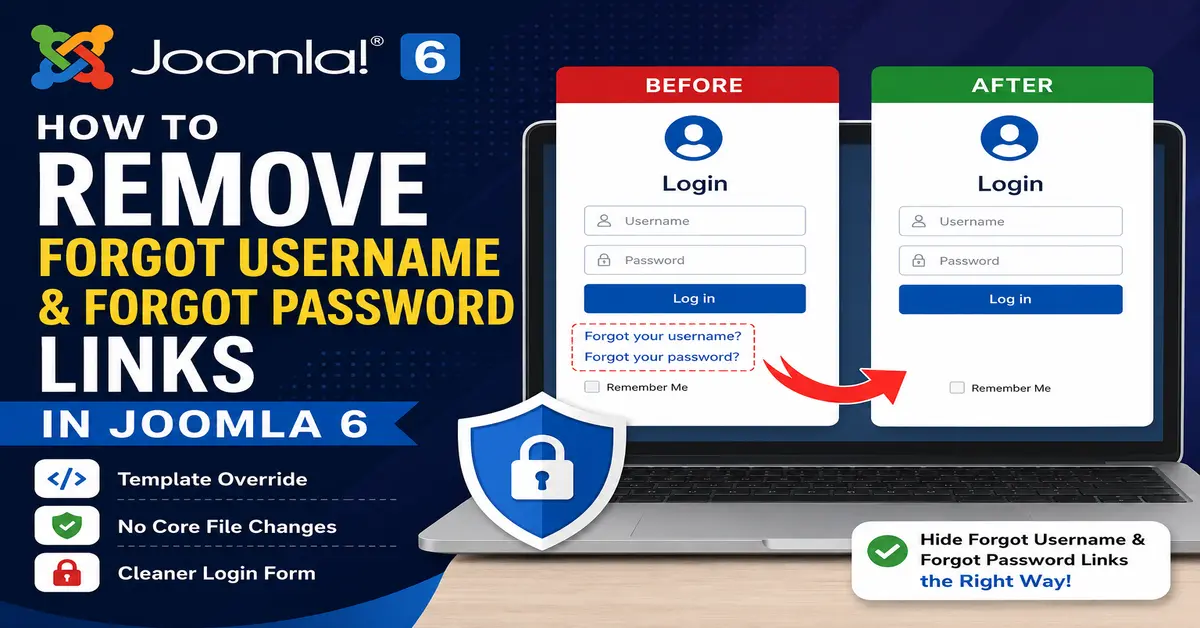
If your Joomla website uses a login form, you may want to hide the Forgot Username and Forgot Password links for a particular type of website or user workflow. For example, a private website may not want visitors to use the standard account-recovery options from the frontend login form.
In this tutorial, you will learn how to remove the Forgot Password and Forgot Username links in Joomla 6 using template overrides. The same approach can be used when you need to customize the output of Joomla’s core login screens without modifying Joomla’s core files.
Joomla uses both the user login component and the Login Form module to provide frontend login functionality. Therefore, if you want to remove these links completely from both locations, you need to customize both outputs.
The Joomla Login Form is provided through the site’s login functionality and can be displayed as a module. If you want to understand how Joomla modules are created and configured before customizing the login form, see our guide on how to create a Joomla module.
Why Remove the Forgot Username and Forgot Password Links?
Joomla provides account-recovery links as part of its normal authentication workflow. However, there are situations where an administrator may want to hide these links from the frontend login interface.
For example, you may be building a private membership website, an internal application, or a website where user accounts are managed manually by an administrator.
Keep in mind that hiding the links does not necessarily disable Joomla’s password-recovery functionality. It only removes the links from the login interface. If you need to completely change or disable account recovery, that requires a different configuration or development approach.
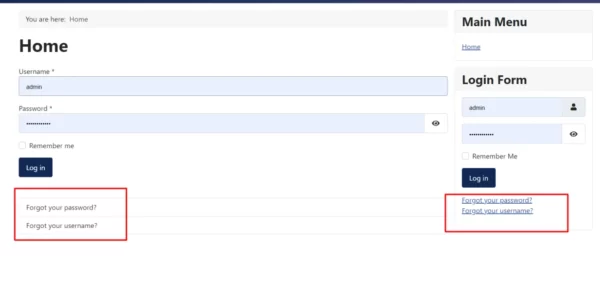
Where Are the Forgot Username and Forgot Password Links Displayed?
You can normally encounter these links in two frontend login interfaces:
- The Joomla user login component.
- The Joomla Login Form module.
Because these are different Joomla extensions, their output is controlled by different template files. We will create template overrides for both instead of modifying Joomla’s core files.
How to Remove Forgot Username and Forgot Password from the Joomla Login Component
Step 1: Open the Site Template
Log in to the Joomla Administrator and go to:
System → Site Templates

You will see the site templates installed on your Joomla website. Select the template that is currently being used as the default site template.
Step 2: Open the Template Details and Files
For example, Joomla installations commonly use the Cassiopeia site template. Select your active template to open its template details and files.
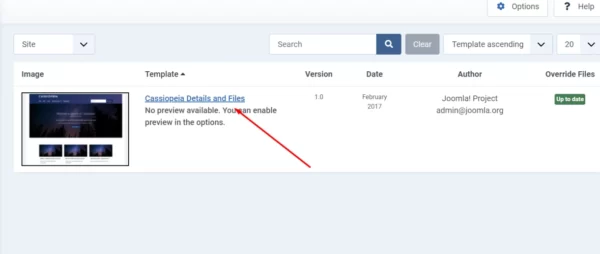
Do not edit Joomla’s original extension files directly. A template override keeps your customization separate from the core extension files and helps prevent your changes from being lost during Joomla updates.
Step 3: Create a User Component Override
Open the Create Overrides tab.

Under the Components section, find and select:
com_usersThis creates an override for the Joomla Users component.
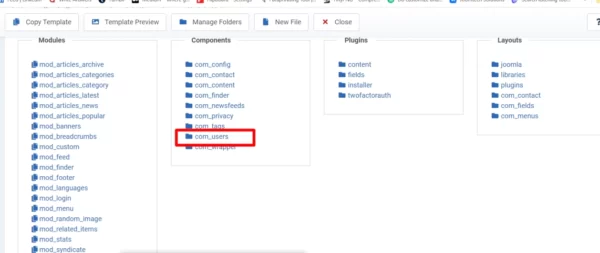
Because this customization changes the HTML generated by Joomla, the recommended approach is to use a template override instead of editing Joomla core files. If you are new to overrides, follow our tutorial on how to create a Joomla template override before making these changes.
Step 4: Select the Login Layout
Open the login view and select its layout to create the override.
The resulting override will be placed within your active template’s HTML override structure rather than changing the original Joomla component files.

Once the override has been created, Joomla will copy the required layout file into your template’s override area.
Step 5: Open the Login Override File
Open the template editor and navigate to the newly created com_users login override.
You should see the login layout files provided by the override.
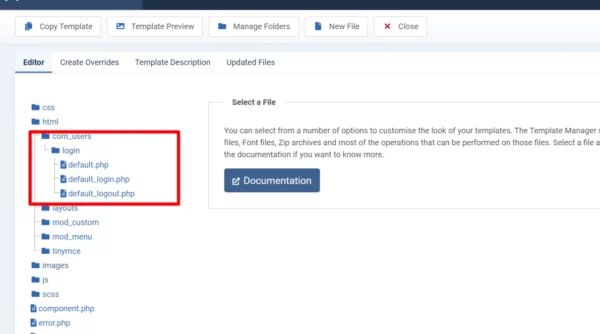
In the original tutorial, the login layout file was edited to comment out the HTML responsible for the two links. The exact markup can vary between Joomla releases and templates, so do not blindly copy old code from a Joomla 4 installation into Joomla 6.
Instead, inspect the current override generated from your Joomla 6 installation and remove or comment out the markup that outputs the Forgot Username and Forgot Password links.
Step 6: Edit the Login Layout
Select the login layout file created by the override.
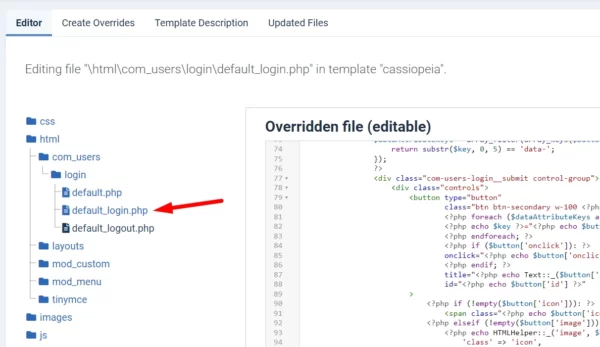
Locate the HTML/PHP markup that outputs the forgotten username and password links.
Comment out or remove only the relevant link markup, then save the override.
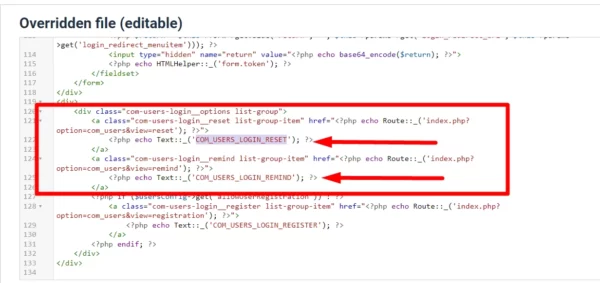
After saving the override, clear the Joomla cache if necessary and reload the frontend login page.
The two recovery links should no longer be displayed in the customized login layout.
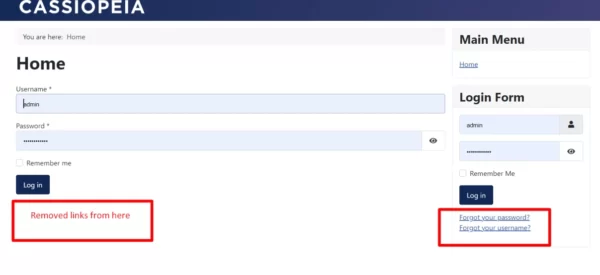
Forgot Username and Forgot Password links removed
How to Remove Forgot Username and Forgot Password from the Joomla Login Module
The Joomla Login Form module uses a separate layout. Therefore, removing the links from the user component does not automatically remove them from the Login Form module.
The module is based on mod_login, so we need to create a template override for this module as well.
The Joomla Login Form module provides the username and password login interface for site visitors. Its settings can be managed from the Joomla Administrator, including its menu assignment and other module options. For additional information about the Login Form module, see the official Joomla Login Form module documentation.
Step 1: Open the Site Template
In Joomla Administrator, go to:
System → Site Templates
Open the active site template.
Step 2: Create an Override for mod_login
Select the Create Overrides tab and find the Login module under the Modules section.
Select:
mod_loginJoomla will create an override for the Login Form module inside your template’s HTML override directory.
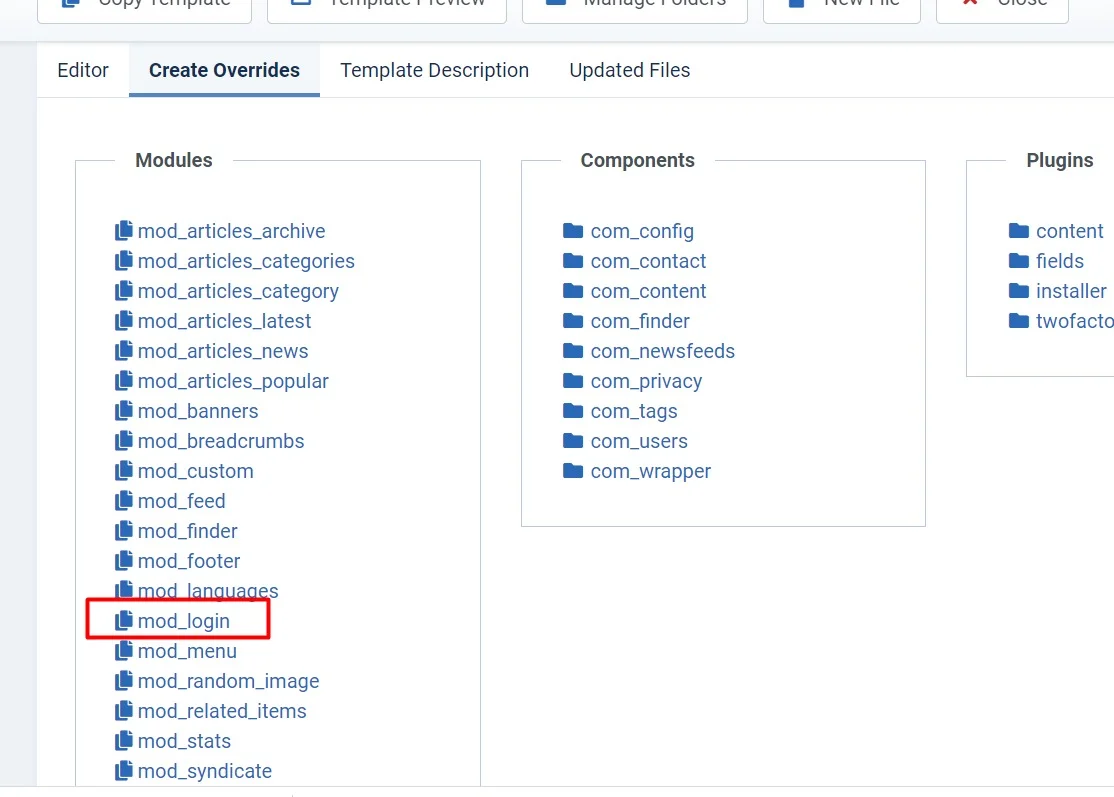 Create the Login module override
Step 3: Open the Login Module Layout
Open the template editor and navigate to:
html → mod_login → default.phpThis is the override of the Login Form module’s default frontend layout.
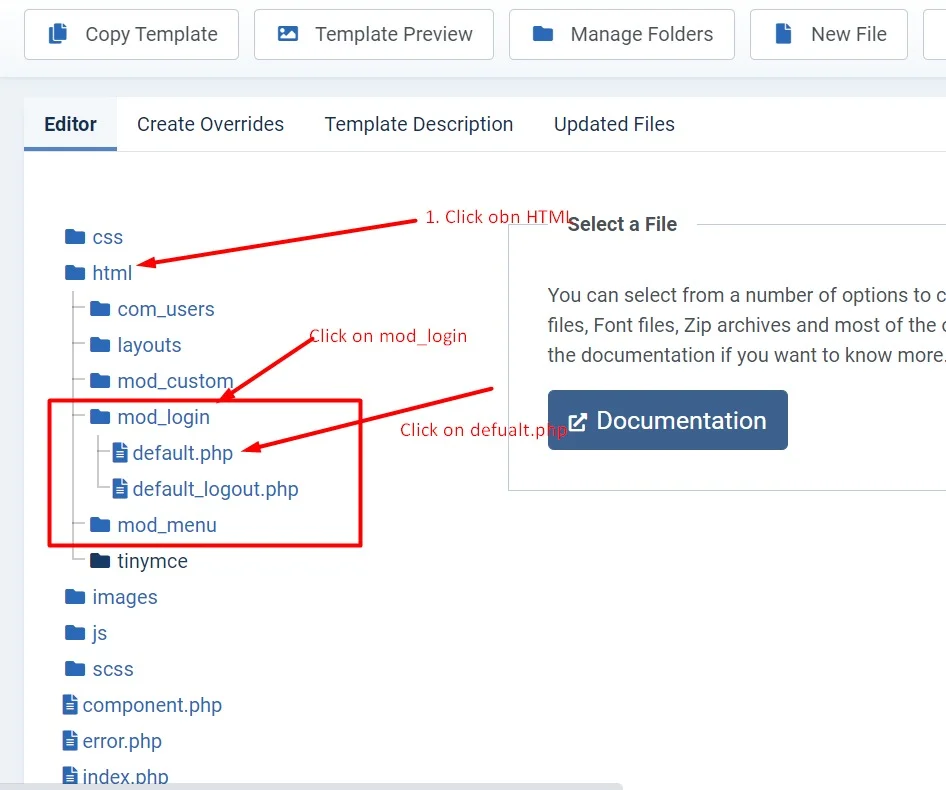 Edit the mod_login default.php override
The Login Form module uses the mod_login module type. Joomla supports creating a template override for this module, allowing you to customize its frontend output while keeping the original module files unchanged. The official documentation provides an example of creating a mod_login override from System → Site Templates. See the Joomla template layouts and overrides guide for more information.
Step 4: Remove the Recovery Links
Open default.php and locate the markup that generates the forgotten username and password links.
Remove or comment out only the relevant markup and leave the rest of the Login Form module intact.
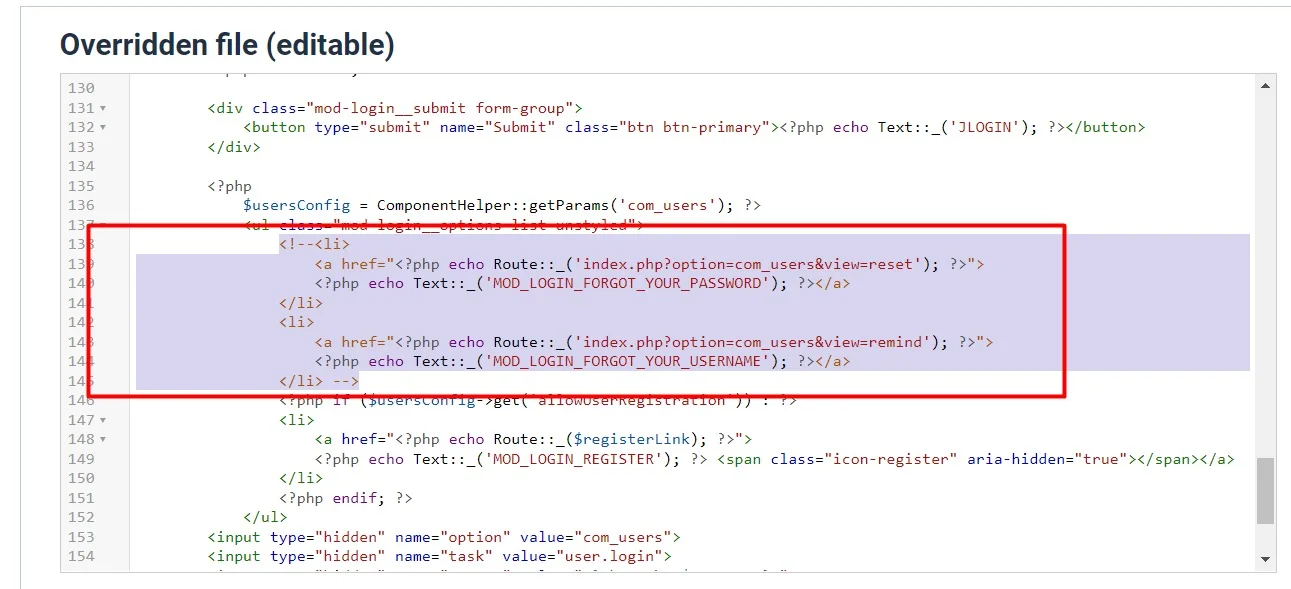 Comment out the recovery link code
Save the override and open a page containing the Login Form module.
Step 5: Check the Frontend Login Module
Refresh the frontend page and check the login form.
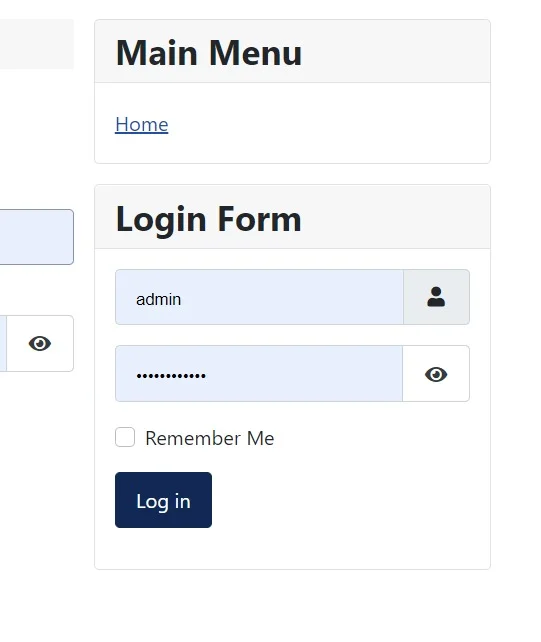 Login Form without recovery links
The Forgot Username and Forgot Password links should now be hidden from the Login Form module.
The Login Form module can be assigned to a specific location provided by your site’s template. If you need to identify the available locations before configuring the module, see our guide on how to check Joomla module positions in Joomla 6.
Why Use a Template Override Instead of Editing Joomla Core Files?
Editing files directly inside Joomla’s core components or modules is not recommended. Core files can be replaced when Joomla is updated, which means your customization could be lost.
A template override provides a separate copy of the layout that Joomla uses instead of the original extension layout. This allows you to customize the frontend output without changing the core extension files. Joomla’s documentation specifically describes template overrides as a way to customize extension output while keeping the original extension files untouched.
Template overrides are designed to let you customize the HTML output of Joomla extensions without changing the original extension files. Joomla’s documentation explains how overrides work and how they are stored inside the active template’s html directory. You can read the official guide to understanding Joomla output overrides for more details.
For example, the Login Form module can use an override similar to:
/templates/your-template/html/mod_login/default.phpThe exact template directory depends on the site template you are using.
Important: Test Your Override After Joomla Updates
A template override is independent from the original extension file, but Joomla can change its underlying layout markup between major or minor releases. Therefore, after updating Joomla, test your customized login pages carefully.
If the Login Form or user login page changes after an update, compare your override with the current Joomla layout and adjust it if necessary.
This is one reason why you should keep template overrides as small and focused as possible. Removing only the markup you need is generally easier to maintain than copying and heavily modifying an entire layout.
If you are working on a new Joomla website or changing its frontend design, the active template determines where your template overrides are stored and applied. If you are setting up a template for your site, you can also learn how to install a Joomla template on localhost before customizing its layouts.
What If I Want to Disable Password Recovery Completely?
Removing the links from the login interface is not the same as disabling Joomla’s password-recovery functionality.
If you only want visitors to stop seeing the links, a template override is appropriate. If you need to prevent password-reset requests altogether, you should evaluate the site’s authentication and user-management requirements before changing the underlying functionality.
For a private or administrator-managed website, consider whether users still need a recovery method before removing these options. Hiding the links without providing another recovery process can make account recovery more difficult.
Common Problems After Removing the Links
The Links Are Still Visible
If the links are still visible, check whether you are viewing the user component or the Login Form module. They use different layouts, so you may need to create an override for both.
The Override Does Not Appear to Work
Make sure the template containing the override is the active site template for the page you are testing. Also clear Joomla’s cache and your browser cache before testing again.
The Login Module Still Shows the Links
Check that you created the mod_login override and edited the correct default.php file. The Login Form module is separate from the com_users login component.
The Login Page Looks Broken
If the page becomes broken after editing the override, restore the last working version of the override and make the changes again carefully. Avoid deleting surrounding PHP logic or HTML that is required by the login form.
Conclusion
Removing the Forgot Username and Forgot Password links from Joomla 6 is possible without modifying Joomla’s core files. The recommended approach is to use template overrides for the user login component and the mod_login module.
The important part is to remember that the two login interfaces are separate. If you want the links removed from both, customize both layouts and then test the frontend carefully.
Using template overrides also makes your customization easier to maintain than directly editing Joomla core files. However, always review your overrides after Joomla updates because the original extension markup can change.
Frequently Asked Questions
How do I remove the Forgot Password link in Joomla 6?
You can remove the Forgot Password link from the frontend login interface by creating a template override for the relevant Joomla login layout and removing the markup that generates the link. If the Login Form module is also used, create a mod_login override as well.
How do I remove the Forgot Username link in Joomla?
Create a template override for the Joomla user login layout or Login Form module, depending on where the link appears, and remove the markup that generates the Forgot Username link.
Should I edit Joomla core files to remove these links?
No. It is better to use a template override. Directly modifying Joomla core files can cause your changes to be overwritten during updates. Joomla documentation recommends template overrides for customizing extension output.
Does hiding the Forgot Password link disable password recovery?
No. Hiding the link only removes it from the visible login interface. It does not automatically disable the underlying password-recovery functionality.
Why are the links still showing after creating an override?
Check whether the links are coming from the user component or the Login Form module. These use different layouts. Also confirm that your override belongs to the active site template and clear Joomla and browser caches before testing again.
Stay updated with our latest news, special offers, and exclusive updates directly in your inbox.