Last Updated on August 20, 2026
When you publish a long tutorial, guide, or detailed blog post on your WordPress website, helping readers find the information they need quickly is just as important as creating great content. A Table of Contents (TOC) can make long articles easier to scan and navigate by giving visitors clickable links to the main sections of the page.
In this guide, you will learn how to add a Table of Contents in WordPress using modern WordPress tools and a popular plugin. We will also explain how a Table of Contents works, when to use one, and how to structure your headings for a better reading experience.
If you are still building your website, you may also want to read our guide on how to create a website using WordPress.
What Is a Table of Contents in WordPress?
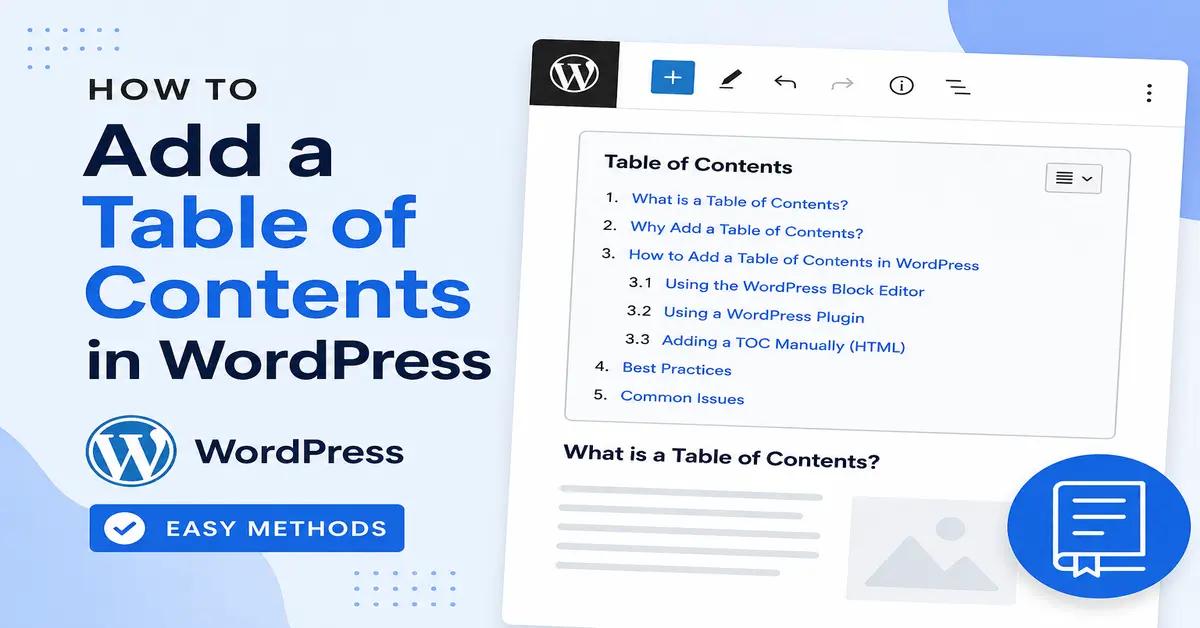
A Table of Contents in WordPress is a navigational list that displays the main headings and subheadings of an article. Each item in the list links to a specific section of the page, allowing visitors to jump directly to the information they want to read.
For example, if you publish a 3,000-word WordPress tutorial containing sections such as installation, configuration, customization, troubleshooting, and frequently asked questions, a Table of Contents can display those sections near the beginning of the article.
When a visitor clicks a TOC link, the browser moves directly to the corresponding heading instead of requiring the reader to scroll through the entire article.
This is particularly useful for long-form content such as:
- WordPress tutorials
- Step-by-step guides
- How-to articles
- Product documentation
- Technical tutorials
- Long-form educational content
- Frequently updated reference articles
Why Should You Add a Table of Contents to WordPress?
A Table of Contents is not required for every WordPress post. However, when an article contains multiple meaningful sections, it can significantly improve navigation and usability.
Improve Content Navigation
Readers do not always want to read an entire article from beginning to end. Some visitors arrive with a specific question and want to find the relevant section immediately.
A clickable Table of Contents gives them a quick overview of the article and lets them jump to the section they need.
Make Long Articles Easier to Scan
Large blocks of text can be difficult to navigate, especially on mobile devices. A well-structured Table of Contents gives readers a visual overview before they start reading.
It also encourages you to organize your article using descriptive headings instead of creating one long page of unstructured text.
Improve Accessibility
Clear headings and logical navigation can make long-form content easier to understand and navigate. A properly structured document is especially helpful for people who use assistive technologies such as screen readers.
However, simply adding a TOC does not automatically make a page accessible. You should also use headings in a logical hierarchy and write descriptive heading text.
Can a Table of Contents Improve SEO?
A Table of Contents can support SEO indirectly by improving the structure and usability of long-form content. It can make important sections easier for users to discover and can help organize the page around meaningful headings.
However, adding a TOC is not a guaranteed ranking factor. Search engines evaluate many signals when determining search rankings, so your primary focus should remain on creating useful, original, well-structured content that satisfies the reader’s search intent.
How to Structure WordPress Headings Before Adding a TOC
Before adding a Table of Contents, make sure your article uses headings correctly. Most automatic TOC tools generate their links by reading the headings in your content.
Use your main article title as the page’s H1 heading. Then use H2 headings for major sections and H3 headings for subsections within those sections.
A simple structure might look like this:
- H1: How to Add a Table of Contents in WordPress
- H2: What Is a Table of Contents?
- H2: Why Add a Table of Contents?
- H2: How to Add a Table of Contents
- H3: Using the WordPress Block Editor
- H3: Using a WordPress Plugin
- H2: Best Practices
- H2: Frequently Asked Questions
Avoid choosing headings simply because they contain keywords. Headings should describe the content that follows them and make sense to human readers.
Adding a table of contents is one of the easiest ways to improve navigation on long WordPress articles. If you are still setting up your WordPress website, you can also learn How to Create a Website Using WordPress to understand the essential steps for creating and organizing your site. A well-structured website with clear headings, internal links, and a table of contents can make your content easier for visitors to navigate and discover.
How to Add a Table of Contents in WordPress
There are several ways to add a Table of Contents to a WordPress website. The best option depends on your WordPress setup, theme, and the amount of control you want over the TOC.
For most website owners, the easiest approaches are using the WordPress Block Editor or a dedicated Table of Contents plugin.
Method 1: Use the WordPress Table of Contents Block
Recent WordPress versions include a Table of Contents block in the Block Editor. The block can create a list from the headings used in your content and link the entries to the relevant sections.
To try the built-in block:
- Log in to your WordPress dashboard.
- Go to Posts or Pages.
- Open an existing article or create a new one.
- Make sure your content uses proper H2 and H3 headings.
- Click the + button to add a new block.
- Search for Table of Contents.
- Select the Table of Contents block if it is available in your WordPress installation.
- Place the block where you want the TOC to appear.
- Preview the article and check that the links point to the correct sections.
The WordPress developer documentation currently lists the Table of Contents block as core/table-of-contents. It is documented as an experimental block, so its availability and behavior may change between WordPress releases.
If the block is not available on your website, use a dedicated TOC plugin instead.
Method 2: Add a Table of Contents Using Easy Table of Contents
A dedicated plugin is a practical option if you want automatic TOC generation, additional configuration options, or support for different post types.
Easy Table of Contents is one example. The plugin can automatically generate a Table of Contents by detecting headings in posts and pages, and it currently has more than 600,000 active installations in the WordPress plugin directory.
Step 1: Install the Plugin
- Log in to your WordPress administration dashboard.
- Go to Plugins > Add New Plugin.
- Search for Easy Table of Contents.
- Locate the plugin from the WordPress plugin directory.
- Click Install Now.
- After installation finishes, click Activate.
Always check the plugin’s current compatibility information, update history, reviews, and active installations before installing any third-party WordPress plugin.
Step 2: Configure the Table of Contents
After activating the plugin, open its settings from the WordPress dashboard. The exact location and available options can change as the plugin is updated.
Depending on the plugin version, you may be able to configure options such as:
- Which post types should display a TOC
- Which heading levels should be included
- Where the TOC should appear
- Whether the TOC should be displayed automatically
- Whether the TOC can be collapsed
- The appearance and styling of the TOC
- Anchor link behavior
For most articles, including H2 and H3 headings is a good starting point. Including every heading level can make the TOC unnecessarily long and difficult to scan.
Step 3: Use Proper Headings in Your Article
Open the WordPress post where you want to display the Table of Contents.
Use the WordPress Heading block for your section headings. For example, use H2 for major sections and H3 for subsections.
Do not use bold text or a larger font size as a replacement for semantic headings. A visual heading and an actual HTML heading are not the same thing.
Step 4: Place and Check the Table of Contents
Depending on your plugin configuration, the TOC may be inserted automatically or through a block or shortcode provided by the plugin.
After adding it, preview the article and click several TOC links. Make sure each link takes the reader to the correct section.
Also test the TOC on a mobile device because a navigation box that looks good on desktop may become difficult to use on a smaller screen.
Can You Add a Table of Contents Without a Plugin?
Yes. You can create a manual Table of Contents without installing a plugin by adding HTML anchor links to your headings and linking to those anchors.
For example, a heading can have an ID such as:
<h2 id="wordpress-toc">How to Add a Table of Contents in WordPress</h2>You could then link to it using:
<a href="#wordpress-toc">How to Add a Table of Contents in WordPress</a>This approach gives you complete control, but it requires more manual work. If you frequently publish long articles, an automatic TOC block or plugin is usually more convenient.
What About Shortcode-Based Table of Contents?
Some WordPress Table of Contents plugins support shortcodes. A shortcode allows you to insert a dynamic element into a post by placing a shortcode in the editor.
However, you should not choose a plugin simply because it provides a shortcode. Modern WordPress sites can use blocks and automatic heading detection, so the most appropriate solution depends on your workflow and the plugin’s current features.
If you already use a shortcode-based TOC plugin, check that the plugin is actively maintained and compatible with your current WordPress version before continuing to rely on it.
Best Practices for a WordPress Table of Contents
Use a TOC Only When It Adds Value
A Table of Contents is most useful for long or multi-section content. Adding one to a short 500-word article with only two headings can make the page feel unnecessarily complicated.
Keep the Heading Structure Logical
Use headings to organize the article rather than to manipulate SEO. A reader should be able to understand the structure of the article by looking only at its headings.
Keep the TOC Easy to Scan
Do not include every minor heading if doing so creates a huge navigation list. In many cases, H2 and H3 headings provide enough detail.
Test Every TOC Link
After making significant changes to an article, check the TOC links. Changing headings or their anchor IDs can sometimes affect navigation.
Check Mobile Display
Long TOCs can occupy a large amount of space on mobile devices. Make sure the navigation remains readable and does not interfere with the main content.
Do Not Expect a TOC to Fix Poor Content
A Table of Contents improves navigation, but it cannot replace useful content. Focus first on answering the reader’s question clearly and completely. Then use a TOC to make that content easier to navigate.
Common Problems With WordPress Table of Contents
For more information about structuring content with headings and improving the accessibility of your WordPress pages, it is useful to follow the official WordPress documentation. The WordPress Block Editor supports heading blocks that help you organize your content into a clear hierarchy, which is especially important when creating a table of contents for long articles.
TOC Is Not Showing
Check whether your article contains supported heading elements. Also review the plugin’s settings to make sure the current post type and heading levels are enabled.
Some Headings Are Missing
The TOC may be configured to include only certain heading levels. For example, if the plugin is configured for H2 and H3, an H4 heading may not appear.
TOC Links Go to the Wrong Section
Inspect the heading structure and anchor IDs. Duplicate IDs or manually edited anchor values can cause navigation problems.
The TOC Looks Bad on Mobile
Review the plugin’s responsive settings or adjust its CSS carefully. Avoid making the TOC so large that it pushes the main content far below the beginning of the article.
Does a Table of Contents Help Google Understand Your Content?
A well-structured article can make your content easier for both users and search engines to understand. A TOC itself should not be treated as an SEO shortcut, but it can reinforce the logical structure of a long article by linking readers to clearly defined sections.
More importantly, use meaningful HTML headings, descriptive text, internal links, and a logical content hierarchy. These practices help create a better page for people first, which should be the primary goal of your SEO strategy.
Conclusion
Adding a Table of Contents in WordPress is a simple way to make long articles easier to navigate. It gives readers a quick overview of your content and allows them to jump directly to the sections that matter to them.
For a modern WordPress website, you can use the available Table of Contents block in the Block Editor or choose a maintained TOC plugin such as Easy Table of Contents when you need additional automatic features and configuration options. The WordPress core TOC block is currently documented as experimental, so check its availability in your WordPress installation before relying on it for a production workflow.
Whichever method you choose, focus on creating a logical heading structure, keeping the navigation easy to scan, and testing the TOC on both desktop and mobile devices.
Frequently Asked Questions About Table of Contents in WordPress
What is a Table of Contents in WordPress?
A Table of Contents in WordPress is a list of clickable links that point to the headings and sections within a post or page. It helps readers navigate long-form content more quickly.
How do I add a Table of Contents in WordPress?
You can add a Table of Contents using the WordPress Block Editor if the Table of Contents block is available, or you can install a dedicated TOC plugin such as Easy Table of Contents.
Is a Table of Contents good for SEO?
A Table of Contents can improve navigation and make long content easier to use, but it is not a guaranteed ranking factor. Good content, clear structure, useful headings, and satisfying search intent remain more important.
Can I add a Table of Contents without a plugin?
Yes. You can create a manual TOC using HTML anchor IDs and links. However, this requires more maintenance than an automatic TOC solution.
Which headings should I include in a WordPress Table of Contents?
For most long articles, H2 and H3 headings provide a useful balance between detail and readability. Avoid including every small heading if it makes the Table of Contents unnecessarily long.
Stay updated with our latest news, special offers, and exclusive updates directly in your inbox.